
If your Windows computer update section displays a message after you sign-in— We removed some recently installed updates to recover your device from a startup failure, then its because your Windows 11/10 device has recently recovered from a startup failure. This occurs when there is a hardware issue, file corruption, or incompatible third-party software. In this post, I will show you how to resolve this problem and manually install drivers and updates.
Windows now automatically uninstalls problematic Updates
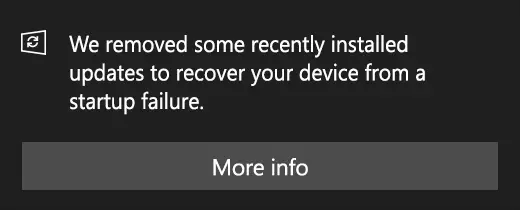
Microsoft has said that Windows 11 and Windows 10 will start removing installed Windows Updates that cause problems in starting or running your device at peak efficiency. Windows Updates that fail due to software incompatibilities will get automatically uninstalled. After your computer has recovered from a startup failure, you may see this notification in the bottom right corner of your computer screen:
We removed some recently installed updates to recover your device from a startup failure.
When Windows detects this issue, it will resolve it by attempting to uninstall the problematic update. Once the update has been uninstalled, Windows will also prevent such problematic updates from reinstalling automatically for the next 30 days. After this period, it will again attempt to automatically install the update. This 30-day period will give Microsoft and its partners the opportunity to investigate the failure and update the fixes, according to KB4492307.
We removed some recently installed updates to recover your device from a startup failure
Why does the Windows Update system choose to remove some of the installed updates?
During a startup, If Windows detects that it was not successful, then it starts troubleshooting on its own. It will resolve failures due to disk issues, system file corruption, invalid registry keys, or other such causes. If the automated troubleshooting is unsuccessful and the machine does not startup successfully, then Windows will determine if the startup issue was introduced after a recent driver or quality updates were installed. If that’s the case, then those updates will be uninstalled automatically so that Windows can return to its normal working state.
If removing updates and drives makes Windows start normally, then it takes another precautionary measure. Windows will prevent the removed updates from installing automatically for the next 30 days. Since Microsoft sends back diagnostic data for such failures, it provides Microsoft and its partners with the opportunity to investigate the issue and resolve any problems. After 30 days, if the updates are still applicable, Windows will attempt to reinstall them.
How to manually install Windows updates and drivers
When manually installing quality updates and drivers, ensure that you do it one at a time. It gives you the chance to identify a specific update that was causing the problem. If your device is unable to start up properly after automatic or manual installation of these updates, Windows will uninstall them again automatically.
1] Advanced manual installation
To install quality updates:
- Open Windows Update Catalog
- Search for updates from the Windows Update Catalog
- Download and install the update.
2] Update drivers in Windows 11/10
If you believe that you have the right set of drivers, and they work fine, then we suggest you install or update the driver manually.
Both of these methods will help you reinstall the updates that Windows Update forcibly removed.
I hope this explains why you may have seen this notification.
How do I delete recently installed updates?
To delete recently installed updates, open the Windows Settings by pressing Win+I. Then, go to Windows Update and click on the Update history option. Here you can find all the updates. To uninstall the update, click the Uninstall updates option, select the update, and then click the Uninstall button to remove it.
What will happen if I uninstall the latest feature update?
Windows 11/10 doesn’t do anything critical if you manually uninstall the latest feature update. However, when you check for available updates, you will be able to install the pending one again. The same principle applies to both Windows 11 and Windows 10.
Read next: Should you manually Check for Updates or wait for them to be offered to you?
