
We have seen people asking about this “My Documents” folder. I remember when using Windows XP and Windows 7, this used to be the folder where we kept all our documents. The other side of the question could be that you are looking where you saved your documents in Windows 11/10. In this post meant for beginners, we will answer the questions Where are “My Documents” in Windows 11 from both points.
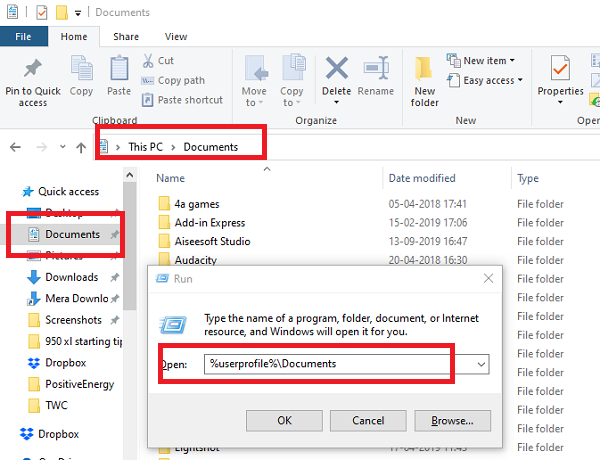
Where are My Documents in Windows 11/10
You should know that My Documents folder is now called as Documents folder. Just like in Windows 7, it is the default save location for documents like text files, or any Microsoft Office files.
How to open Documents folder in Windows 11?
1] Accessing it via File Explorer
- Open File Explorer (earlier called Windows Explorer) by clicking on the Folder looking icon on the Taskbar.
- Under Quick access on the left side, there must be a folder named Documents.
- Click on it, and it will show all the documents you had earlier or have saved recently.
2] Using Run prompt
If you cannot see it by this method, then, in the Run prompt, type %userprofile%\Documents and hit the Enter key. It will open the Documents folder.
3] Using Start Menu
Click on the Start menu, and look for a file-looking icon on the left side. When you hover the mouse pointer over it, the name will be revealed as “Documents.” Click to open it.
Where is the Documents folder located?

Did the admin change the location of the Documents folder? If that’s the case, then follow this method:
- Right-click on the File Explorer icon on the taskbar, and from the flyout, right-click again the documents folder
- Click on Properties > Location and click on Find target to open the changed location
- To restore the location, click Restore Default, and all items will be moved back to their original location.
Where are your documents saved in Windows 11?
As I mentioned earlier, Windows defaults to this location for saving documents. When you use a notepad and save it for the first time, it will open this folder. Of course, you can always change it. The same thing happens with the Microsoft Office product, and Windows prefers it to save it in the Documents folder.
So if you cannot find where you saved the document, you can open the Documents folder, and check if it’s available there. You can also use the application and use the “Save as” menu to figure out the last folder you had used to save your documents.
Why has My Documents folder disappeared?
Several factors contribute to this error. For example, a malware or adware attack could cause this issue. On the other hand, malware and viruses also cause the same problem on Windows 11/10 computers. Additionally, if you accidentally deleted this folder using Registry Editor or another method, you may not be able to locate it. That said, it is recommended to follow the solutions mentioned above to resolve the issue.
We hope you find this tip useful.
