
If you’ve come across this unusually large file called ExtensionActivityEdge while checking storage usage on your system, you’re not alone. Many users have reported that the ExtensionActivityEdge file unexpectedly grows and consumes several gigabytes of disk space. In this post, we’ll explain what the ExtensionActivityEdge file is, why it takes up so much space, and what you can do about it.
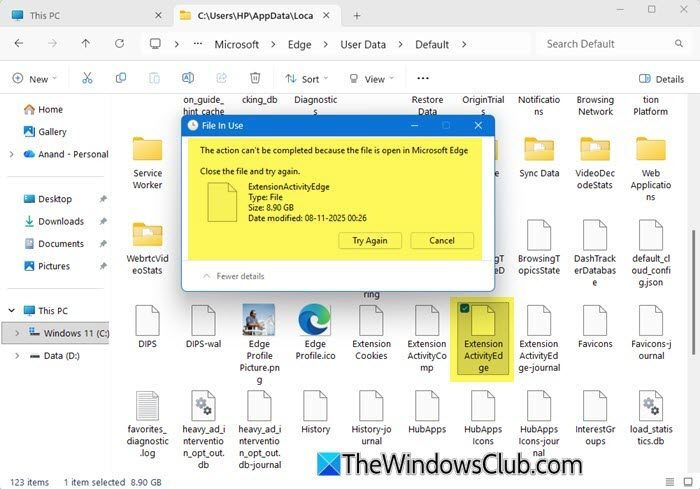
The next sections will help you understand what is ExtensionActivityEdge and why it expands over time.
What is the ExtensionActivityEdge file?
The ExtensionActivityEdge file is a background data file created by Microsoft Edge. It works as a SQLite database and logs various extension-related events. This includes when browser extensions are installed, updated, removed, or used, along with extra performance and diagnostic data.
While Microsoft hasn’t officially documented this file, user analysis suggests that it is part of Edge’s internal telemetry system, which tracks extension behavior for stability, security, or compatibility purposes.
Why is the ExtensionActivityEdge file taking up so much space?
The ExtensionActivityEdge file is stored inside your Edge user profile folder at the following location:
C:\Users\<Username>\AppData\Local\Microsoft\Edge\User Data\Default
It works as a database that records extension-related activity in Microsoft Edge (such as when extensions are installed, updated, removed, or used), along with timestamps and diagnostic data.
Since this file keeps logging new events and doesn’t automatically clear old entries, it continues to grow in size. Over time, it can reach several gigabytes, which is why it starts taking up so much space on your Windows 11/10 PC.
Can I reduce the size of, or delete the ExtensionActivityEdge file?
Here are a few ways to clean up the ExtensionActivityEdge file or prevent it from growing further:
1] Periodically delete the file
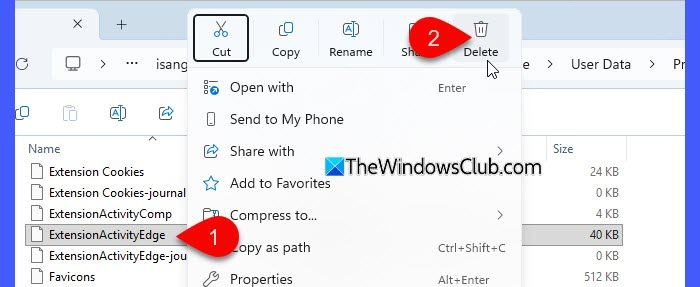
The simplest way to free up space is to delete the file manually.
- Close Microsoft Edge completely using the Task Manager.
- Open File Explorer and navigate to the file location (shared above).
- Right-click the file and select Delete.
When you reopen Edge, the browser will automatically recreate the file, but it will start small again. This method doesn’t stop the file from growing in the future, but it’s a quick way to reclaim storage when needed.
2] Remove or disable unused extensions
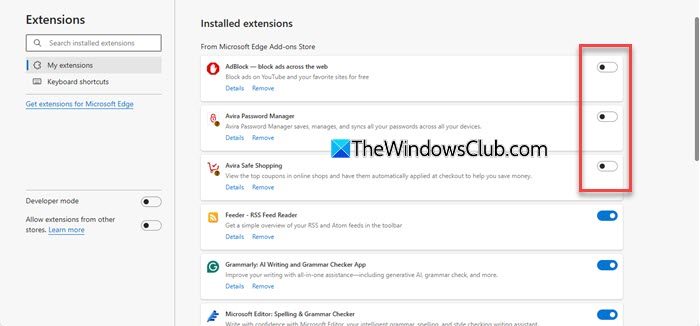
Since the file logs extension activity, the more extensions you have installed, the faster it grows. Open Edge, go to Settings > Extensions, and disable or uninstall extensions you don’t use anymore. Even background extensions generate log entries, so reducing them helps slow down the file’s growth. This is one of the most effective long-term solutions.
If you’re an IT admin, you can prevent users from installing extensions in Edge. This not only stops unwanted extensions but also helps prevent the ExtensionActivityEdge file from growing on managed systems.
3] Clear Edge browsing data
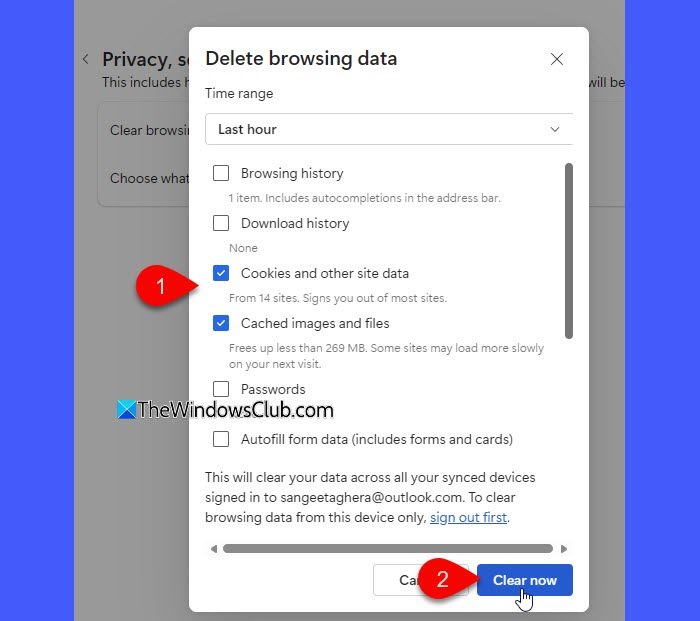
Clearing cached data and site activity in Edge can sometimes reduce internal log files. Go to Settings > Privacy, search, and services > Clear browsing data. Select Cached images and files, Cookies and other site data, and then click Clear now.
4] Use disk space analyzers to keep an eye on the file’s growth
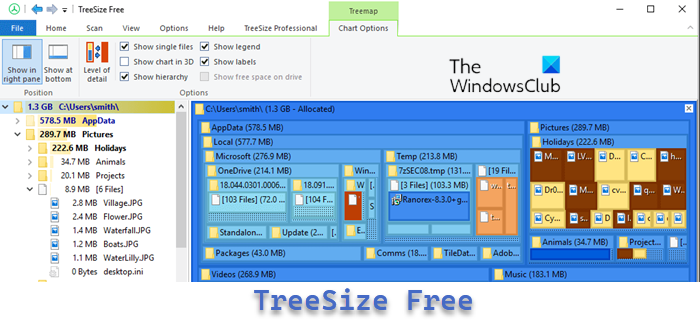
Since the file can slowly grow in the background, it’s a good idea to monitor it using a free Disk Space Analyzer software like Space Sniffer, WizTree or TreeSize Free. These tools instantly show which files are using the most storage, so you can identify when the ExtensionActivityEdge file starts growing again.
Is it safe to delete the ExtensionActivityEdge file?
Yes, it is safe to delete the ExtensionActivityEdge file. It is not a system-critical file, and removing it will not cause issues with Microsoft Edge or Windows. The file is only used to store extension activity logs, so deleting it clears the stored history of extension usage.
However, please note:
- Edge will recreate the file automatically the next time you open the browser. As of now, Microsoft has not provided an official setting, Group Policy, or registry key to disable extension activity logging completely.
- The file may continue to grow over time if you continue using Edge extensions.
I hope this helps.
Read: Best AI Extensions and Tools for Microsoft Edge.
How to delete Extension activity in Edge?
You can clear extension activity in Microsoft Edge either by removing the extensions you no longer use or by deleting the ExtensionActivityEdge file. This file stores the log data for all extension events. To delete it, first close Microsoft Edge completely using the Task Manager, then navigate to its folder location and delete it. Once the file is deleted, Edge will automatically recreate a new one, but its size will reset.
Is it safe to delete Microsoft Edge files?
Yes, it is safe to delete non-system Edge data files like ExtensionActivityEdge, cache files, or profile logs. These files do not affect browser functionality and are recreated automatically when needed. However, do not delete core Edge program files from Program Files or WindowsApps folders, as that can break the browser.
