
If you are a Windows 11/10 user, you might have seen the DumpStack.log.tmp file in your C drive. This file is located in the root directory of your Windows computer. However, it is not necessary that this file be present in the C drive of all Windows 11/10 users. In this article, we will talk about what is DumpStack.log.tmp file and whether you can delete it.
What is the DumpStack.log.tmp file?
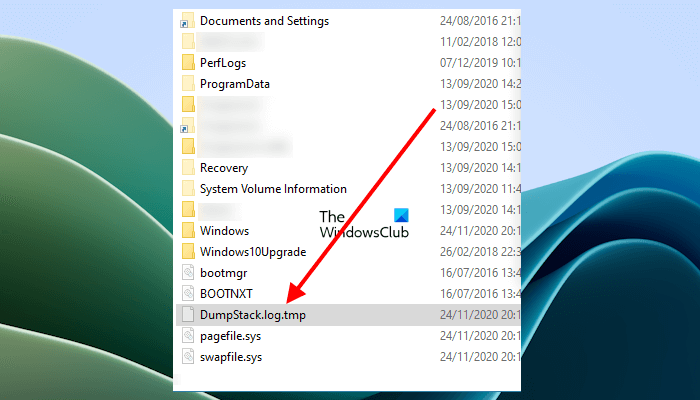
The DumpStack.log file is a log file that contains logs of Bug Check information. Its default location is the root directory. To locate this file, open your C drive in the File Explorer. You will see this file there.
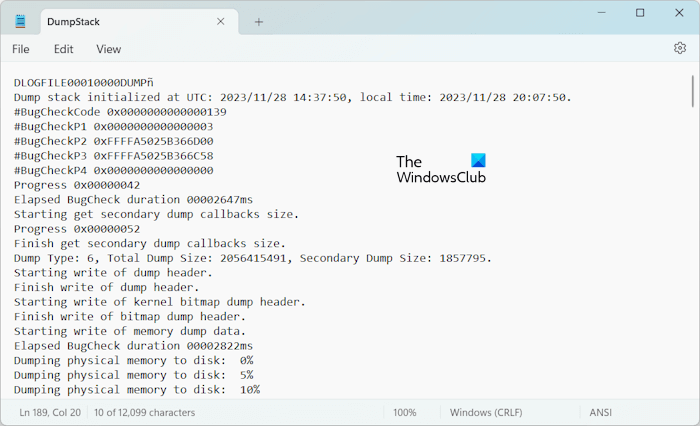
If you open this file, you will find it contains Bug Check logs (see the screenshot above). When Windows encounters a condition that compromises safe system operation, the system halts or crashes. This condition is called a Bug Check. It is also known by different names, like system crash, kernel error, stop error, or BSOD error.
Can I delete the DumpStack.log.tmp file?
Some of you may find the following two files in the root directory:
- DumpStack.log file
- DumpStack.log.tmp file
The second file, DumpStack.log.tmp file is a temporary file. Some of you may find it on your system. Your Windows PC may refuse to delete this file when you try to do so. This happens when the file is currently in use by your Windows PC. However, you can delete the DumpStack.log file.
Deleting the DumpStack.log file will not affect your system, as it is a log file. Windows can create it again whenever required. The information it contains can be used to troubleshoot the BSOD error. Hence, if you delete it, you cannot use the information it contains further.
How to delete DumpStack.log and DumpStack.log.tmp file
You can easily delete the DumpStack.log file. Open your C drive and select the DumpStack.log file. Now, press the Delete button on your keyboard. You should have administrator rights to delete this file. Similarly, you can delete the DumpStack.log.tmp file. If you cannot delete it, you need to modify Windows Registry.
The following instructions will guide you on modifying the Windows Registry to delete the DumpStack.log.tmp or DumpStack.log file. Follow the steps carefully, as modifying the Windows Registry incorrectly will make your system unstable. Before you proceed, we recommend you create a system restore point and back up your Registry.
Open the Registry Editor. Go to the following path:
Computer\HKEY_LOCAL_MACHINE\SYSTEM\CurrentControlSet\Control\CrashControl
The easiest way to go to the above-mentioned path is to copy it and paste it into the address bar of the Registry Editor. After that, hit Enter.
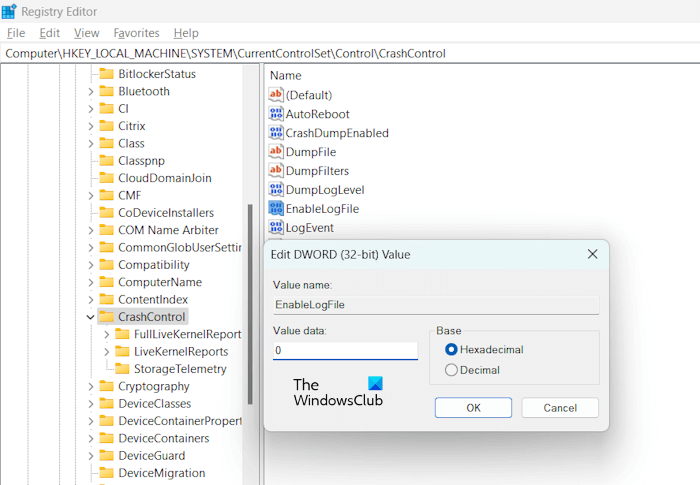
Make sure that the CrashControl key is selected on the left side. Look for the EnableLogFile entry on the right side. Once you find it, double-click on it and change its Value data to 0. Click OK to save changes. Restart your computer for the changes to take effect.
Now, you should be able to delete DumpStack.log and DumpStack.log.tmp files from your C drive. Once you delete them, you can revert the changes in the Registry Editor.
If still, you cannot delete the DumpStack.log or DumpStack.log.tmp file, you can take ownership of these files and then try again. This should work.
I hope this helps.
How to remove DumpStack.log.tmp?
To remove the DumpStack.log.tmp file, open your C drive and select the DumpStack.log.tmp file, and delete it. If you cannot delete this file, you need to disable Dump Stack Logging by modifying the Windows Registry.
Unable to open DumpStack.log.tmp
To open the DumpStack.log.tmp file on your system, you should be signed in as an administrator. If you still cannot open this file, that file may be in use by your Windows PC. In this case, you need to disable Dump Stack Logging by modifying the Windows Registry. Do this and then try again.
What is the difference between DumpStack.log and DumpStack.log.tmp file?
DumpStack.log is the main crash log file that Windows creates to store details about system errors and blue screen crashes. It is a permanent record that remains until it is deleted. DumpStack.log.tmp is a temporary working copy generated during the logging process and can be safely removed without affecting system stability. Basically, both are safe to delete.
Read next: What is WpSystem folder? Is it safe to delete it?
