
Some Windows users have reported that they are seeing We can’t retrieve your tasks right now in Microsoft To Do app in the widget section. In this article, we are going to talk about this issue and see what you need to resolve it.
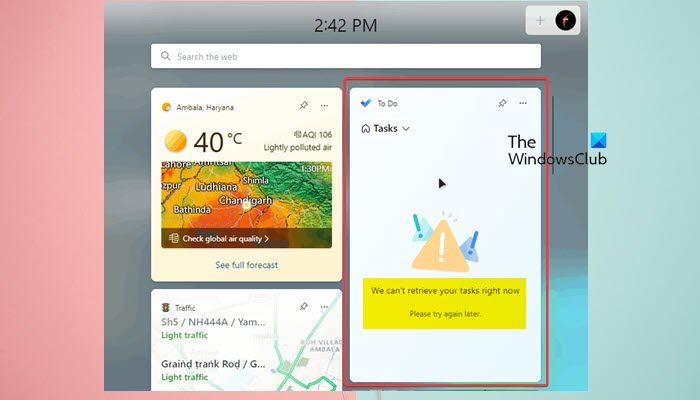
We can’t retrieve your tasks right now – Microsoft To Do error
If you are facing We can’t retrieve your tasks right now error in Microsoft To Do app, try the following solutions.
- Restart Widget Process and App
- Sign Out and Sign In
- Install the latest updates
- Reset or Repair Microsoft To Do
- Run SFC and DISM
Let us talk about them in detail.
1] Restart Widget Process and App
Let us start by restarting the Widget Process. This may resolve the issue if that’s caused by a temporary glitch. So, open Task Manager, go to the Processes tab, look for Windows Widget, right-click on it and select End Task. Now, reopen the Widget app and see if the issue is resolved.
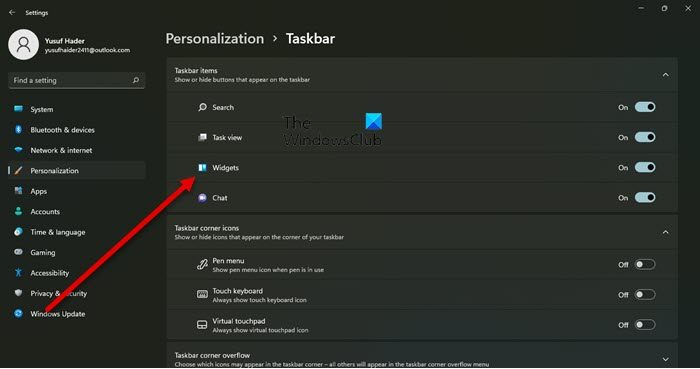
If restarting Widget didn’t work, let us turn off the Widget app from Settings and see if that helps. So, go ahead and open Settings. Now, go to Personalization > Taskbar and turn off the toggle of Widget. Then, restart your computer and turn on Widget. Hopefully, that will do the job. If restarting doesn’t work, move on to the next solution.
2] Sign out and Sign In
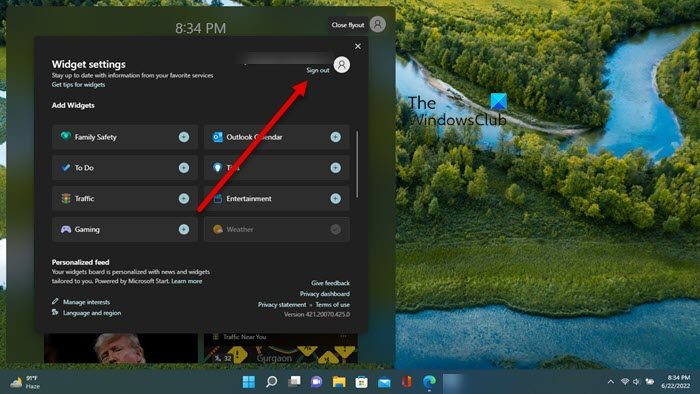
Next, log out of your Microsoft account, then log back in. You can use any method to log out of your account, but since we are talking about a Widget error, so, click on the Widget icon from the Start Menu, click on the Plus (+) icon, and select Sign out. Then just sign in with the same account and see if the issue persists.
3] Install the latest updates
This can be a bug that can be resolved by updating your Windows. If the update is available, it may contain the fix for your solution. Once you install it, your issue should be resolved. So, go ahead and update your Windows and see if the issue is resolved.
4] Reset or Repair Microsoft To Do
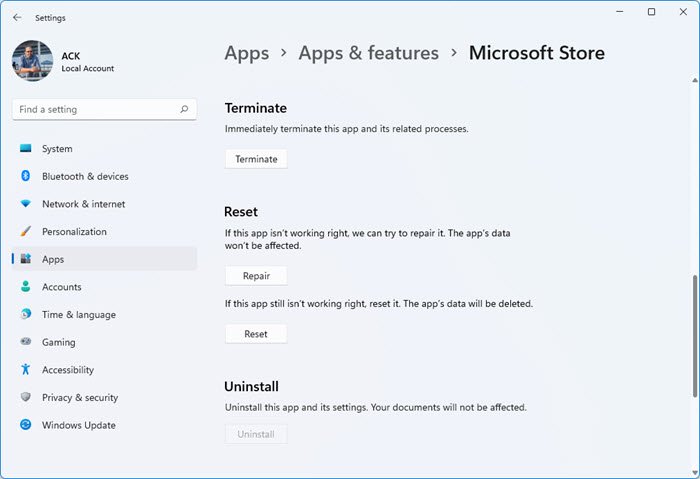
You may see the error code in Microsoft To Do if the app is corrupted or misconfigured. These scenarios aren’t common since these apps are preinstalled, but it’s still possible. However, the best part is that we can resolve the issue in both cases. That is why, in this solution, we’ll first repair Microsoft To Do and, if that doesn’t work, reset it. Follow the given steps to do the same.
- Launch Settings.
- Go to Apps > Apps & Features.
- Look for Microsoft To Do.
- For Windows 11: Click on the three vertical dots and select Advanced Options.
- For Windows 10: Click on the app and select Advanced Options.
- Click on Repair.
Let the app be repaired as it may take some time. Go and check if the issue persists. In case, repairing doesn’t work, you need to reset the app. You can see the Reset button in the Advanced Options window. Hopefully, this will work for you.
5] Run SFC and DISM
Maybe your system files are corrupted, which is why you may see the error code in question. We are going to run SFC and DISM commands that will possibly resolve the issue for you. So, open Command Prompt as an administrator and run the following commands.
sfc /scannow
This may take some time, and if this doesn’t work, run the next command.
Dism /Online /Cleanup-Image /RestoreHealth
We hope these solutions worked and that you can use Microsoft To Do.
Read: How to assign Tasks to users in Microsoft-To-Do
How do I repair Microsoft To Do?
You can repair Microsoft To Do using Windows Settings. Hit Win + I to open Settings and then go to Apps > Apps & Features. Now, find Microsoft To Do, go to Advanced Options, click Repair and wait while Windows repairs the app. For more details, see the fourth solution.
Read: Troubleshooting Microsoft To-Do app problems & issues
How do I delete completed tasks from Microsoft?
You can quite easily delete completed tasks in Microsoft To Do. All you have to do is expand Completed, right-click on the task you want to delete, and select Delete task. This will delete the task for good.
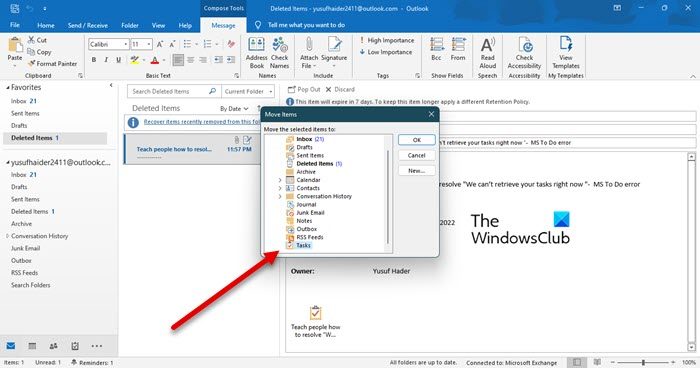
When you delete a task, you will get a warning that it can’t be undone. However, I’ll share a secret that lets you retrieve the deleted task. So, go ahead and open the Outlook app on your computer, and click on Deleted Items. Now, right-click on the app you wanted to retrieve, select Move > Other Folders, and select Tasks.
Read next: Microsoft To-Do Tips & Tricks.
