
If the Xbox Game Bar overlay is not enough for you, we recommend that you check out the Xbox Full Screen Experience. Even though it’s best suited for handheld, with some minor tweaks, you can enable it on any standard PC. In this post, we are going to see how you can enable and use the Xbox Full Screen Experience in Windows 11.
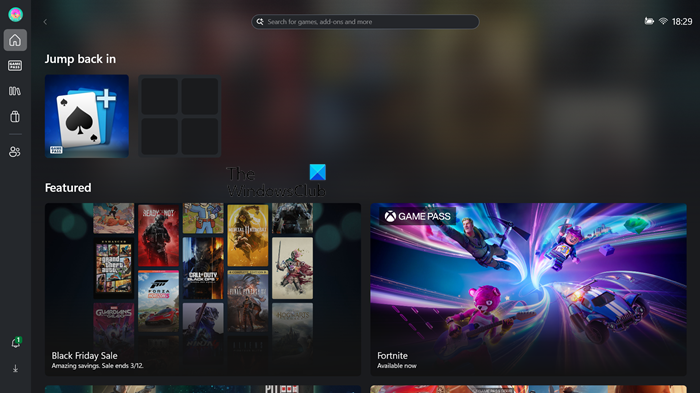
What is Xbox full screen experience?
The Full Screen Experience or FSE changes Windows 11 into a simpler, console-style setup. It replaces the traditional desktop with a dashboard designed for controllers, using the Xbox app. This new interface makes gaming feel more natural and reduces the work done by background desktop processes. With less resource use, FSE can improve performance and extend battery life, which is especially helpful for gaming on the go.
The feature is available in Windows 11 25H2, and one needs to update their system to the latest version of Windows 11 Insider Preview to use it at the moment.
How to use Xbox Full Screen Experience in Windows 11
If you want to use the Xbox Full Screen Experience in Windows 11, follow the solutions mentioned below.
- Using the GitHub tool
- Using Registry
Let us talk about them in detail.
1] Using the GitHub tool
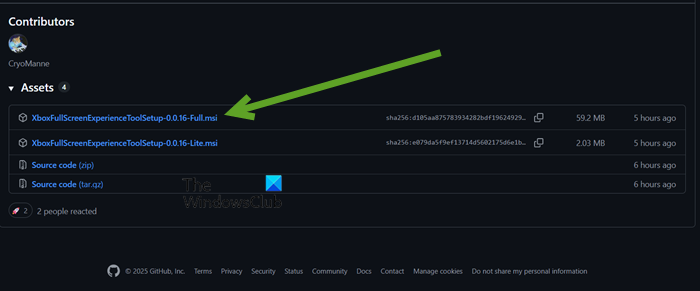
The GitHub community has released a tool that allows us to enable the Xbox Full Screen Experience, given we are on Windows 11 25H2 or 24H2 (build 26100.7019 or newer).
To get started with it, navigate to github.com. Scroll down to Assets and click on the hyperlink that says XboxFullScreenExperienceToolSetup-0.0.16-Full.msi and let it download.
Once it is downloaded, you need to run the installer. However, since we are downloading from GitHub, the tool might get flagged, so you need to select Keep anyway.
After running the installer, follow the on-screen instructions to complete the installation. Upon completion, search for “Xbox Full Experience Tool” from the Start Menu, and start it.

Then click Enable Xbox Full Screen Experience, and your system will reboot. Make sure to save your work beforehand.
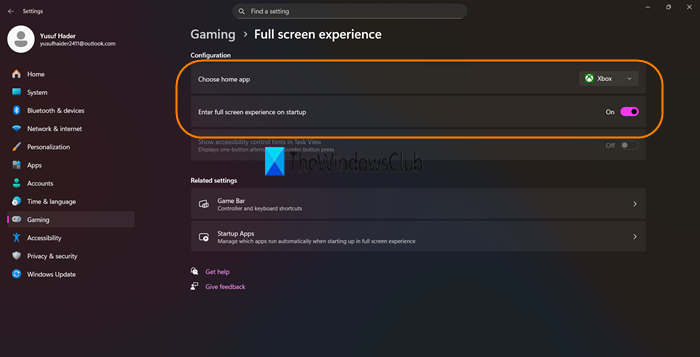
When your computer starts again, open Settings by Win + I, go to Gaming > Full screen experience. In the Choose home app section, select Xbox (or some other option you get), and enable the toggle for Enable full experience on startup.
Toggle the Show accessibility control hits in Task View switch to display a one-button alternative to a key combination.
After completing the steps, Windows 11 will launch directly into Xbox FSE, making it easier to start and play games with the controller.
2] Using Registry
We can make some registry changes to enable FSE if you are not comfortable using the GitHub tool. However, before making changes to the registry, take a backup first.
Note: You can follow these steps on your handheld device as well.
Now that you have a backup, check for updates. We need to make sure that your system is running Windows 11 25H2 before moving forward with the tutorial.
Now, open the Registry Editor by searching for it in the Start Menu and then navigate to the following location.
HKEY_LOCAL_MACHINE\SOFTWARE\Microsoft\Windows NT\CurrentVersion\OEM
You need to right-click on the empty section on the right-hand side or on the OEM key, and select New > DWORD (32-bit) Value. Name it DeviceForm.
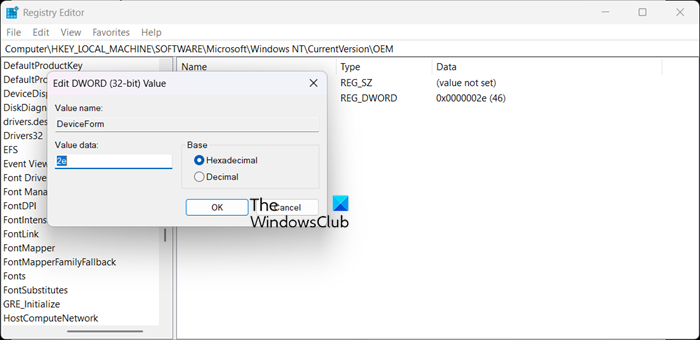
Right-click on DeviceForm and select Modify. Set the Value data to 2e and the Base to Hexadecimal. Finally, click on OK and reboot your computer.
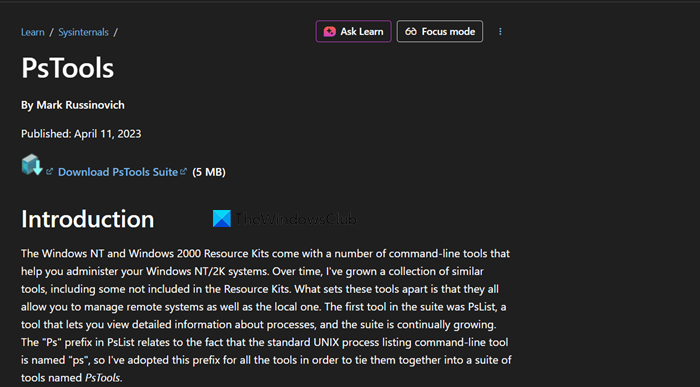
Once your computer starts, navigate to learn.microsoft.com and download the PsTools suite. Right-click on the downloaded ZIP file and select Extract all. Make sure to copy the path to the folder.
Now, open the Command Prompt as an administrator and use the Change Directory (cd) command to go to the location. So, your command would look something like
cd filepath\PSTools
Then, run the following command.
psexec -s -i cmd.exe
Navigate to github.com and download the Physpanel ZIP file. Extract the ZIP file and copy the file path.
Type the following command in the Command Prompt session to schedule the task, remembering to update the path, and then press Enter:
schtasks /create /tn "SetPanelDimensions" /tr "C:\path\to\physpanel.exe set 155 87" /sc onstart /ru SYSTEM /rl highest /f
Finally, reboot your computer, and go to Settings > Gaming > Full screen experience. Select Xbox in the Choose home app, turn on Enable full experience on startup, and Show accessibility control hits in Task View.
That’s it!
Read: How to update Xbox One controller firmware and drivers on PC
How to enable Xbox full screen experience in Windows 11?
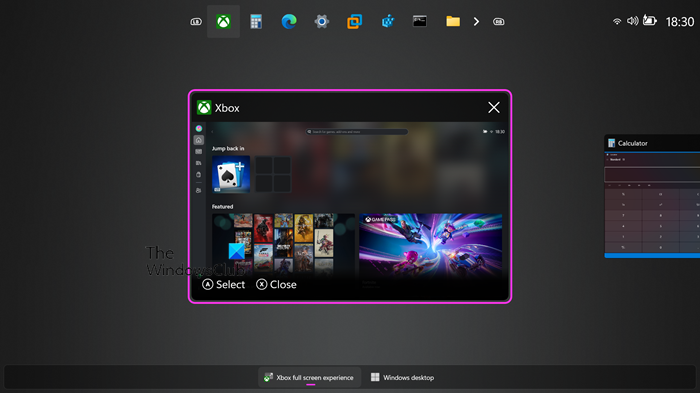
You can enable the Xbox Full Screen Experience using the steps mentioned earlier, but to use it, hit the keyboard shortcut Win + F11. Once you do that, your system will boot into the Xbox FSE. Alternatively, you can go to Game Bar > Settings to do the same. Once you do that, a full-screen version of Xbox will launch, allowing you to access your Xbox and Xbox Game Pass titles.
If you want to switch back to your desktop, either hit Win + F11 and select Continue to Windows Desktop or use the three-finger swipe-up gesture on your touchpad and select Windows Desktop.
Also Read: Xbox Game Pass Core to replace Xbox Live Gold.
