
These days, with the help of AI-powered tools, we can accomplish tasks that professionals used to perform before the advent of AI. Creating and editing videos used to be a monumental task, as we needed to shoot the video and edit it on professional video editing programs like Premiere Pro for professional usage. With the advancement of AI tools, it is now a straightforward process to generate, create, and edit videos tailored to our personal and professional needs. Google has introduced Google Vids for video editing recently. In this guide, we show you how to use Google Vids to edit videos directly on Google Drive.
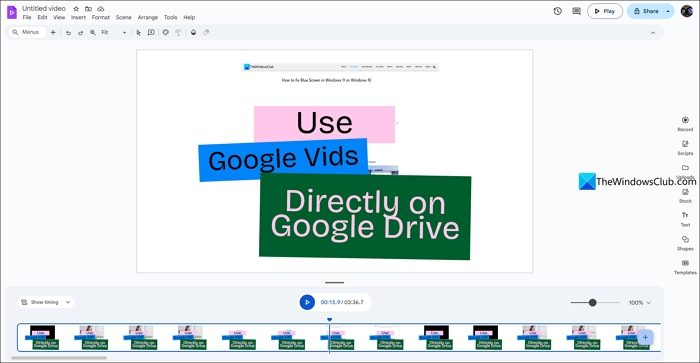
How to use Google Vids to edit videos directly on Google Drive
Google Vids on Google Drive lets you save time by enabling you to directly use videos on Google Drive to edit or create something new. Follow the guide to know how.
- Create a new video on Google Drive with Google Vids
- Use an existing Google Vids project on Google Drive
- Export edited video to Google Drive
Let’s get into the details of each one.
1] Create a new video on Google Drive with Google Vids
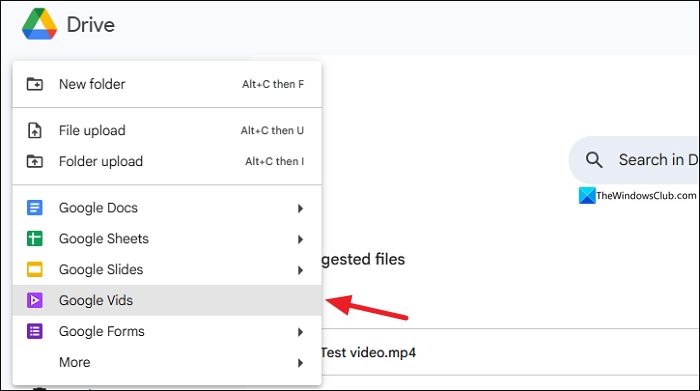
To create a new Google Vids project on Google Drive with a video on Google Drive, open Google Drive on your web browser. Then, click the New button on Google Drive and select Google Vids.
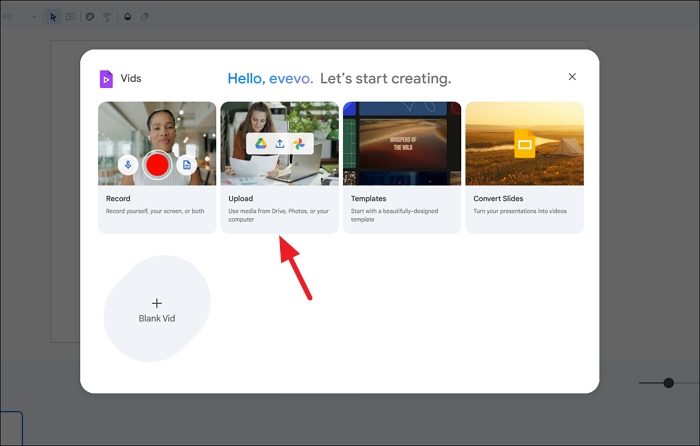
It opens the Google Vids page and a pop-up to upload a video. Select Upload to use the existing video on Google Drive, or select Blank Vid to create a new Google Vid project on your Google Drive.
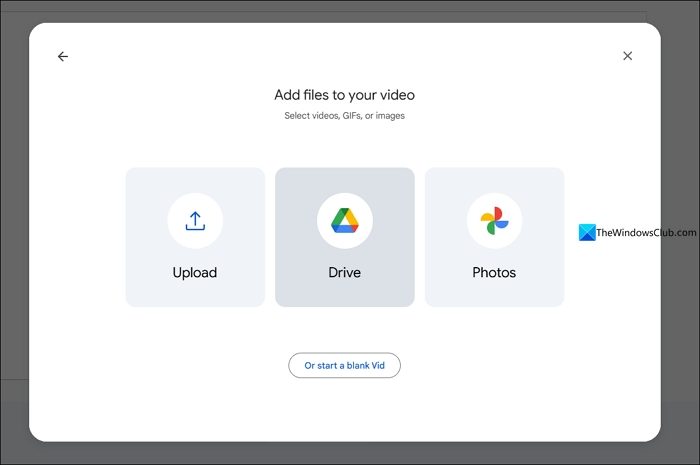
If you have selected Upload, select Drive to select the videos on Google Drive to import into the Google Vids project.
You can now create a new video with the videos you have on Google Drive, add text, use stock footage, and create something new out of it.
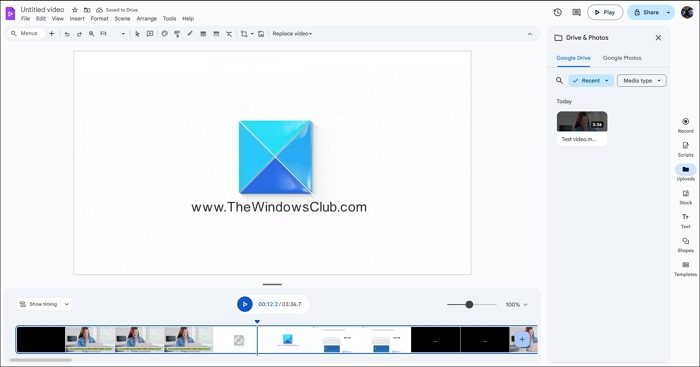
The vids project will be updated to your Google Drive in real time. You do not need to save the changes manually.
Read: How to use Google Vids AI Video Editor?
2] Use an existing Google Vids project on Google Drive
If you have worked on a Google Vids project from the Google Drive and want to resume working on it or make changes to it, you can do it easily. Just open Google Drive on your web browser and check for projects with the Google Vids icon beside it.
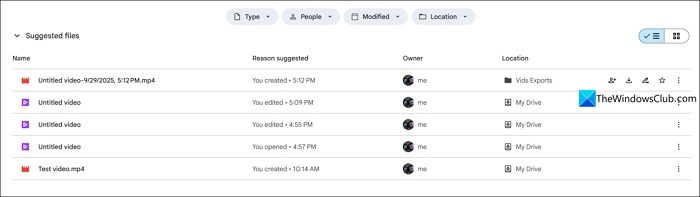
Double-click on the project you want to make changes to. It will open in a new window.
3] Export edited video to Google Drive
After completing of creation or editing of a video, we export the video to save it in our desired formats. Similarly, if you want to export the video edited on Google Vids to your Google Drive directly, click on the File menu in the toolbar and select Export to Drive.
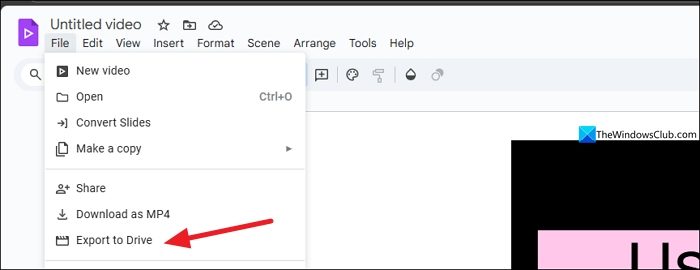
It will save the video project as an MP4 video file in a folder titled Vids Exports with the project name, time, and date of export to make it easier for you to find it.
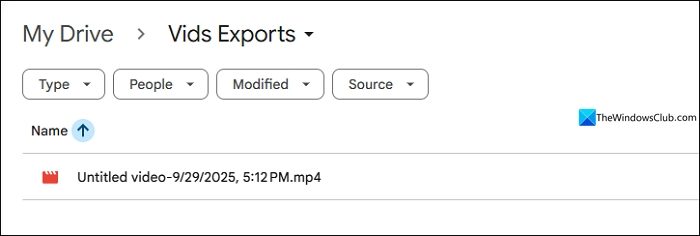
This is how easily you can use Google Vids directly on Google Drive without using the storage on your PC to edit videos.
Read: How to create video with Copilot AI
Where can I access Google Vids?
You can access Google Vids on your web browser on vids.new website or from the New button on the Google Drive. Ensure you have signed in with a Google account to start using Google Vids, as a Google account is required for its usage.
What is Google Vids used for?
Google Vids is used to create presentations and videos. To put it simply, it can be termed as an advanced version of Microsoft PowerPoint or Google Slides. It is useful to create marketing videos or presentations with existing templates and easy-to-use tools.
Related read: How to Generate AI Videos using Google Veo 2
