
We are in a day and age where leveraging the power of AI can streamline our workflow and make our days more efficient. If you need to create PPTs, we have an AI tool for you: Gamma AI. In this post, we will see how you can use Gamma AI to create PowerPoint Presentations in seconds.
Use Gamma AI to create PowerPoint Presentations in Seconds
Gamma AI is an online tool that helps you create presentations, documents, and webpages quickly. You can start with a simple idea or existing content, which saves you from the manual design work usually needed in traditional PowerPoint. Instead of a blank slide, you provide Gamma with your text, and it organizes the information into a clear format. It automatically applies professional layouts, chooses color schemes, and includes relevant images. The final product is a polished presentation ready in seconds, allowing you to focus on your message rather than the technical details of creating slides.
To use Gamma AI to create PowerPoint presentations, follow the steps mentioned below.
- Set up your account
- Choose your creation method
- Input your Prompt or Content
- Configure Settings and Generate Outline
- Edit and Refine
Let us talk about them in detail.
1] Set up your account

First, navigate to the official Gamma website at gamma.app. Click on the Log in or Start for free button. You can usually sign up using a Google account or an email address. The platform offers a free plan that provides a certain number of credits (e.g., 400 credits) to test the service before you need to consider a paid subscription.
2] Choose your creation method
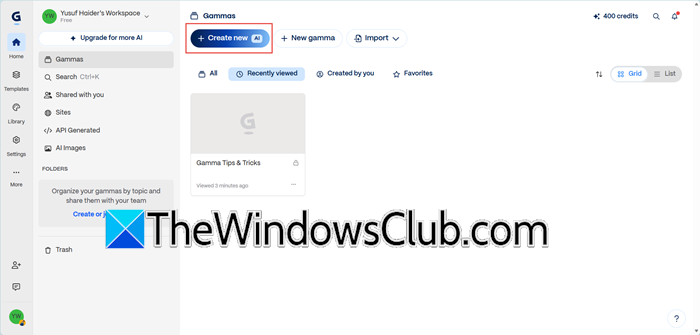
Once logged in, click the “+ Create New” (or “New AI”) button on your dashboard. Gamma typically offers several ways to create content:
- Generate (from a prompt): You type a sentence describing what you need.
- Paste in text: You copy and paste an existing document or notes.
- Import file or URL: You upload a file (like a PDF or Word doc) or paste a link to an article.
For speed, the Generate option is the most common. If you already have a long report or a messy Word document, the Import option is a lifesaver as Gamma will summarize it for you.
3] Input your Prompt or Content
This is the most critical step for quality output. If you are using the Generate method, you will see a text box to enter your prompt. The more detailed your prompt, the better the result.
A strong prompt clearly defines the topic (what the presentation is about), the audience (who will be viewing it), the goal (what you want to happen afterward), the structure (key sections to include), and the tone (how the content should feel).
For example, instead of simply typing “HR onboarding”, you might write something like “Create a 10-page presentation about AI-powered HR onboarding assistants for HR Directors. The goal is to book a demo. Include the problem, solution, competitive landscape, ROI examples, and a 90-day implementation plan. Keep the tone confident and data-driven.” This level of detail guides Gamma to generate a deck that is not only visually polished but also strategically aligned with your objectives.
4] Configure Settings and Generate Outline
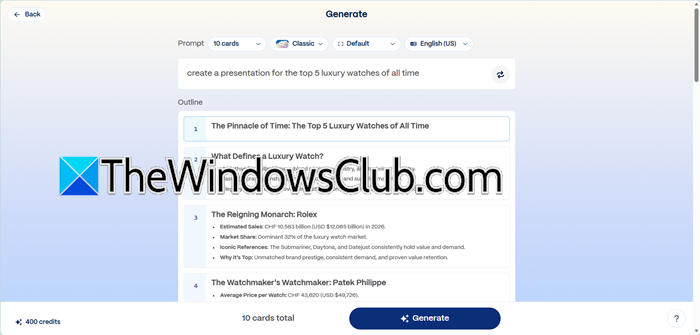
Before generating the final slides, Gamma lets you fine‑tune the output. Start by selecting the Presentation format (as opposed to a webpage or document), then choose the number of cards (slides), set the language, and specify text density (e.g., “Concise” for short bullet points or “Detailed” for richer explanations).
Click Generate outline to produce a text‑based structure of your presentation. Review this carefully, as you can drag and drop sections to reorder them or delete any topics you don’t need. Once the outline is approved, pick a theme from Gamma’s library that matches your brand or the mood (modern, corporate, playful, etc.), and optionally define the image source (AI‑generated or stock photos) along with any visual style keywords.
Finally, click Generate. In about 30 to 60 seconds, Gamma transforms your outline and chosen theme into a complete deck, automatically generating titles, bullet points, and relevant images or icons for every slide.
5] Edit and Refine

Once you have the slide, go ahead and start editing. You can edit any text, add images, change fonts, and do more.
After editing, click on the three dots and then select Export. You will see a plethora of options to save the file as, but since we are creating a presentation, select Export to PowerPoint. This will download a PPT file for you.
That’s it!
Read: How to create a PowerPoint presentation using AI tools
How to make PPT in seconds using AI?
You can create a complete presentation in seconds by using an AI tool like Gamma: simply type a detailed prompt describing your topic, audience, goal, and tone, then let the AI generate a structured outline, apply a professional theme, and populate every slide with text and relevant visuals, all in under a minute. After a quick review and any AI‑powered refinements, you can export the finished deck as a PowerPoint file or share it via a link. The entire process shifts your role from manual designer to strategic editor, slashing what once took hours down to just seconds.
Read: How to use Digital pen for PowerPoint presentation
Can gamma AI create PPT?
Yes, Gamma AI can create fully formatted PowerPoint presentations with ease. After you provide a prompt, paste existing text, or import a document, Gamma automatically structures your content into slides, chooses layouts, adds images, and applies a consistent theme. When you’re ready to present, you can export the finished deck directly as a .pptx file, making it compatible with Microsoft PowerPoint for any final tweaks or offline use.
Also Read: Presenter Coach in PowerPoint for Web receives two new features.
