
We all know Calibri is the default font in Microsoft Office. You may be thinking of changing it. But if you can’t set or change the default font in Microsoft Word, or if your default font keeps reverting, this article will help you fix the issue.
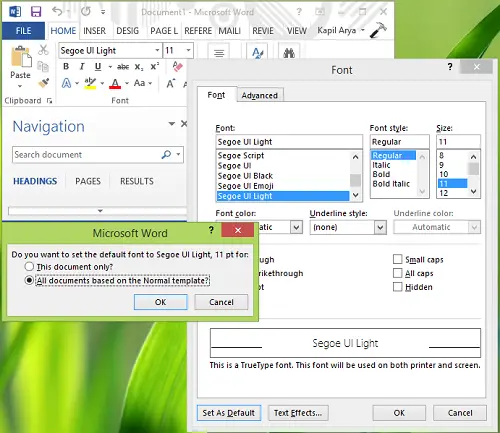
How to change default font in Word permanently?
To change the default font in Word, press Ctrl+D, then click Set As Default after choosing a font. Finally, you have to select All documents based on this Normal template option to make the changes available for new documents. This way, you can set any font you like and create new documents based on your selection.
However, using this way, whenever I tried to change default Calibri font on a system having Office, the system denied accepting this change. So after restarting the Windows computer, my selection was reversed, and Calibri again became the default font. If you face this issue, try this suggestion.
Cannot change Default Font in Microsoft Word
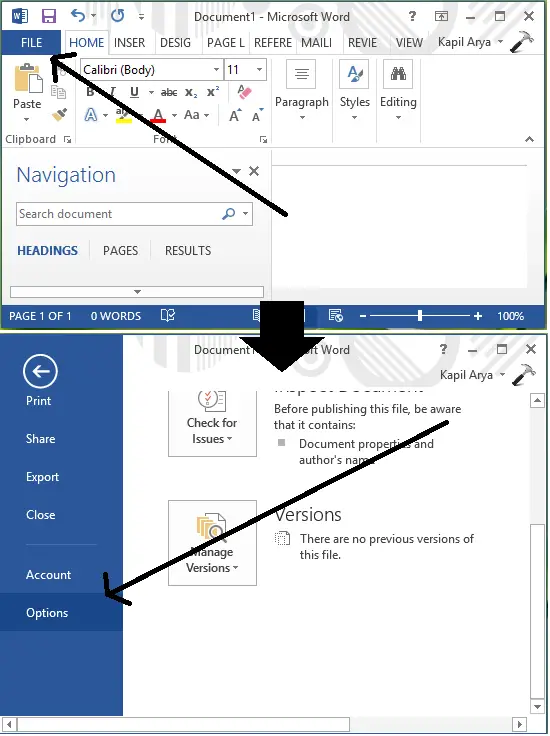
1. Open Word, click FILE -> Options.
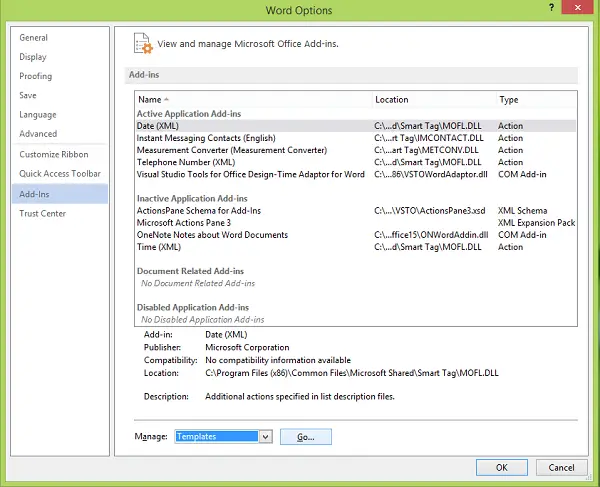
2. In the Word Options window, click Add-Ins and then select Templates under Manage, click Go.
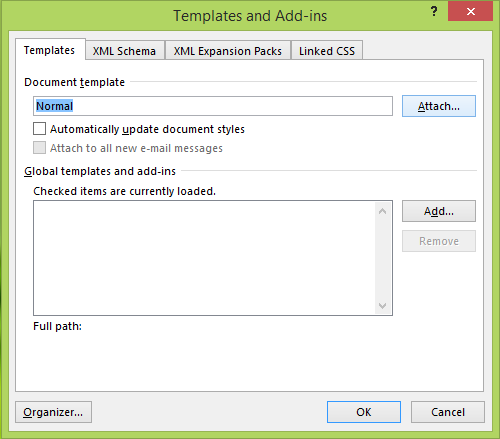
3. Moving on, in the below-shown Templates and Add-Ins window, click Attach.
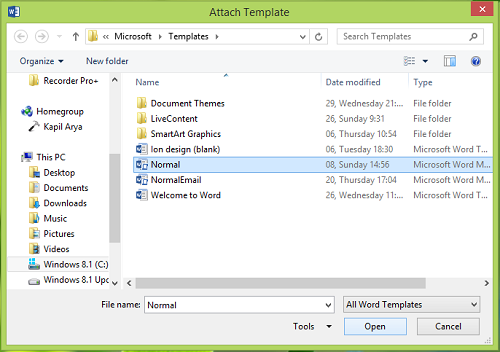
4. Finally, in the Attach Template window, select Normal and click Open. This will result in the opening of the normal template.
So now you have again press Ctrl+Shift+F or Ctrl+D and set the default font using the way we mentioned earlier, and this time it should work. You can also verify your font selection after rebooting the machine.
I hope this helps!
Go here if Spell Check is not working in Word.
