
In this post, we will show you how to type Hyphen, En dash, and Em dash in Word. Hyphen, en dash, and em dash are punctuation marks that connect words or phrases. They may look similar, but they serve different purposes in writing and formatting.
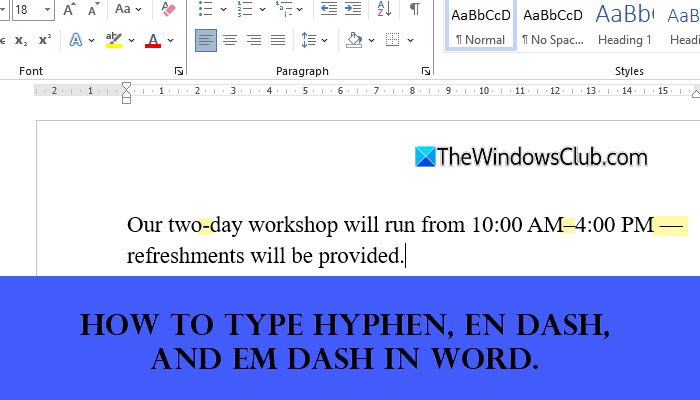
What is the difference between Hyphen, En dash, and Em dash?
The difference in the length of these dashes reflects a difference in meaning. The hyphen (-) joins words, the en dash (–) shows ranges or connections, and the em dash or long dash (—) adds emphasis or separates ideas. Using the wrong one while typing in Word can affect clarity or even change the meaning of your sentence. That’s why it’s important to know how to insert each dash correctly when working on documents.
How to type Hyphen, En dash, and Em dash in Word
There are multiple ways to type a Hyphen, En dash, and Em dash in Microsoft Word on a Windows 11/10 PC. In this post, we will cover the following methods in detail:
- Word’s built-in keyboard shortcuts
- Alt Codes
- Unicode hex + Alt+X
- AutoFormat / AutoCorrect
- Insert from Word’s Symbol menu
1] Word’s built-in keyboard shortcuts
Word has some pre-assigned key combinations that let you insert special characters instantly without using menus or codes. For dashes, you can use specific shortcuts if you have a numeric keypad.

Place the cursor where you want to insert the dash. Then press the following keys:
- For hyphen: Just press the regular hyphen key.
- For en dash: Ctrl + Numpad Minus
- For em dash: Ctrl + Alt + Numpad Minus
Ensure NumLock is turned on and you’re using the minus key on the numeric keypad, not the top row.
2] Alt Codes
You can use the classic Alt Codes in Word to type these dashes. Alt Codes let you insert special characters by holding the Alt key and typing a specific number code on the numeric keypad. It works in Microsoft Word and most other Windows applications that support text input.
Place the cursor where you want to insert the dash. Hold down the Alt key. On the numeric keypad, press:
- For hyphen: 45
- For en dash: 0150
- For em dash: 0151
Release the Alt key, and the character will appear.
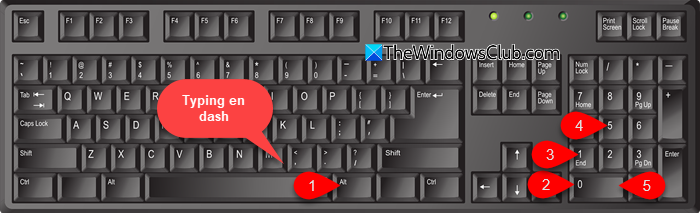
Note: This method requires a numeric keypad. If your PC doesn’t have it, enable the on-screen keyboard or use another method below.
3] Unicode hex + Alt+X
Unicode hex + Alt+X is a built-in feature in Microsoft Word that converts a Unicode hexadecimal code into its corresponding character when you press Alt+X. It is useful if you know the exact Unicode value, and it works even without a numeric keypad.
Place the cursor where you want the dash. Type the Unicode value for the dash:
- For hyphen: 002D
- For en dash: 2013
- For em dash: 2014
Press Alt + X. Word will instantly replace the code with the correct dash character.
Tip: You can also reverse this: place your cursor after a character, press Alt+X, and Word will display its Unicode code.
4] AutoFormat / AutoCorrect
Word automatically replaces certain keystrokes with special characters or formatting while you type. For dashes, it can turn double hyphens into an em dash or replace a hyphen between numbers with an en dash.
Open Word and go to File > More > Options. In the Word Options window, select Proofing > AutoCorrect Options.
Under the AutoFormat As You Type tab, ensure Hyphens (–) with dash (—) is checked.
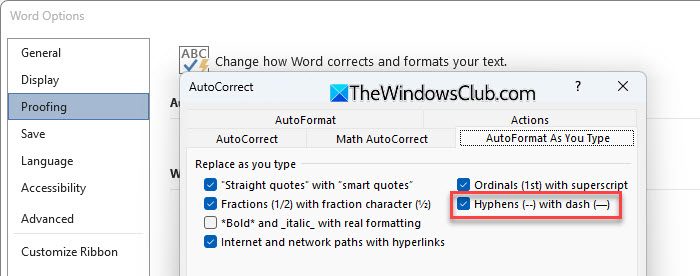
For example, if you type “hello–hello” (without spaces), Word replaces it with an em dash. And if you type 2000 – 2020 (with spaces around the hyphen), Word replaces the hyphen with an en dash.
If Word replaces something you didn’t want changed, click the small AutoCorrect icon that appears and choose Undo.

5] Insert from Word’s Symbol menu
If you prefer manually adding special characters without having to remember shortcuts or codes, use Word’s built-in symbol library.
Place the cursor where you want the dash to appear. Click the Insert tab. Select Symbol > More Symbols….
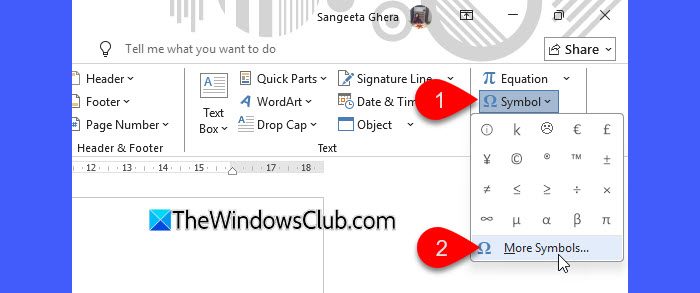
In the Special Characters tab, select en dash or em dash. Click Insert, then Close.
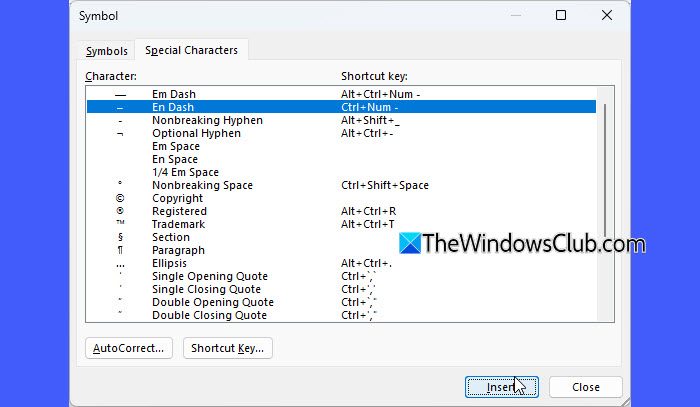
From this dialog, you can also click Shortcut Key… to assign your custom key combination for future use.
I hope you find this useful.
Read: How to insert a Text field in Microsoft Word.
How do you use a hyphen en dash and em dash?
Hyphen, en dash, and em dash are often referred to as “long lines” or “short lines” in writing. A hyphen is used to connect two separate word elements to form a compound word. An en dash is longer than a hyphen, but shorter than an em dash. It is primarily used between dates to mark a span of time. An em dash is used to add emphasis, indicate a pause, or separate ideas in a sentence.
How do you add a hyphen to a word?
There are multiple ways to add a hyphen to a word. You can use the hyphen key on your keyboard, insert it via Alt codes, or pick it from the Symbols menu. In Microsoft Word, the easiest way is to place your cursor where the hyphen is needed and press the key right next to the”0″ key on your keyboard.
Read Next: How to make an Em Dash in Google Docs.
