
If you’re a video game streamer, then you should already know that Twitch is the best place to show off your skills and possibly earn some cash. It has been this way for years despite the many competitions. With the retail giant, Amazon, at the helm, Twitch has become a much better video game streaming platform, and we doubt the likes of YouTube or Microsoft’s Mixer will topple this service in the near future.
Why isn’t Twitch working on Google Chrome?
The most common cause is a poor internet connection. Make sure that you have a good speed internet connection and that it is working fine. If Twitch is not working only on Google Chrome, this may be caused due to the corrupted Chrome cache or conflicting extensions. You can check this by disabling Chome extensions and clearing cookies and cache.
Twitch not working on Chrome in Windows 11/10
Now, if you’re using the Google Chrome web browser to access to the Twitch website to view your favorite streams, chances are, you might have come across an issue where the website or a stream fails to load. The big question right, is what to do? Well, not to worry because there are quite a few tricks that are good enough to set things back to your liking, so let’s talk about some of those.
1] Be sure Twitch is not down
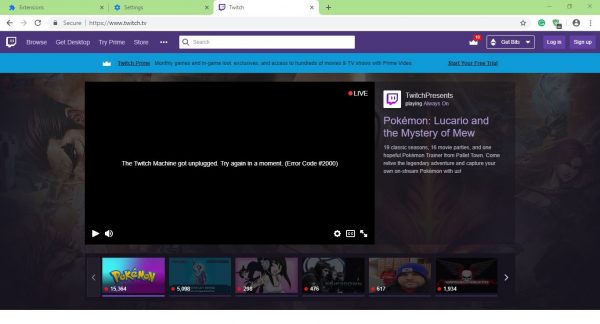
Before taking drastic actions, you must first check if Twitch is experiencing any downtime. These things happen from time to time, so it makes sense to find out if it is indeed the case. We suggest checking Twitch’s social media pages and seek out official statements from the company. This site will also help you check if Twitch is down or not.
2] Disable Chrome add-ons
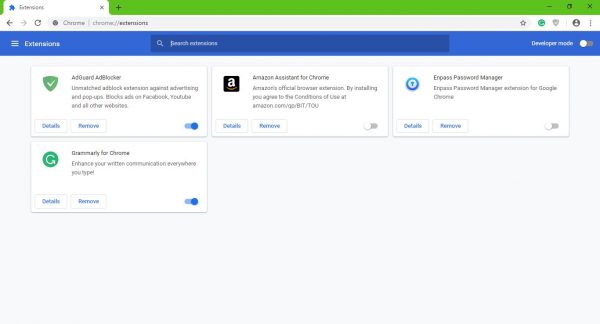
Third-party extensions are a big part of Google Chrome, and while they are not needed for browsing the web, many deliver added features. Because of this, many Chrome users have downloaded quite a few extensions, and you know what? Some can cause problems.
It’s not easy to tell which extensions are making life difficult, in which case, the best option is to disable all extensions.
Launch Google Chrome, then look to the top right corner for the icon with three dots. Click on it, then select More Tools. From there, click on Extensions then disable them all one-by-one. Alternatively, you can remove the ones you’re no longer interested in using.
3] Clear your browsing data
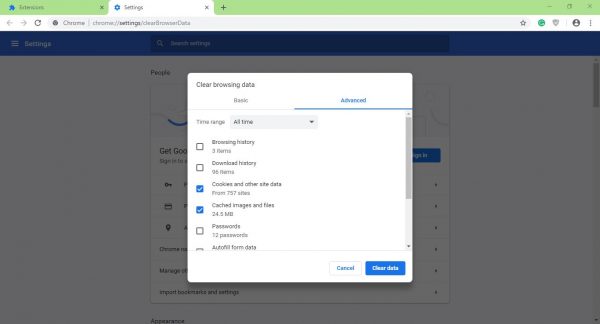
To accomplish this task, you must click on Ctrl+Shift+Delete, which will ultimately open the Clear browsing data menu.
Next, be sure to select All Time, then tick Cookies and Cached Images and Files. Finally, click on the button that says Clear Data, and after it has finished, restart the web browser an attempt to watch videos on Twitch again.
If you want, you could restart your computer entirely or use another web browser, such as Microsoft Edge, Brave or Firefox, since Twitch supports all modern browsers.
That’s it. I hope this helps.
How do I fix Twitch 2000 network error on Chrome?
VPN connections affect internet speed. If you are using a VPN connection, it is possible that the Twitch 2000 network error occurred due to slow internet speed. Disable VPN and see if it helps. Other things that you can try to fix this error include clearing your browser cache, opening Twitch in private or incognito mode, switching to another web browser, etc. The Twitch error 2000 can also occur due to issues with Twitch servers.
