
In this post, we will show you how to enable and use the Startup Boost feature to make the Microsoft Edge browser launch faster using Edge Settings, Registry or Group Policy Editor.
Startup Boost in Microsoft Edge

The Startup Boost feature includes a cache workflow that allows a Windows 10 PC to open the browser much faster than usual. If you have an old PC, it might take some time for everything to load when you open the browser. Thanks to Startup Boost, processes load in the background even before the browser opens, so you can find the browser window immediately after clicking the respective icon.
What is the Startup Boost feature and what are its benefits?
In its pursuit to overtake its competitors, Microsoft has created the Startup Boost feature, which launches Microsoft Edge much faster than usual. The reason is that the processes associated with Microsoft Edge are launched in the background before the browser launches. This is similar to how cache files speed up website loading.
Will using the Startup Boost feature cause high CPU usage?
Microsoft claims that the processes initiated through Startup Boost are low-priority and won’t affect the system’s overall operation, with a negligible impact on device resource usage. However, we can only tell once users start using the process and give feedback regarding it.
How to enable or disable Startup Boost feature in Edge?
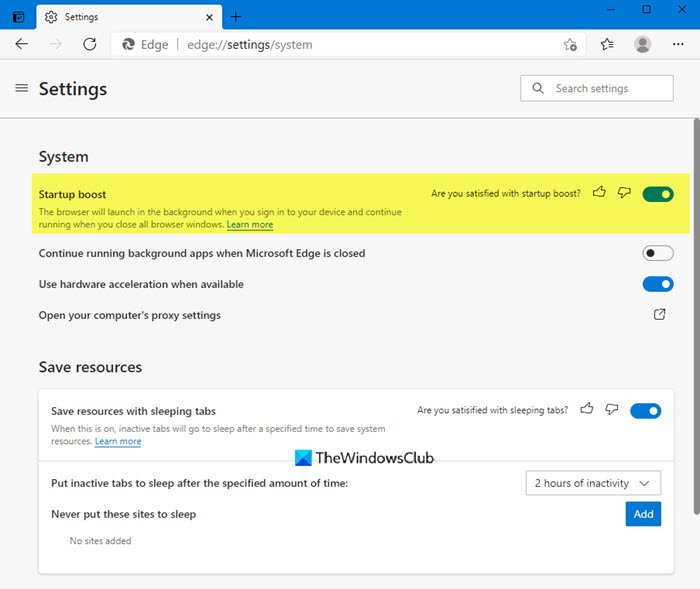
To manage the Startup Boost feature, open this address in the address bar: edge://settings/system. Or you could navigate to the following path:
- Launch Edge browser
- Click on Settings > System
- Enable “Startup Boost”
This setting will include an ON/OFF toggle switch, similar to the one you have for hardware acceleration. This is the same path you use to enable and disable the hardware acceleration.
When you do this, the browser will launch in the background when you sign in to your device and continue running when you close all browser windows.
To disable the Startup Boost feature in Edge, simply set the toggle to OFF.
This feature may not be available on all devices. This post may help you if Startup Boost is grayed out or turned off.
Turn on or off Startup Boost in Edge using Registry
To enable or disable Startup Boost in Edge using Registry, follow these steps-
- Press Win+R.
- Type regedit and hit the Enter button.
- Click the Yes button.
- Navigate to Microsoft in HKEY_LOCAL_MACHINE.
- Right-click on Microsoft > New > Key.
- Call it Edge.
- Right-click on Edge > New DWORD (32-bit) Value.
- Name it as StartupBoostEnabled.
- Set the Value data as 1 or 0 to enable or disable.
- Click the OK button.
Precaution: It is recommended to backup all Registry files before changing values of Registry key/REG_DWORD. You can also create a System Restore point.
To get started, press Win+R, type regedit, and hit the Enter button. For security reasons, the UAC prompt appears on your screen. If so, click the Yes button. Next, navigate to the following path-
HKEY_LOCAL_MACHINE\SOFTWARE\Policies\Microsoft
Right-click on Microsoft and select New > Key. You have to name it Edge. Then, right-click on the Edge key, and select New > DWORD (32-bit) Value.
Name it as StartupBoostEnabled.
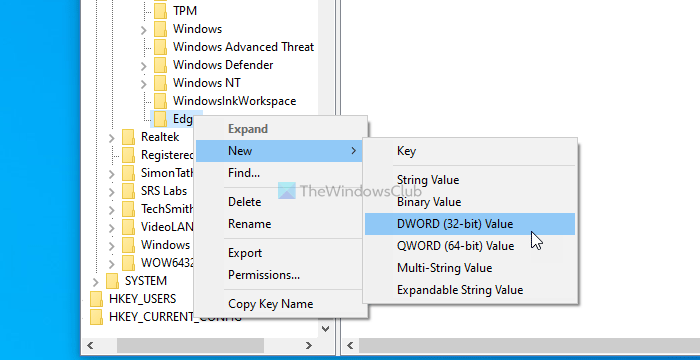
If you want to turn on Startup Boost, you have to set the Value data as 1 and vice versa.
In other words, double-click on StartupBoostEnabled REG_DWORD value and set the Value data as 1 to enable Startup Boost.
However, if you want to disable this feature, set it as 0 or do not change the default value data.
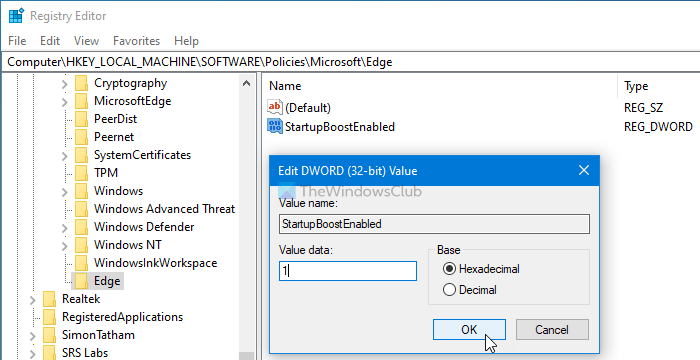
At last, click the OK button to save all the changes.
Enable or Disable Startup Boost in Edge using Group Policy
To enable or disable Startup Boost in Edge using Group Policy, follow these steps-
- Press Win+R.
- Type gpedit.msc and hit the Enter button.
- Navigate to Performance in Computer Configuration.
- Double-click on Enable startup boost setting.
- Choose the Enabled option to turn on and the Disabled option to turn off.
- Click the OK button.
To learn more about these steps in detail, keep reading.
Before getting started, you must download Group Policy Templates for Edge. Otherwise, you will not find Microsoft Edge settings in the Local Group Policy Editor on Windows.
Press Win+R to open the Run prompt, type gpedit.msc, and hit the Enter button. Next, navigate to the following path-
Computer Configuration > Administrative Templates > Classic Administrative Templates > Microsoft Edge > Performance
Here you can see a setting called Enable startup boost. Double-click on it and select the Enabled option to turn on and Disabled option to turn off Startup boost in Microsoft Edge.

At last, click the OK button to save the change.
To verify whether you have successfully enabled or disabled Startup Boost in Microsoft Edge, you can enter this in the address bar: edge://settings/system and press the Enter button.
Here, it shows whether it is turned on or off. You might also find it grayed out after changing it from the Registry Editor or Local Group Policy Editor.
Will Startup Boost work on all devices?
Microsoft has made its intent clear: this feature won’t be available on all devices. Though it may initially launch with many devices, once the company assesses its impact on them, it will choose which to permit and which not to. This may mean that you lose access to the Startup Boost feature even if it worked earlier.
Read: Microsoft Edge browser won’t open.
