
Group Policy, an administrative tool in Windows, determines how programs, network resources, and operating systems behave for users and computers in an organization. Group Policy helps users add policies for active objects by modifying the Windows Registry. Generally, by default Group Policy gets updated in the background every 90 minutes, after a change is recorded in the active object. Even when you change Group Policy Refresh Interval and set it at 0 minutes, the computer tries to update Group Policy every 7 seconds.
However, updating Group Policy depends on which resources have been modified and may vary by priority. So, there is a possibility of a decrease in the computer’s speed, since a Group Policy refresh in the background will affect system performance. Unfortunately, you won’t be able to determine how much memory the Group Policy refresh is consuming, since it isn’t listed in Task Manager. If we allow Group Policy to be updated after the user has been logged out, the system will save resources. This is an option in Windows, and should you wish to change this setting for some reason, this is how to do it.
Turn Off Group Policy Refresh in Windows 11
In this article, I’ll show you how to disable or turn off automatic Group Policy updates while the system is in use.
Disable background refresh of Group Policy using Local Group Policy Editor
To disable background refresh of Group Policy using Local Group Policy Editor, follow these steps:
- Press Win+R to open the Run prompt.
- Type gpedit.msc and hit the Enter button.
- Navigate to Group Policy in Computer Configuration.
- Double-click on the Turn off background refresh of Group Policy setting.
- Choose the Enabled option.
- Click the OK button.
To learn more about these steps, continue reading.
First, press Windows Key + R combination, type put gpedit.msc in Run dialog box and hit Enter to open the Local Group Policy Editor.
Navigate here:
Computer Configuration > Administrative Templates > System > Group Policy
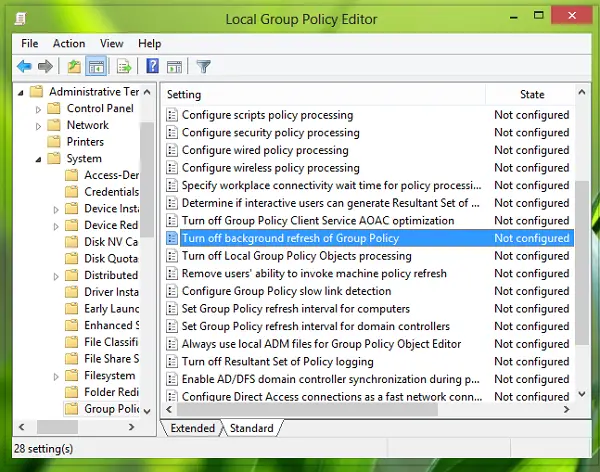
In the right pane, look for the setting Turn off background refresh of Group Policy. It should have Not Configured status by default. Double-clicking on it will yield you the following window:
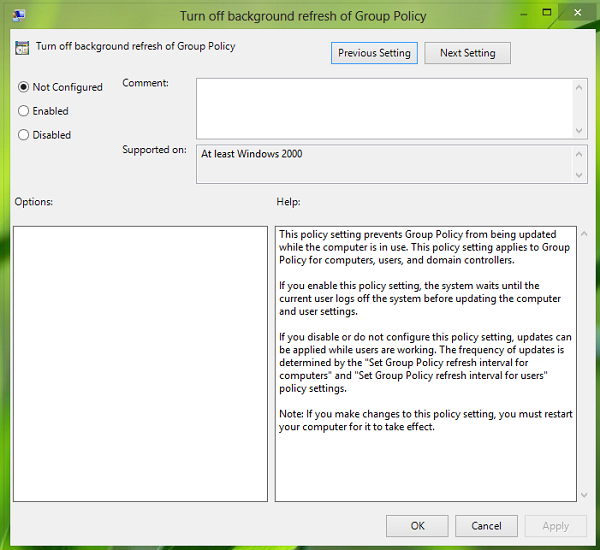
In the above window, selecting Enabled will cause the computer to refresh Group Policy objects after the user logs out, rather than while the computer is in use. Click OK. Reboot to make changes effective. That’s it!
The policy Turn off background refresh of Group Policy overrides over policies Set Group Policy refresh interval for computers and Set Group Policy refresh interval for users which handles the refreshing time of Group Policy to update itself in background while we’re working on computer.
Read: How to force Group Policy Update in Windows 11.
Disable background refresh of Group Policy using Registry Editor
To disable background refresh of Group Policy using Registry Editor, follow these steps:
- Press Win+R > type regedit > hit the Enter button.
- Click the Yes option.
- Navigate to System in HKLM.
- Right-click on System > New > DWORD (32-bit) value.
- Set the name as DisableBkGndGroupPolicy.
- Double-click on it to set the Value data as 1.
- Click the OK button.
Let’s find out more about these steps.
To get started, press Windows Key + R combination, type put Regedt32.exe in Run dialog box and hit Enter to open the Registry Editor.
Navigate to this registry key:
HKLM\SOFTWARE\Microsoft\Windows\CurrentVersion\Policies\System
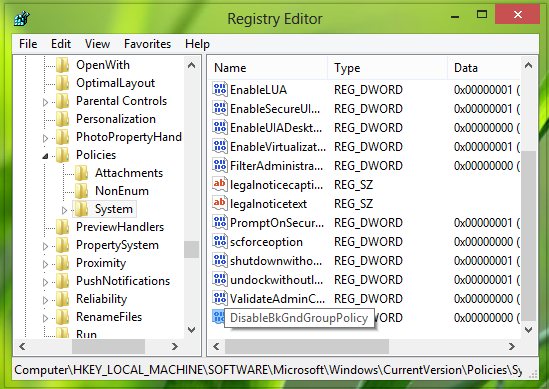
In the right pane of this location, create a DWORD named DisableBkGndGroupPolicy using Right-click -> New -> DWORD. Double click on it to modify, you’ll get this:
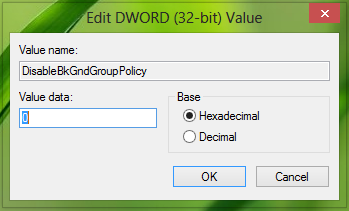
In the above-shown box, input the Value data equals 1. Click OK. That’s it! Reboot to get results.
TIP: You can also disable the background processing of the Registry Policy.
How do I stop Group Policy Update?
To stop the Group Policy update, you can tweak a setting in the Local Group Policy Editor or Registry Editor. In GPEDIT, navigate to Group Policy in Computer Configuration, then double-click the Turn off background refresh setting. Then, choose the Enabled option and click the OK button.
How do I change the Refresh Interval in Group Policy?
To change the refresh interval in Group Policy, you need to open the Local Group Policy Editor first. Then, navigate to this path: Computer Configuration > Administrative Templates > System > Group Policy. Double-click on the Set Group Policy refresh interval for computers setting and choose the Enabled option. Next, select the timing as required, then click the OK button.
