
Is your Windows computer running slow, or is it infected? You can probably download an antivirus and scan for malware or use another cleanup tool. But what if you have limited or no internet connectivity at all. There must be some way to fix your computer without downloading additional software or updates from the internet. In this post, we’ve covered a collection of batch scripts called Tron. Tron is like the swiss army knife of antivirus and clean-up tools capable of scanning, cleaning or disinfecting your computer.
How to install and use Tron Script
Despite its script-like form factor, Tron is easy to execute and comes packaged in one executable file. It is completely portable and does not require an internet connection at all, which explains its relatively bigger size of around 600 MBs. Tron has no internet dependencies and can clean a computer with slow or no internet.
As mentioned, Tron is a collection of tools and scripts that run in a particular order to clean and disinfect your computer. The script follows nine stages, each with a specific cleaning action. The stages are covered as below:
Prep:
In this stage, Tron prepares the computer for the next stages. It will perform tasks such as creating a system restore point, creating a backup of the registry and kill essential processes. This is the most important stage as it ensures everything is backed up before Tron makes changes to your system.
TempClean:
In this stage, the program removes useless temporary data from your computer. It deletes most temporary files, logs, update cache, etc. The most important part of this stage is CCleaner. Tron will automatically run CCleaner without installing or setting up additional software.
De-bloat:
This stage will remove all the OEM bloatware that came preinstalled in your system. This feature is fully customizable, and you can define which applications to remove and which to keep.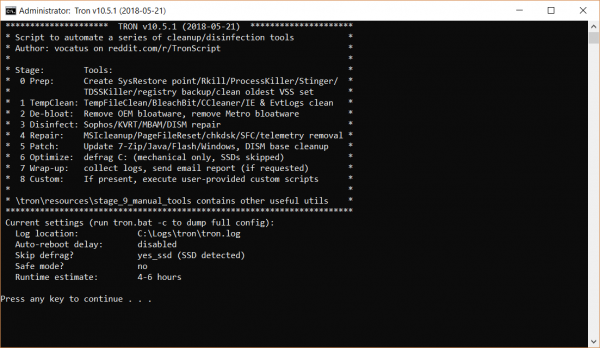
Disinfect:
This is perhaps the most important stage. Tron comes preloaded with three most popular antivirus engines, namely Kaspersky Virus Removal Tool, Sophos Virus Removal Tool, and Malwarebytes Anti-Malware Tool. It runs all three on your computer to ensure there is no virus or malware. This stage may take a little longer because it scans the entire computer and then removes files.
Repair:
Once all the virus and vulnerabilities have been removed, it is time to fix the computer. In this stage, the program would repair the registry and reset file system permissions. It will also execute commands such as sfc /scannow, chkdsk in the background automatically.
Patch:
Patch stage is designed to update some of the essential software such as 7-Zip, Java, and Adobe Reader and later it proceeds to install Windows Updates.
Optimize:
This stage tries to speed up your computer by running disk defragmentation, resetting page file, and executing other similar tasks.
Wrap-up:
In this stage, Tron won’t perform anything on your system but will generate a report. You can also configure Tron so send this report as an email to you. This feature is very helpful if you want to monitor what changes Tron made to your computer.
Manual-Stuff:
This isn’t exactly a stage in the script, but it includes essential cleaning utilities such as adware cleaners, junk removers, and MBR rootkit removers.
Tron is a useful tool for Windows users; it does a lot under the hood to keep your computer running fast. Tron is a relatively large tool and can take a long time to run its scripts. So, it is best to run the tool when you won’t be using your computer for a while. The computer may also restart several times during the process. If you usually face slow computing speed, virus, bloatware on your Windows computer, you should consider keeping a copy of Tron on your computer. Click here to download Tron.
Read: SmartFix lets you recover Windows computer after a malware attack.
