
While installing Windows 11, if you see an error message saying There is an error selecting this partition for install, here is how you can resolve the issue. Although it mainly happens when your selected partition has some leftovers, there could be other reasons as well.
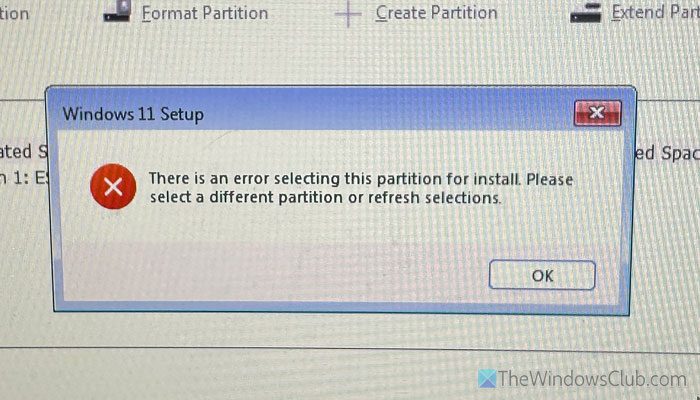
The entire error message says something like this:
There is an error selecting this partition for install. Please select a different partition or refresh selections.
Why does Windows 11 show There is an error selecting this partition for install error?
One of these could be the reasons:
- Your selected partition has some leftovers that need to be deleted.
- Windows 11 requires a UEFI and GPT disk. However, if you try MBR, there is a chance of getting this error.
- Your hard drive is not listed in the BIOS.
- The bootable drive has some issues.
- Your hard drive is not 100% working condition.
There is an error selecting this partition for install – Windows Setup
To fix the There is an error selecting this partition for install error during Windows 11 Setup, follow these solutions:
- Clean the old partition using DISKPART
- Convert disk to GPT
- Re-create the bootable USB drive for UEFI
- Run CHKDSK
To learn more about these solutions, continue reading.
1] Clean the old partition using DISKPART
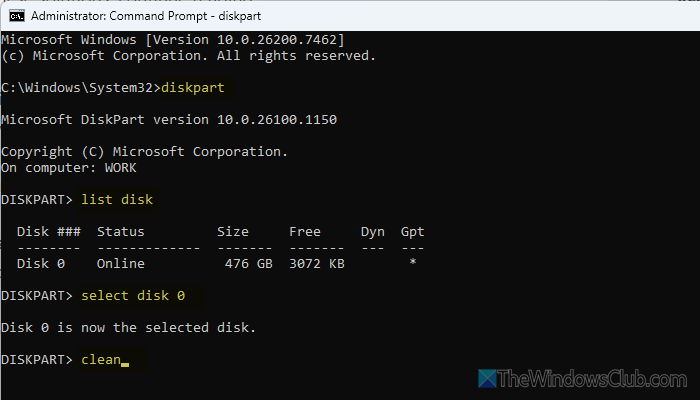
To clean the old partition using DISKPART, open the Command Prompt. For that, press Shift+F10 when the Windows installation wizard displays all the partitions.
Once the Command Prompt appears on your screen, use the DISKPART command.
Then, enter the list disk command to find all the disks. From here, you must choose the disk that you want to clean. In general, this disk is called Disk 0.
Enter the select disk [disk number] command to select the disk. Next, enter the clean command.
After that, close the Command Prompt window and proceed with the regular installation process.
Read: How to delete a Volume or Drive Partition in Windows 11
2] Convert disk to GPT
As mentioned earlier, Windows 11 requires a GPT and UEFI combination. If you use MBR, it is time to convert it to a GPT disk. There are multiple ways to do that, and, in most cases, you might lose your data. However, if you want to convert MBR to GPT without losing your data, you can use the Gptgen method.
However, if you have already formatted your partition, you won’t be able to boot your system. In that case, you have to use the Command Prompt method.
For that, press Shift+F10 to open the Command Prompt and enter these commands:
diskpart

list disk

select disk [disk number]

clean
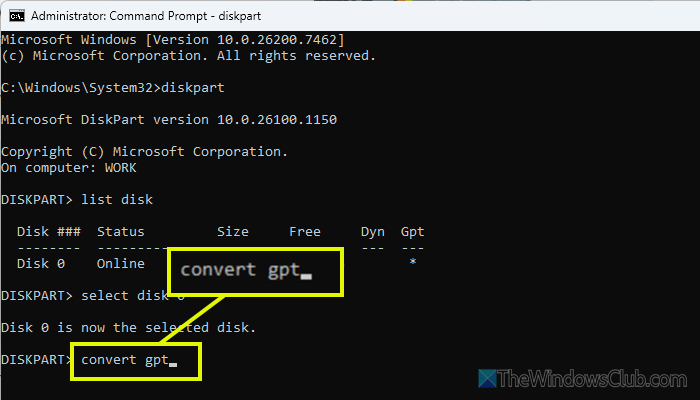
Once you clean the disk, you can enter the convert gpt command to convert it from MBR to GPT.
3] Re-create the bootable USB drive for UEFI
As Windows 11 requires a few things in line, it is recommended to follow this detailed guide to create a bootable UEFI USB drive.
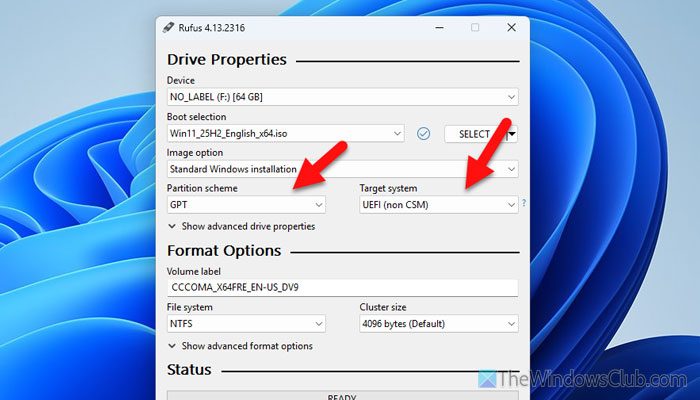
That said, it is recommended to create a bootable USB drive using Rufus, as it offers all the options required for Windows 11.
For example, you can choose GPT and Partition scheme, UEFI (non CSM) as the Target system, etc.
Note: It is highly recommended to download the Windows 11 ISO only from the Microsoft website. Do not download it from any third-party resources. Also, Windows 11 requires a few things that differ from Windows 10 and older versions. You can use the Windows 11 Requirements Checker Tool to check if your computer is Windows 11 compatible or not.
4] Run CHKDSK
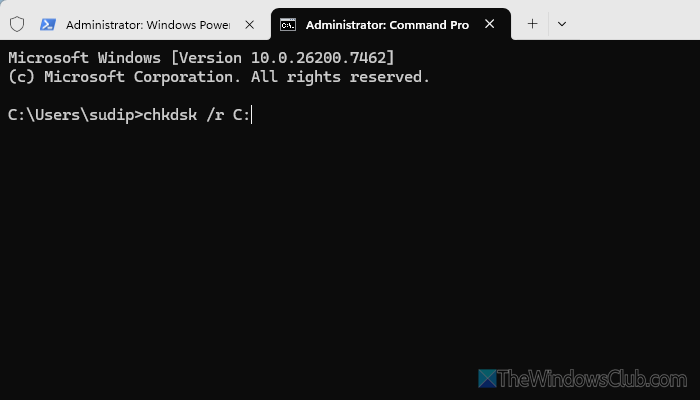
At times, this problem might arise when your hard disk has some issues. To confirm that, you can use the CHKDSK command. For your information, it scans all the possible damage and fixes it accordingly.
You can open the Terminal with administrator privileges and use this command:
chkdsk /r C:
You can also use this command: ChkDsk /f to repair errors in the file system.
Read: The selected disk has an MBR partition table
Why can’t I install Windows 11 on a partition?
If you can’t install Windows 11 on a partition, there could be several reasons:
- You have an MBR disk, but Windows 11 requires a GPT disk.
- If your system runs in UEFI mode, you must use a GPT disk.
- You do not have enough free storage to install Windows 11. For your information, Windows 11 requires 64 GB of free storage space.
How to solve Windows 11 installation error?
If there is a system requirement issue, you must upgrade your hardware, enable TPM, Secure Boot, etc. However, if you encounter any hard disk-related issues, try formatting your hard drive and installing on a clean drive.
Read: This partition is too small error while installing Windows.
