
When trying to log in to the Steam app with your account, if you receive Too many login failures error on Steam, this post will help you resolve the problem. The error can occur even if your account credentials are correct because the Steam app is unable to authenticate your account.
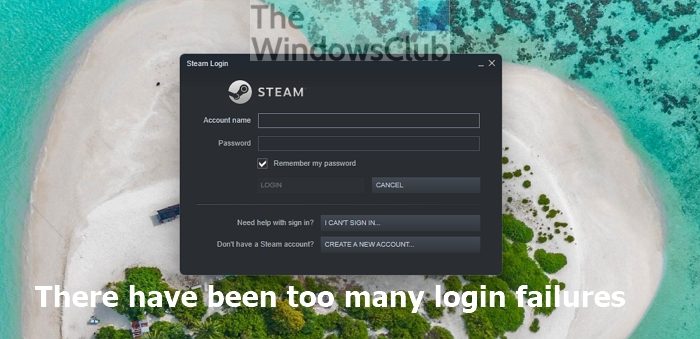
There have been too many login failures error on Steam
Before you start, if you already have this message, you will have to wait at least 30 minutes. So even if the issue was resolved because of a network issue, you will still have to wait it out.
- Try a different network or Mobile Hotspot
- Reset Router and Network
- Use a VPN
Make sure to use an admin account to sort this problem.
1] Try a different network or Mobile Hotspot
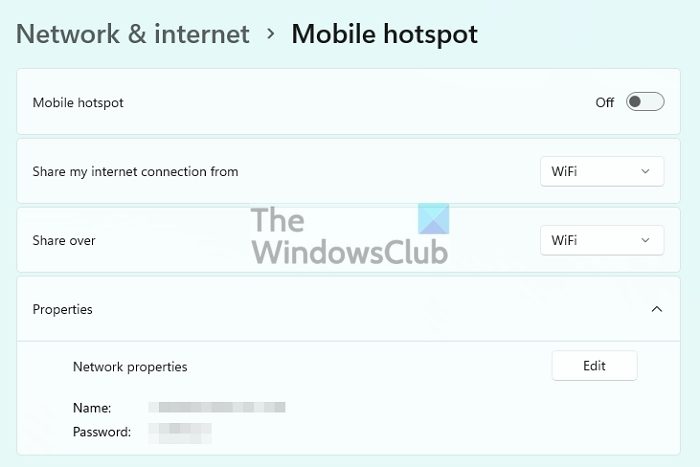
At times, the problem is network connectivity, and the best way to figure it out is to use a different network or, even better, a mobile hotspot. When you connect your laptop to a mobile network, it creates a new connection over another network, which should work. However, if this doesn’t work, the problem could be with Steam, and you’ll need to contact them.
2] Use a VPN

If your IP is getting blocked or the Network is blocking Steam services, you can use any VPN to figure that out. Once you are of the 30 minutes cool down, try out any Gaming VPNs that offer limited free time access. Ensure it is available for the complete OS and not just the browser. If you can log in, it’s your ISP, the Router, or the Network at fault.
3] Reset Router and Network
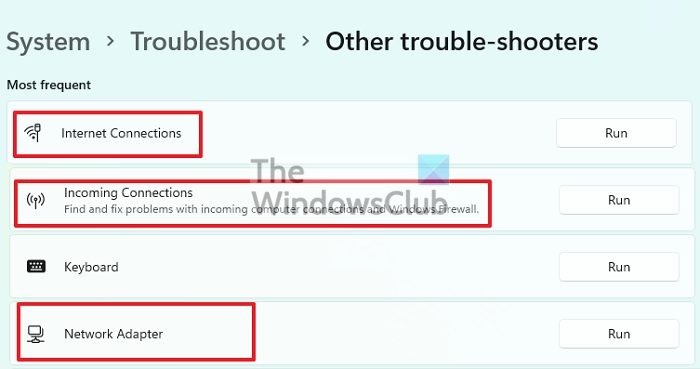
If you had success with the mobile hotspot and the VPN, then it’s time to check with the router or the network adapter. Start by restarting the router, then resetting the network adaptor. The best way to do that is to use the built-in Network troubleshooter.
Open Windows Settings (Win + I) and then go to System > Troubleshoot > Other troubleshooters. Here you can run these troubleshooters:
- Internet Connections
- Incoming Connections
- Network Adapter
They will check and reset the network adaptor, check if there is an issue with the firewall and if the firewall has been blocking incoming connections from Steam, they will resolve it.
Read: How to repair Steam Client on Windows PC
How long will Steam lock you out?
In the event of multiple login failures, a user will be locked out for 20 to 30 minutes. However, it varies from scenario to scenario, and users have been known to lock out for hours, if not longer. If you are locked out for longer, it’s best to contact customer support; they should be able to shorten or remove the lockdown more quickly.
Read: How to download, install, and use Steam on Windows PC
How do I fix my Steam login?
If resetting account credentials doesn’t help, the only way to fix it is to contact the support team and verify it yourself. Once the support team verifies, they should be able to fix the issue preventing you from logging in to your account, even after an account reset. However, be aware that if it’s a network issue, you will have to wait for it to be resolved.
Now read: How to Reset Steam password and Recover Steam account.
