
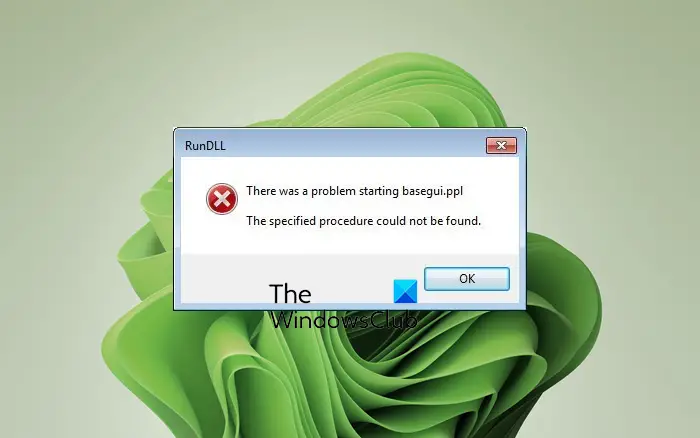
When starting an application or software, if you receive an error— There was a problem starting this file, The specified procedure could not be found, then in this post, we will share a general fix for this kind of error. It commonly appears in Office programs like Outlook, but can also appear in other software.
Why does it say The specified procedure could not be found?
When you receive this error, it is usually accompanied by a message that may say, “There was a problem starting basegui.ppl.” The name of the application will vary depending on which application was the root cause of the error. There is another similar error related to this, which may say — The specified module could not be found.
Here is another piece of information you should be aware of regarding the error. When it indicates that a specified procedure or module is missing, it means that a file related to the procedure is missing from the program, typically a DLL file. This DLL file can be a System DLL file or only specific to the application.
Fix The specified procedure could not be found error in Windows 11
Now that you know the problem let’s take a look at the possible solutions.
- Reinstall the mentioned application
- Run System File Checker
- System Restore.
1] Reinstall the mentioned application
It is possible that one of the files is missing or is corrupted. In this case, you should reinstall the app. Many software application offers a Repair operation. If you have it, it should be available in the Uninstall Program list of programs and features. If there is no such option, you can choose to uninstall the application first, followed by reinstallation.
Both of them will replace the corrupt file with a new copy, and the procedure will be available when called.
2] Run System File Checker
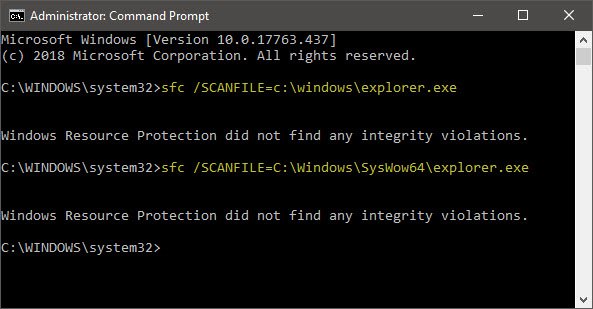
You may have to make a smart guess, but running SFC doesn’t do any harm. If the missing application name resembles a System File or DLL, it is best to use SFC.
You need to run “sfc /scannow” on an elevated Command Prompt. It will scan the Windows installation for any corrupt system files and replace them with fresh copies.
If there is an application mentioned in the error which is part of Windows, e.g. Explorer, then you can also run SFC for that single application.
3] System Restore
If the problem started occurring recently, and the problem wasn’t there a day ago, then we would suggest you restore Windows 10 to the day where everything was working fine. Follow our detailed guide to learn about system restore and how to use it.
Lastly, this error is not related to any Virus activity or registry changes. It’s a simple function call from an application, and it failed. So do not panic if someone suggests that you run the antivirus. The best way to resolve this issue is to reinstall the application in question, and it will be resolved.
Related:
- The specified module could not be found
- The procedure entry point could not be located in the dynamic link library
I hope the solutions were easy to follow, and you were able to fix the problem.
Why does Windows 11 keep failing to install?
There could be several reasons why Windows 11 fails to install on your PC. From the TPM and Secure Boot requirements to insufficient storage and RAM, anything could be held responsible for this issue. That is why you should check the official system requirements for Windows 11 before trying to install this OS.
