
We see our PCs with weird names at the beginning, combining names and numbers. We change the users’ names in the Control Panel and make them look good without numbers. If you recently tried to change your PC’s name and saw “The PC name is invalid” message in Windows 11, this guide offers a few solutions to fix it.
The PC name is invalid in Windows 11
If you are seeing the PC name is invalid error on Windows 11, you can resolve the issue using these suggestions:
- Make sure you are logged in as an administrator
- Make sure your name has permitted characters only
- Update Windows
- Turn off Sync and remove PC from your Microsoft account
- Try renaming using PowerShell
Let’s get into the details of each method and fix the issue.
1] Make sure you are logged in as an administrator
To change the name of a user account, you need to log in as an administrator. As we all know, only administrator accounts have the privilege to change names and make system-level changes. Try changing the name as an administrator and see if it fixes the issue.
Read: How to rename built in Administrator Account in Windows
2] Make sure your PC name has permitted characters only
Microsoft has certain rules regarding PC names. The name you are setting should not have,
- Spaces and lowercase letters as some Windows versions do not support them
- Special characters like ~ @ # $ % ^ & ( ) = + [ ] { } | ; : , ‘ “ . < > / \ ?
- Name with only numbers. It should be a mix of text and numbers
- Characters of more than 15 letters. Though Windows 11 permits more characters, there are some compatibility issues with apps and services like NETBIOS
- The same name as the other accounts on your PC. The name you are setting must be unique.
If you follow all the guidelines, you might be able to change the name without any issues or errors.
3] Update Windows
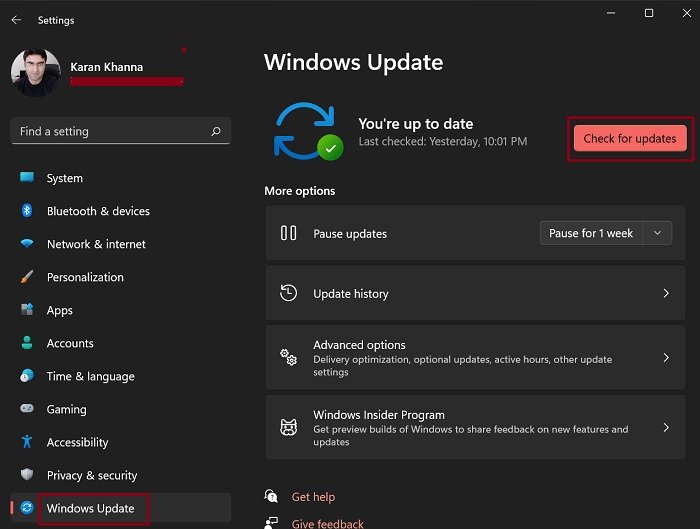
There might be a bug or glitch at the Windows level that is causing the issue. You need to update Windows to fix bugs from the previous update or resolve any Windows issues that are causing the “PC name is invalid” error.
- Open the Settings app
- Click on the Windows Update on the left side panel
- Then, click on the Check for updates button.
- It will check for the available Windows updates and install them.
After updating your Windows, try changing the name. If you still see the error, follow the methods below.
4] Turn off Sync and remove PC from your Microsoft account

We generally use Windows 11 PC with a Microsoft account associated with it. They Sync the settings with other devices. This might be the cause of the error. you need to disable Sync and remove the Microsoft account on your PC.
To turn off sync,
- Search for Sync your settings in the Start menu and open it
- Toggle the button off beside Remember my apps and Remember my preferences
- Then, restart your PC
Now, you need to remove the PC from your Microsoft account. To do so,
- Go to Devices List of your Microsoft account
- You will see the device you are trying to rename in the list
- Click on Remove device below it.
- Accept the prompt to remove by clicking on the Remove button
- It will remove your PC from your Microsoft account.
Then, rename your PC and reconnect it with your Microsoft account by logging in.
5] Try renaming using PowerShell
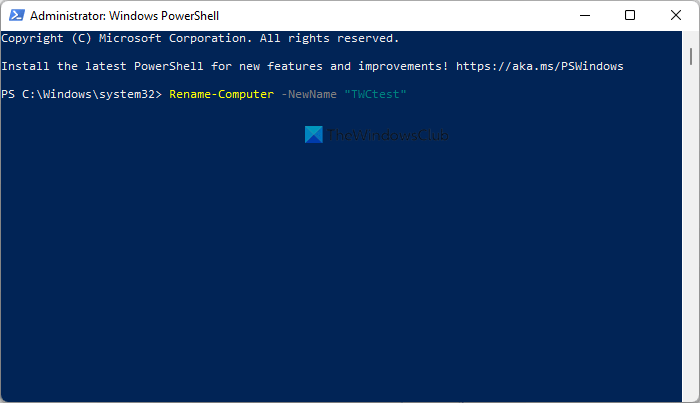
If none of the above methods help you fix the issue, you need to rename your PC using Windows PowerShell with administrative privileges. It is a powerful method that can override the error and allow you to continue renaming your PC.
To rename your PC using Windows PowerShell,
- Search for PowerShell in the Start menu
- Click on Run as administrator under the Windows PowerShell in the results
- Click on Yes on the confirmation prompt
- Then, enter
Rename-Computer -NewName "NEW-PC-NAME", where you have to replace NEW-PC-NAME with the name you want to change and press Enter - After the command is run successfully, you will see The changes will take effect after you restart the computer
- Then, restart your PC to see the new name of your PC
This is how to change the name of your PC by fixing the “PC name is invalid” error on Windows 11.
What is a valid PC name?
A valid PC name is of 15 or fewer characters that do not have only numbers or special characters or spaces in the PC name. The name should be different from the names existing on your PC.
Read: How to find Computer Name in Windows 11.
Why I Cannot change my PC name?
There might be many reasons for you to not able to change the name of your PC. It might be due to the use of incompatible characters, Windows bugs, etc. You can use the methods above to easily rename or change your PC name.
