
If you are stuck at the Windows login screen and you see an error message The Handle is invalid you need first to ensure that you are using the correct credentials to log in. If you are sure that they are then it could be caused due to a misconfigured Windows Update that went rogue. In this guide, we will share how to fix this issue on Windows 11/10. This message may also appear when you try to run a printing job, run a script, copying files, etc. – but in this post, we will see how to fix the error during login.
What is The Handle is Invalid error on Windows?
The Handle is Invalid error message is related to issues with operating system resources, such as memory or file handles. A program or service may be trying to access a resource that is no longer available or has been closed.
Fix The Handle is Invalid error on Windows 11/10
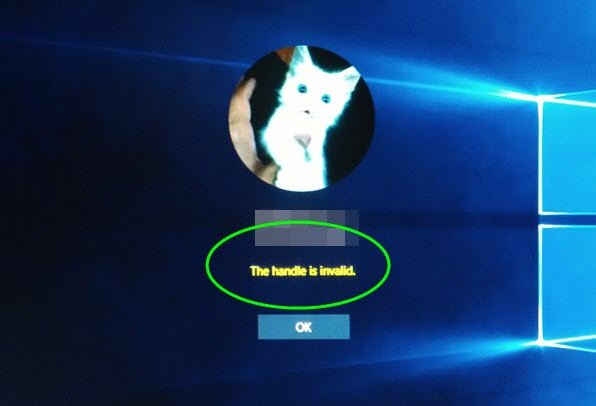
1] Shutdown with Shift key and Power button combo
- Restart your computer if it’s turned off.
- At the login screen, press and hold the Shift key+Power button.
- Do not release it until the screen turns black, and the computer shuts down. Wait for the beep or any other indication that your laptop is now completely turned off.
- Release the Shift key and Power button.
- Start the computer again.
This shortcut should fully shut down Windows and make it load fresh. If there is a glitch with the automatic update, this shortcut helps to fix it.
Pressing the Shift+Shutdown key tells the PC to do a full shutdown rather than a Hybrid Shutdown. If you press Shift+Restart will boot you into the Advanced Startup. In this scenario, we don’t want to boot into Advanced Startup.
2] Boot into Safe Mode and uninstall the latest updates
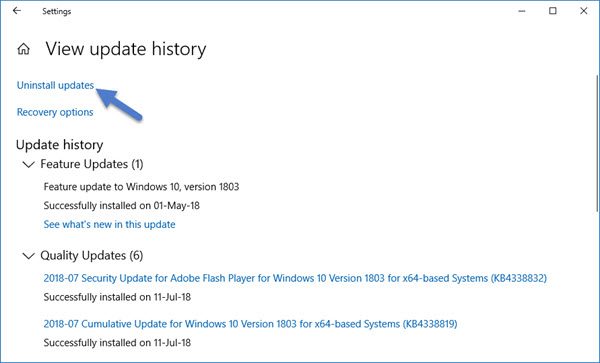
If the above solution doesn’t work, it is best to uninstall the update. To do this, you need to boot into Safe mode. Once inside, go to Settings > Update and Security > View update and history > uninstall updates. Select recent updates, and choose to uninstall it.
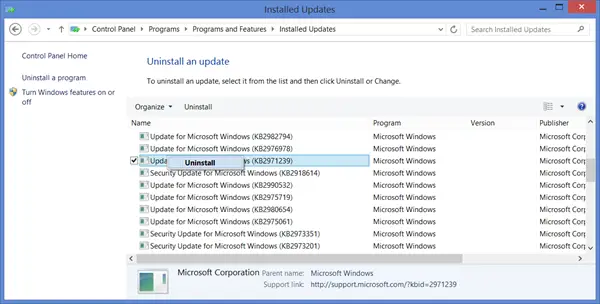
Reboot the computer in normal mode, and then try to login with your account. Hopefully, you should not see “The Handle is invalid” error message now.
3] Run DISM in Advanced Startup using CMD

Boot into Advanced Startup options, and select Troubleshoot > Advanced Option > Command Prompt. Here you can run the DISM tool. It will scan your Windows computer for inconsistencies. These usually result from various hardware failures or software issues. DISM tool will potentially fix that corruption.
4] Perform Automatic Startup Repair
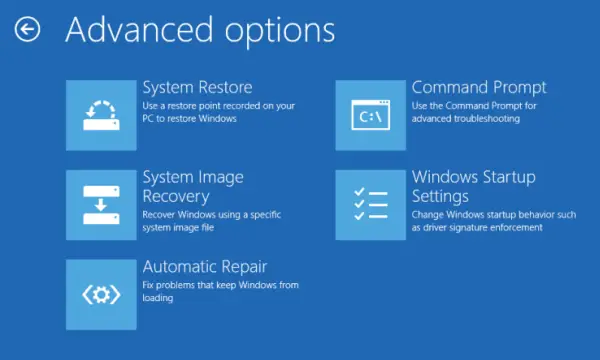
Startup Repair or Automatic Repair is an advanced option in Windows. It can fix problems which blocks Windows from normal loading. It will scan system files, registry settings, configuration settings and more and try to fix the problem on its own, automatically.
Boot into Advanced Startup options, and choose select Troubleshoot > Advanced Option > Automatic Repair. This process may take some time, and your system may even boot.
During Startup Repair, you will have to choose an account, and sign in with your Microsoft or local admin account to complete the process. During this login, you should not receive “The Handle is Invalid” error message.
Let us know if it helped you to fix the error.
