
When we access the Windows 11/10 login screen, the names and pictures of all available user accounts are visible in the bottom-left section. We can click on any user account and enter the login details to access it. However, many users have reported that the Switch User option is missing from the Windows login screen, so other user accounts are not visible there. If you are also facing this problem, this post might help you use two built-in features in Windows 11/10.
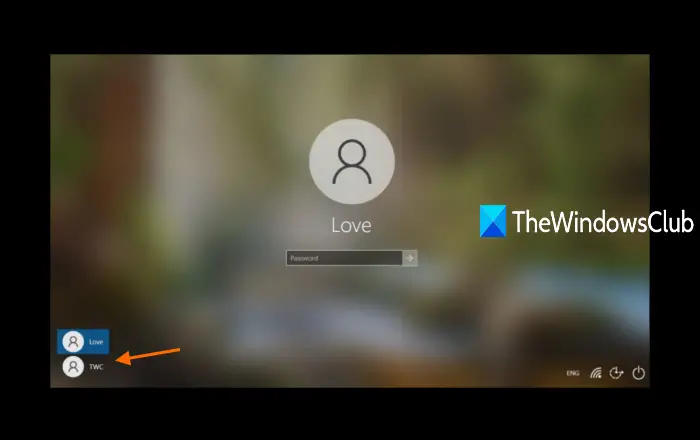
Switch User option missing from Windows 11 login screen
You can show the Switch User interface on the login screen of Windows 11/10 using any of these two methods to fix the issue:
- Local Group Policy Editor
- Registry Editor.
Let’s check both options.
Can’t switch Users in Windows 11
1] Local Group Policy Editor
This feature is present in Enterprise and Pro editions of Windows 11/10. If you are using Home edition, then you need to install Local Group Policy Editor to Windows Home edition so that you can use it.
After that, follow these steps:
- Open Local Group Policy Editor
- Access Logon folder
- Access Hide entry points for Fast User Switching setting
- Use Not Configured option
- Press OK.
At first, open the Run Command box using Win+R hotkey, type gpedit.msc, and use the Enter key to open the Local Group Policy Editor window.
In that window, access the Logon folder. Its path is:
Computer Configuration > Administrative Templates > System > Logon
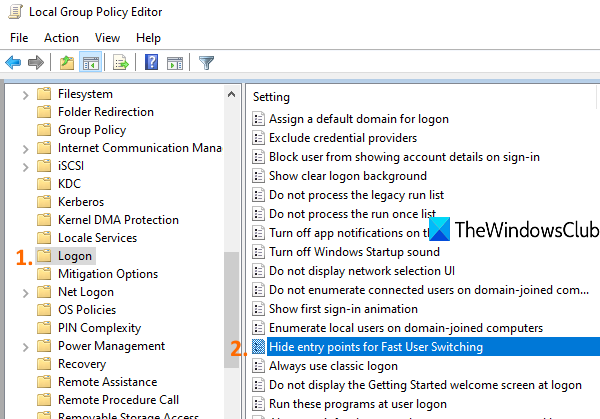
Now in the right-hand section, scroll down and access Hide entry points for the Fast User Switching setting by double-clicking on it.
This will open a new window for that setting. In that window, select the Not Configured option, and press the OK button.
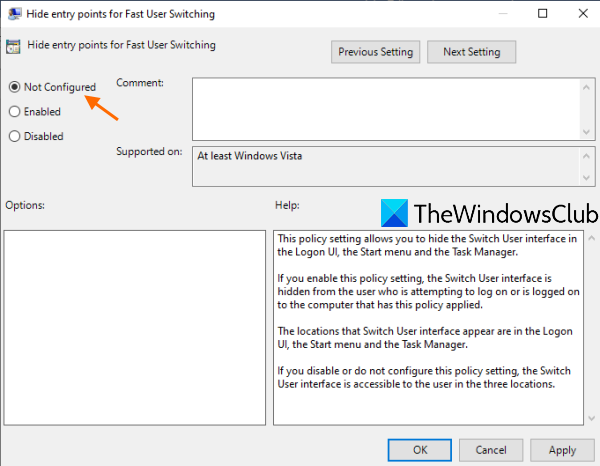
On the Windows 11/10 login screen, all user accounts should now be visible.
2] Registry Editor
First of all, backup Registry Editor before trying this option. After that, use these steps:
- Open Registry Editor
- Access the System key
- Create
HideFastUserSwitchingDWORD value - Set its value data to 0
- Press the OK button.
In the very first step, open Registry Editor by typing regedit in the Windows 10 Search box and then press Enter key. There are many other ways to open Registry Editor.
After opening Registry Editor, access the System Registry key. Here is its path:
HKEY_LOCAL_MACHINE\SOFTWARE\Microsoft\Windows\CurrentVersion\Policies\System
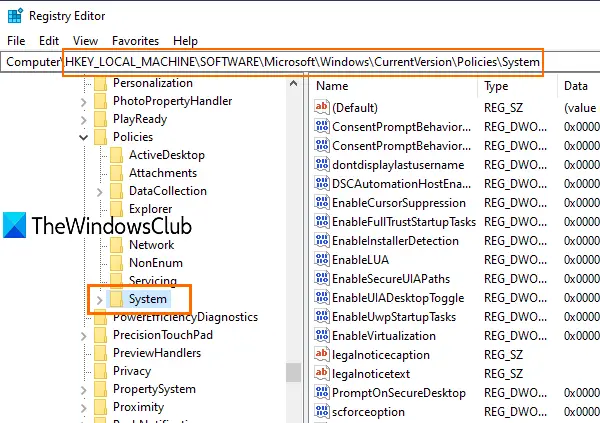
Under this key, you will see a lot of DWORD values. Now you need to create a new DWORD (32-bit) value and set its name to HideFastUserSwitching. If that DWORD value is already present, then no need to create it.
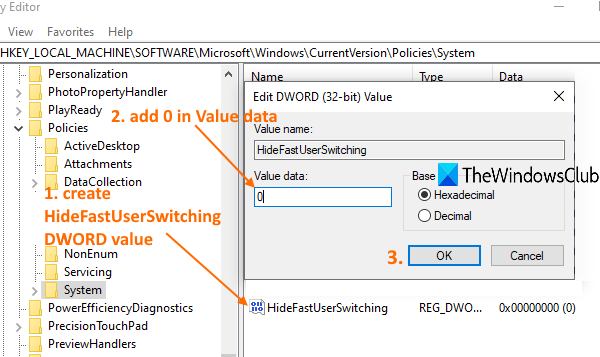
Double-click on the HideFastUserSwitching value and a window will pop up. There, enter 0 in the Value data box (as shown in the screenshot above), then press the OK button.
Alternatively, you can also simply delete the HideFastUserSwitching value. After that, when you will access the login screen of Windows 11/10, the Switch User accounts option will be visible there.
Related: Hide specific user accounts from Windows login screen.
Even after using the above two options, User account names not displaying on Windows login screen, then you can show them using Command Prompt or Local Users and Groups window. Or else, you can use other different ways to switch users on Windows.
Hope something will help.
