
If you have multiple users on Windows 11/10 computer, the names are listed on the login screen. Respective users can select the account available at the bottom left, and enter the password to get access to the account. That said, if you want to hide a user account from the login screen in Windows 11/10, here is how you can get it done. Follow the steps in reverse to show all user accounts.
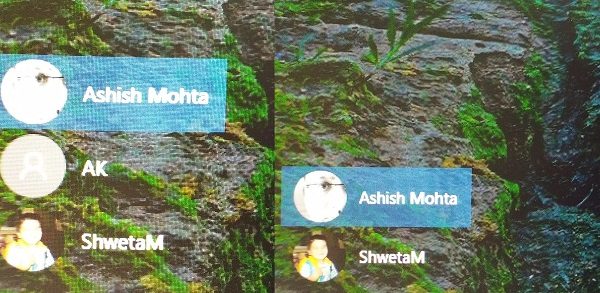
If you want to hide all the accounts from the Sign-in or Log-in screen, follow the linked post. It will replace the current login screen with a prompt where the user needs to enter the username manually. No user account is displayed in this case.
Hide specific User Accounts from the Sign-in screen on Windows 11/10
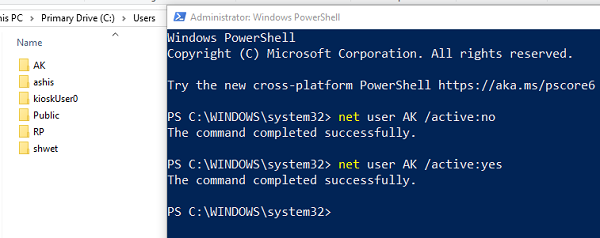
Since we are hiding that user account, it means we do not want the person to use it at all. Follow the steps to hide a specific User Account from the sign-in screen or login screen in Windows 11/10:
- Open File Explorer and navigate to C:\Users
- The username you want to hide and one the folder name available here should match.
- So the User AK has the folder name AK. Note down this name
- Open PowerShell as Administrator
- Type net user [USERNAME] /active:no where [USERNAME] = AK.
- It will hide the Windows user account and also hide the user from the login screen.
To bring back the username in the Login Screen, type the following and hit Enter:
net user [USERNAME] /active:yes
Here [USERNAME] = AK. It will activate the user account and display it on the login screen.
If you cannot use the Net User command, then you can also use the Registry method. It works on Windows Home as well.
Show or Hide User Account on Sign in screen using Registry
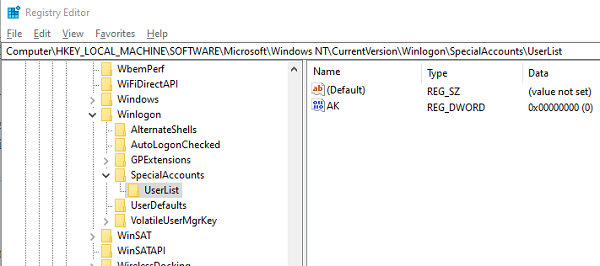
Here, selecting the Key creates a folder. Do remember that.
Open Registry Editor and navigate to the following path:
HKEY_LOCAL_MACHINE\SOFTWARE\Microsoft\Windows NT\CurrentVersion\Winlogon
Right-click on Winlogon, select New > Key from the menu.
Name the new key as SpecialAccounts. Right-click the SpecialAccounts key, select New >Key from the menu.
Name the new key as UserList. Inside of UserList, again right-click, and this time choose New> DWORD (32-bit) Value.
Make sure to name this DWORD the same as the User Account name you plan to hide.
Then set the value as 0. You can double-click to edit the value.
To unhide, either remove the DWORD or set it to 1.
If this key exists, then you will not need to create the values manually-
Computer\HKEY_LOCAL_MACHINE\SOFTWARE\Microsoft\Windows NT\CurrentVersion\Winlogon\SpecialAccounts\UserList
Hiding accounts doesn’t delete them – it only removes them from visibility at login.
We hope the tutorial was easy to follow and that you were able to show or hide specific User Accounts on the Sign-in screen in Windows 11/10.
Can I hide all accounts from the sign-in screen?
Yes, you can configure Windows to not display any accounts. Instead of showing usernames, Windows will prompt for manual entry of both username and password.
This can be done by editing Local Security Policy or Registry settings.
