
When you view the Event log on your Windows 11 or Windows 10 PC, you may see the error message The storage optimizer couldn’t complete retrim on drive with error code 0x8900002A and Event ID 264. Although there doesn’t seem to be any adverse effect on your system due to this error, in this post, we explain why this issue occurs, and what necessary actions you can take to curtail the incidence.
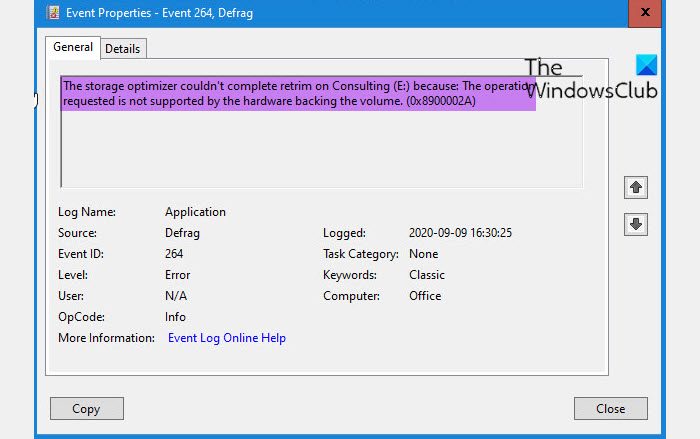
The storage optimizer couldn’t complete retrim on drive because: The operation requested is not supported by the hardware backing the volume (0x8900002A)
Fix Storage Optimizer Error 0x8900002A, Operation requested not supported by hardware
You can prevent your Windows 11/10 device from recording the Storage Optimizer Error 0x8900002A, Operation requested not supported by hardware in the Event Log by taking our suggested necessary steps as follows:
- Initial checklist
- Update Windows
- Turn off Scheduled Optimization
- Run CHKDSK and S.M.A.R.T Test
Let’s take a look at the description of each of the recommendations.
1] Initial checklist
Before you proceed, check if the drive throwing the error is an SSD. If so, then your SSD may not support TRIM. To verify this, you can use a tool like HWiNFO and look at the drive properties – it should be under Transfer Modes. Although, there are arguments in some quarters whether it’s OK to defrag SSDs; nevertheless, it’s better to err on the side of caution, and disable defragmentation for your SSD. On the other hand, if the drive in question is not a Solid State Drive but a spinning hard drive, a classic platter-type hard drive, then TRIM is not supported. And Windows should not be running TRIM on HHDs, but a bug was reported earlier in Windows regarding this. Since it is not a supported feature on HDDs, it can be ignored.
However, if this is not the case for you, or you simply don’t want Event Viewer to log this error, you can proceed with the suggestions below.
2] Update Windows
As already indicated, the Storage Optimizer Error 0x8900002A is not an issue per se, but actually one of the known issues on Windows that was fixed. So, make sure you update to the latest version/build of Windows on your device.
3] Turn off Scheduled Optimization
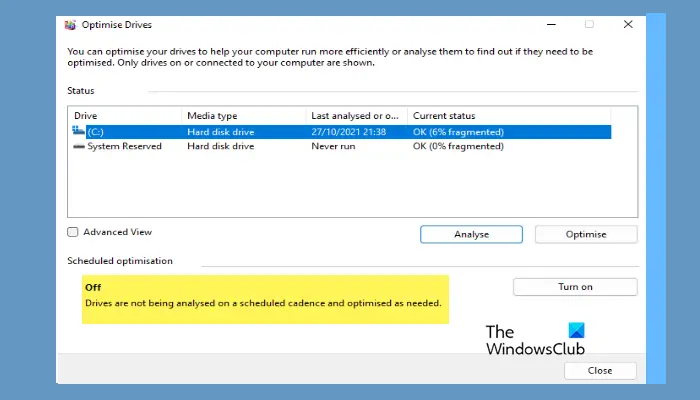
In Windows 11/10, Disk Defragmentation helps organize your disk. It can arrange the data stored on the disk such that the speed of your computer is increased and become more efficient. Since running the inbuilt Disk Defragmenter or Optimize Drives Tool triggers the error in view, the logical step to take is to turn off Scheduled Optimization for the drive in question. If you must run disk defragmentation, you can try any of the free third-party Defragmentation Software for Windows 11/10.
4] Run CHKDSK and S.M.A.R.T Test
This suggestion should be treated as an afterthought. To be sure your drive is in perfect condition, you can run CHKDSK to repair bad sectors that might be triggering a false positive. You can also run SMART test to see the health of your drive.
Hope you find this post informative and helpful enough!
How do I fix Windows 11 Optimization not available?
To fix the issue where the Optimize Drives Tool shows Never Run or Optimization not available on your Windows 11/10 PC, do the following:
- Press Windows key + R from the Keyboard.
- Type services.msc and hit Enter.
- Search for Optimize drives Service.
- Double-click on Optimize drives Service and click on the Start button.
- Click on the dropdown list and set the Startup type to Automatic.
Should I Optimize Drives Windows 11?
Windows 10 should automatically run ‘Optimize Drives’ utility on your computer on a weekly basis to Defragment the Hard Disk and improve its performance. However, this may not always happen and it is a good idea to make sure that the Hard Disk Drive on your computer is not too fragmented.
