
If Steam is stuck on Verifying Installation, then this post may help. Steam is a digital video distribution service and storefront by Valve. The platform allows gamers to purchase, download, and play video games on their personal computers. It also allows users to join groups, share game content, and participate in discussions with other players. But recently, users have complained that Steam is stuck on Verifying Installation page. Fortunately, you can follow a few simple steps to resolve the error.
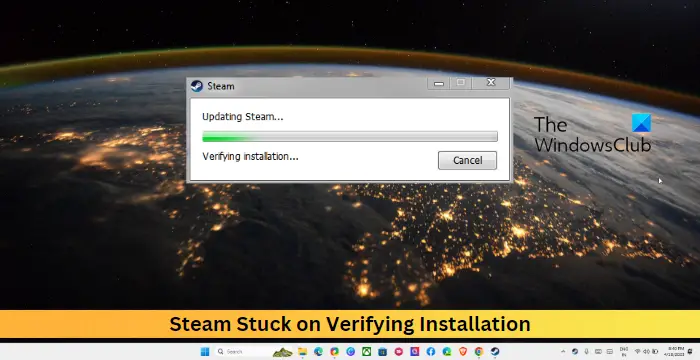
Fix Steam Stuck on Verifying Installation
If Steam is stuck on Verifying installation, on your Windows PC, follow these suggestions:
- Restart Steam Client
- Clear Steam Download Cache
- Check the Internet Connection
- Launch Steam as an Admin
- Disable Windows Defender Firewall
- Delete the contents of the Steam Content Folder
- Troubleshoot Steam in Clean Boot Mode
- Reinstall Steam
Now let’s see these in detail.
1] Restart Steam Client
First, restart the Steam client and your PC to see whether the verification installation error has been resolved. If restarting didn’t work, then follow these suggestions.
2] Clear Steam Download Cache
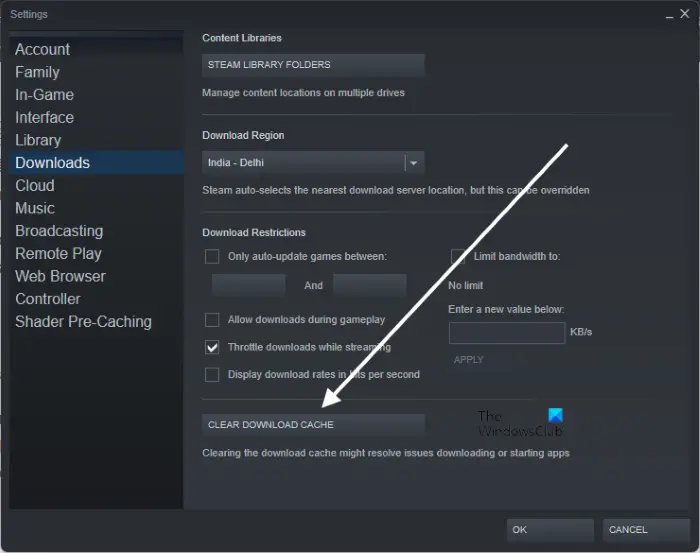
The Steam Download cache is used for games that are currently downloading, updating, or patching, and for copying them to their final location. Cache data can sometimes become corrupted, causing errors. Clearing the download cache can help fix the verifying installation error on Steam. Here’s how you can do it:
- Open Steam and navigate to Steam > Settings > Downloads.
- Here, click on Clear Download Cache and see if the error’s fixed.
3] Check the Internet Connection
Next, check if the internet connection you’re connected to is up and stable. An unstable internet connection could be why the verifying installation error occurs on Steam. Perform a speed test to check your internet connection. If the speed is less than the plan you’ve opted for, consider restarting your router and contact your service provider.
4] Launch Steam as an Admin
Launching Steam with administrator privileges ensures it doesn’t encounter permission errors. To do so, right-click on the Steam.exe shortcut file and select Run as Administrator.
Read: Steam download stuck at 0 bytes
5] Disable Windows Defender Firewall
Interference from security applications like the Windows Defender Firewall can also cause the verifying installation error on Steam. To fix this, you’ll have to disable the Windows Defender Firewall.
6] Delete the contents of the Steam Content Folder
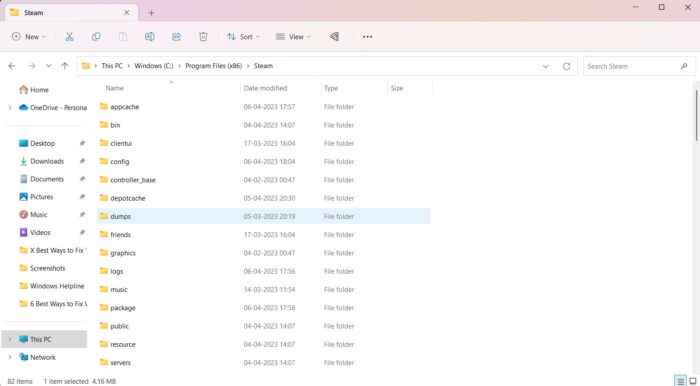
The Steam Application saves its temporary data and cache in the Depotcache and Appcache folders in the Steam installation directory. Deleting the contents of these folders can help fix the verifying installation error in Steam. Here’s how you can do it:
- Open File Manager and navigate to Steam’s installation directory.
- Here, open the Depotcache and Appcache folders one by one.
- When inside the folder, press CTRL + A to select all files and then Shift + Del to permanently delete these files.
- Restart your device once done and see if the error’s fixed.
6] Set Steam Services Priority to high
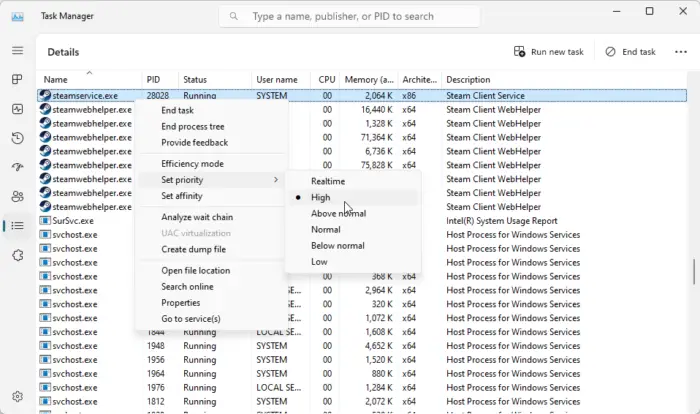
Setting the Steam service priority to high is another way to resolve Steam errors. Doing so will improve the performance of the Steam client and reduce issues such as lag or freezing. Here’s how you can do it:
- Open the Steam client and minimize it.
- Now, open Task Manager and navigate to the Details tab.
- Scroll down and search for steamservice.exe.
- Right-click on it and select Set Priority> High.
7] Troubleshoot Steam in Clean Boot Mode
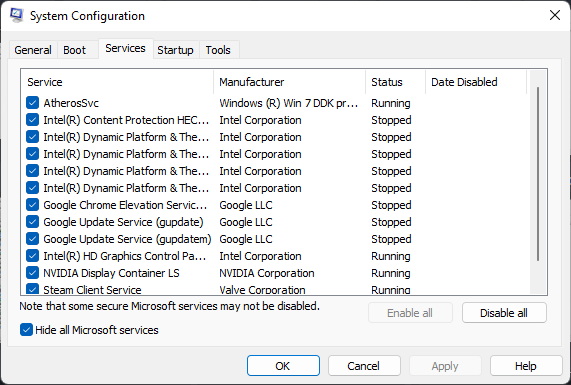
If the error isn’t fixed, try running Steam in clean boot mode. This is because applications installed on your device can be responsible for why the verifying installation error occurs in Steam. Perform a Clean Boot of your PC to restrict all third-party applications, and try logging in again. Here’s how you can perform a clean boot.
If Steam runs smoothly in clean boot mode, manually enable processes one at a time to identify the culprit. Once you’ve identified it, disable or uninstall the software.
8] Reinstall Steam
If none of these suggestions were able to help, consider reinstalling Steam. Sometimes, the error may lie in the app’s core files and cannot be fixed manually. Reinstalling Steam has helped most users fix the error.
Read: Validating Steam files is Stuck or Takes forever
We hope these suggestions were able to help.
Why is my Steam verifying installation?
If Steam repeatedly verifies the installation on your PC, it may be due to a slow or unstable internet connection. To resolve this, check your internet connection, clear Steam’s cache, and update the application to the latest version.
Why is my Steam game stuck at 100% installing?
If the Steam game you’re downloading is stuck at 100%, your device may be experiencing disk read/write errors or the game files may be corrupted. Also, clear the app download cache and check if the servers are running.
