
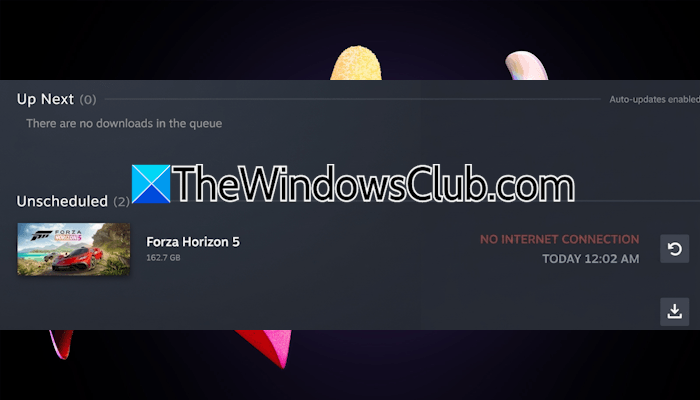
If you cannot download games in Steam due to the No Internet Connection error, this article will help you. According to reports, users encountered this error in Steam despite being connected to high-speed internet.
Fix No Internet Connection error in Steam
Use the following fixes to fix the Steam No Connection error:
- Launch Steam as an administrator
- Connect to another available network
- Change your download region
- Disable your antivirus
- Allow Steam through Firewall
- Disable VPN or Proxy
- Flush your DNS cache
- Disable the game file transfer setting
- Reset your network
All these fixes are explained in detail below. Before proceeding, you can try again later, as the issue might be due to a heavy load on Steam’s servers.
1] Launch Steam as an administrator
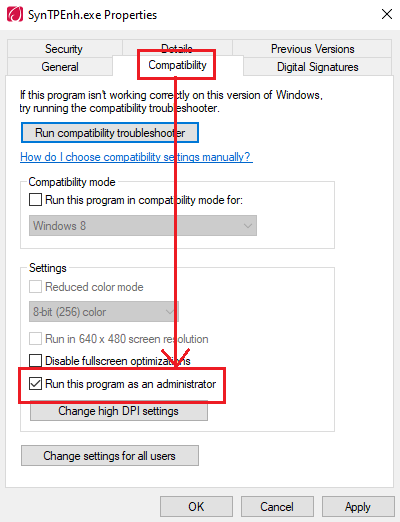
If Steam is already running, click Steam in the top-left corner and select Exit. This will close it completely. Now, right-click on the Steam desktop shortcut and select Run as administrator. Check if you can download the game. If this works, you can make Steam always run as an administrator.
2] Connect to another available network
The problem might be related to your Wi-Fi network. To confirm this, connect your system to another available internet connection. Now, check if the error occurs while downloading the game. If not, the issue is with your WiFi network. In this case, you can power cycle your WiFi router:
- Turn off your WiFi router.
- Unplug the adapter from the wall socket.
- Wait for a few minutes.
- Plug in the adapter and turn on the router.
3] Change your download region
Sometimes, issues are associated with a particular region. This might be the case with you. Change the download region and see if it helps.
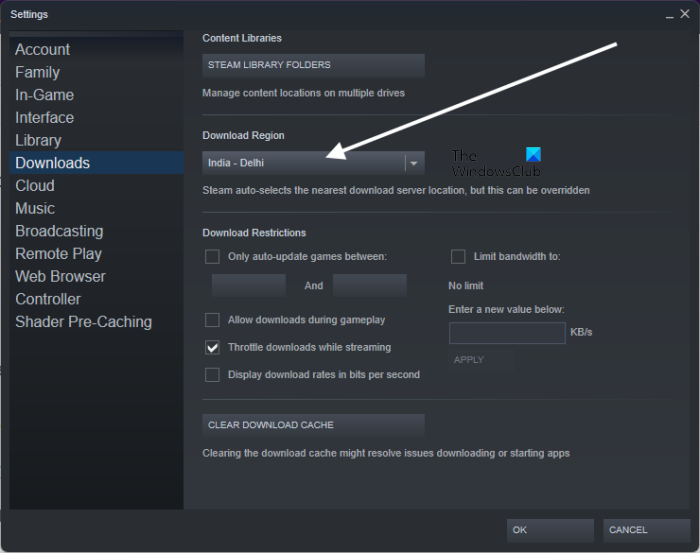
Follow these steps:
- Click Steam on the top left corner and select Settings.
- Select Downloads from the left side.
- Select another Download region in the drop-down.
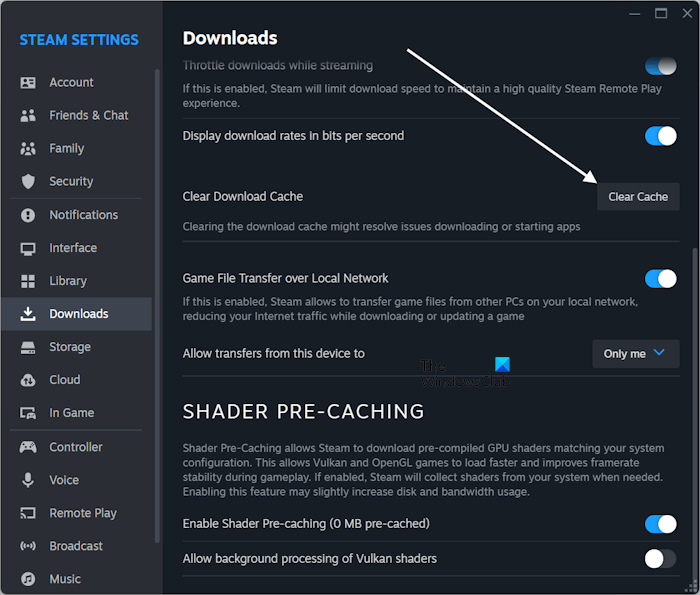
Additionally, you can also try clearing the Download cache in Steam. Navigate to Steam > Settings > Downloads and click the Clear Cache button next to the Clear Download Cache option.
4] Disable your antivirus
Your antivirus might be causing this issue. To verify this, temporarily disable the antivirus and check whether the error is resolved. If this fixes the problem, you can download the game while keeping the antivirus disabled. After the download is completed, don’t forget to enable the antivirus.
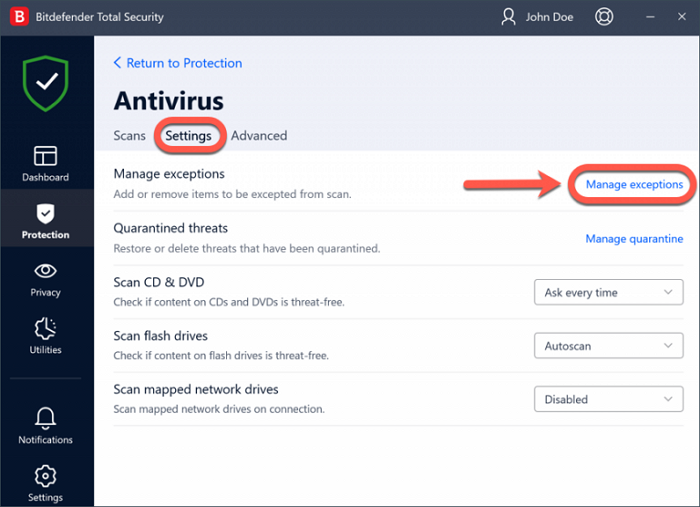
To prevent the error from occurring in the future, add Steam to your antivirus exception list.
5] Allow Steam through Firewall
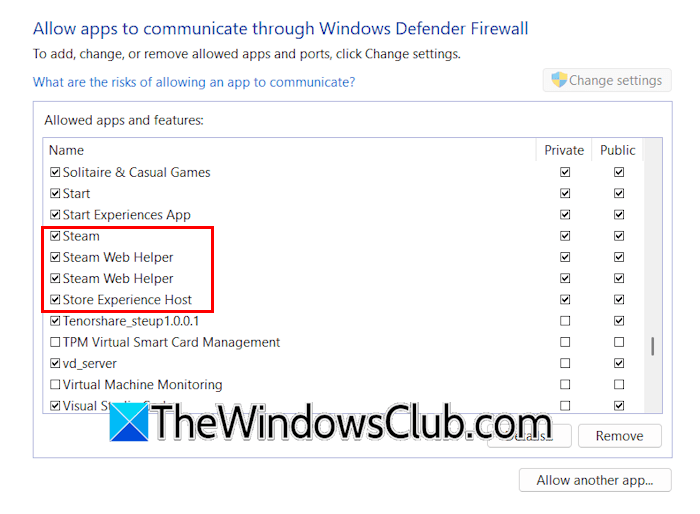
Your firewall might be blocking Steam from connecting to the server, causing the “No Internet Connection” error when downloading games. To confirm this, disable the firewall. If this works, allow Steam through the Firewall.
If you use a third-party firewall, refer to its support website for instructions.
6] Disable VPN or Proxy
If you use a VPN or Proxy server, that might be causing this problem. To check this, disable your VPN or Proxy. You can continue using VPN or Proxy after downloading the game.
7] Flush your DNS cache
A corrupt DNS cache can also cause internet connection issues. This can be the case with you. In such a case, flushing the DNS cache can help. If this does not help, you can try switching the DNS to Google or Cloudflare DNS.
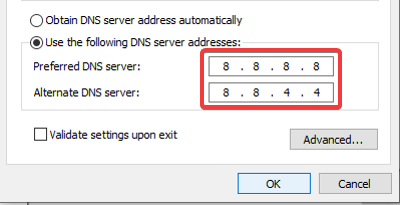
Follow these steps:
- Open Windows 11 Settings.
- Navigate to Network and Internet > Advanced Network Settings.
- Select your WiFi or Ethernet.
- Click Edit next to More adapter options.
- The WiFi or Ethernet Properties window will appear.
- Select Internet Protocol Version 4 (TCP/IPv4).
- Click Properties.
- Under the General tab, select Use the following DNS server address.
- Type 8.8.8.8 in the Preferred DNS server and 8.8.4.4 in the Alternate DNS server to use Google DNS.
- Click OK to save changes.
Now, check if you can download the games.
8] Disable the game file transfer setting
If the problem persists, you can try disabling the game file transfer setting in Steam. The “Game File Transfer over Local Network” setting remains enabled by default. When this setting is enabled, Steam allows you to transfer game files from other PCs on your local network. This reduces your internet traffic while downloading or updating a game. Turn off this setting.
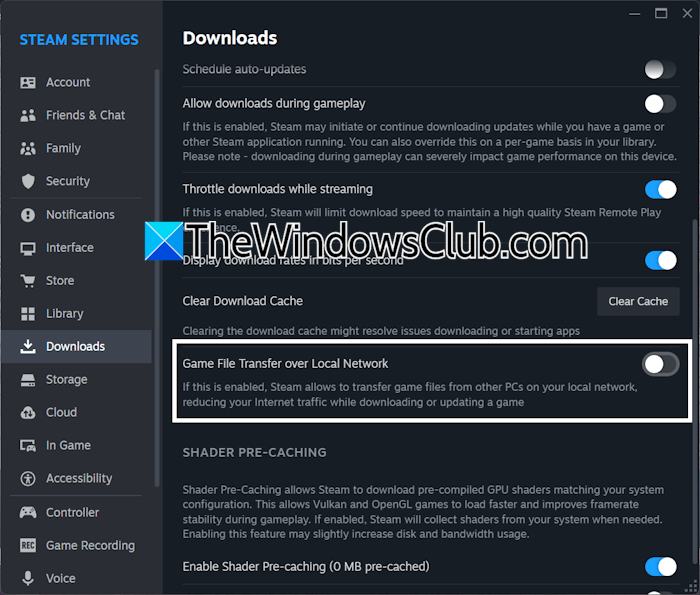
The following instructions will guide you:
- Open Steam settings.
- Select Downloads on the left side.
- Turn off the Game File Transfer over Local Network button.
9] Reset your network
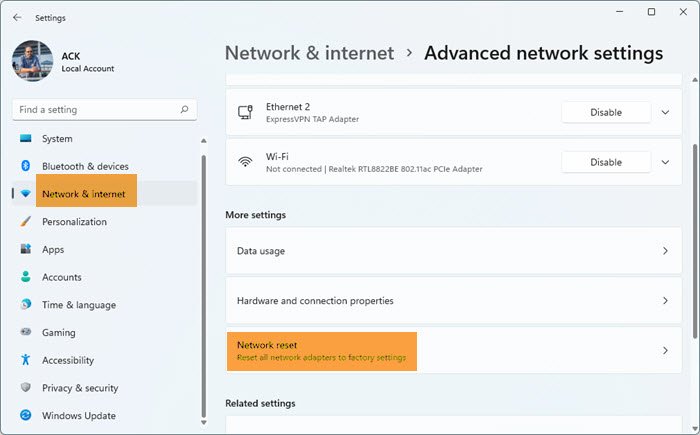
If the issue persists, you can reset your network. This action removes and reinstalls your network adapters and sets all your networking components to their default values. The entire process takes up to 5 minutes. After 5 minutes, Windows restarts automatically. Therefore, save all your pending work before proceeding.
That’s it. I hope this helps.
Is my Firewall blocking Steam?
If Steam cannot download or update games, your Firewall might be blocking it from connecting to the server. You can check this in your Firewall settings. If you use a third-party antivirus or firewall, refer to its support website for instructions.
Why is Steam saying no internet connection when there is?
There can be many reasons why Steam says there’s no internet connection, even when the internet is working. The Steam servers might be experiencing an outage, or your antivirus or firewall might be preventing Steam from connecting to the server.
Read next: Steam Store not loading on Windows.
