
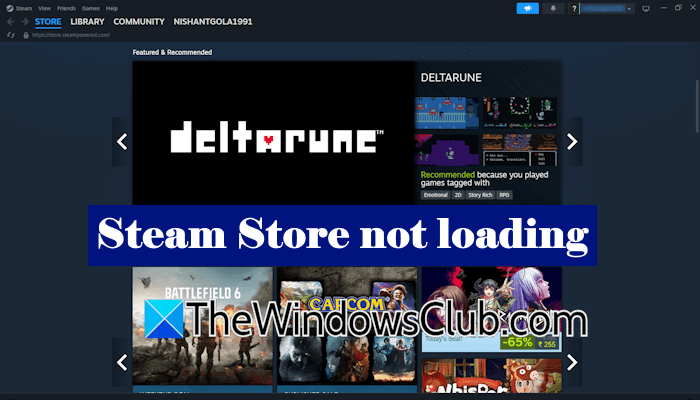
If the Steam Store is not loading on your Windows 11 computer, this article will help. Steam Store lists free and paid games. Therefore, if the store doesn’t load, you cannot purchase or download a game.
Steam Store not loading on Windows 11
Use the following fixes if the Steam Store is not loading on your Windows 11 computer:
- Launch Steam as an administrator
- Switch to another network
- Clear Steam Download cache
- Terminate the Steam Client WebHelper process
- Use a workaround
- Disconnect from a VPN (if applicable)
- Reset your network
- Uninstall and reinstall Steam
All these fixes are explained in detail below.
1] Launch Steam as an administrator
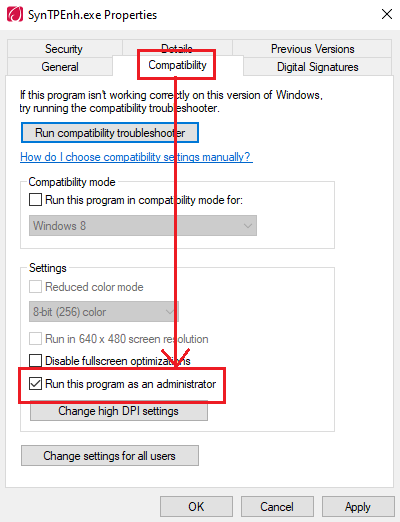
You can try launching Steam with administrative rights. Right-click on the Steam desktop shortcut and select Run as administrator. Click Yes in the UAC prompt. If this works, you can make Steam always run as an administrator.
2] Switch to another network
The issue may be associated with your internet connection. If your network is unstable, you will encounter several issues with Steam and other applications. Connect your system to another available network. You can also use your mobile data and connect your system to the internet through a mobile hotspot. If this works, power-cycling the Wi-Fi router can help.
Follow these steps:
- Turn off your WiFi router.
- Unplug the adapter from the wall socket.
- Wait for a few minutes.
- Turn on the router.
If the issue persists, contact your ISP to troubleshoot the internet issues.
3] Clear Steam Download cache
The corrupt Steam cache files can cause this issue. In such cases, clearing the cache files can help. The following steps will guide you on how to clear the Steam download cache:
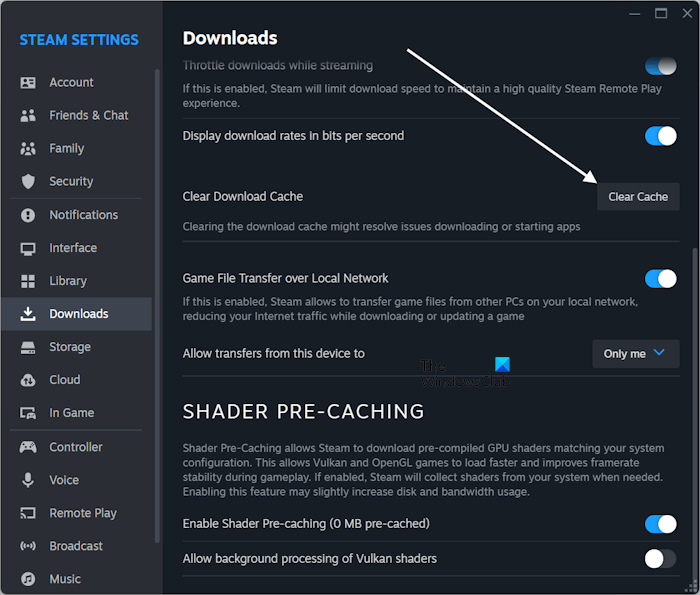
- Open Steam settings.
- Go to Downloads.
- Look for the Clear Download Cache option on the right side and click Clear Cache.
4] Terminate the Steam Client WebHelper process
If the problem persists, terminate the Steam Client WebHelper process in the Task Manager. It is a vital part of Steam that renders web pages and displays Store, Library, and other content. If the Steam Store is not loading, terminating this process can help.
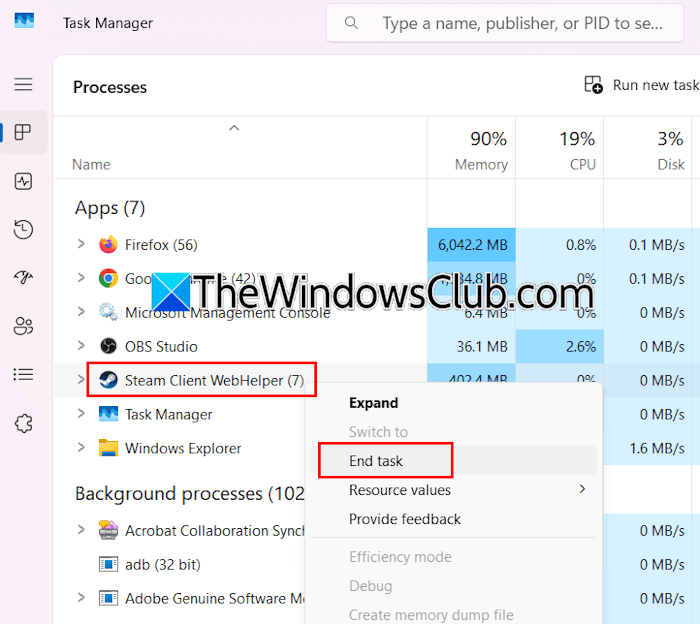
The steps to do this are as follows:
- Launch the Task Manager.
- Navigate to the Processes tab.
- Right-click on the Steam Client WebHelper process and select End Task.
After terminating the process, Steam will restart automatically.
5] Use a workaround
In some cases, issues arise from temporary glitches and are resolved automatically over time. In such a case, workarounds are helpful. You can use this workaround and see if it helps.
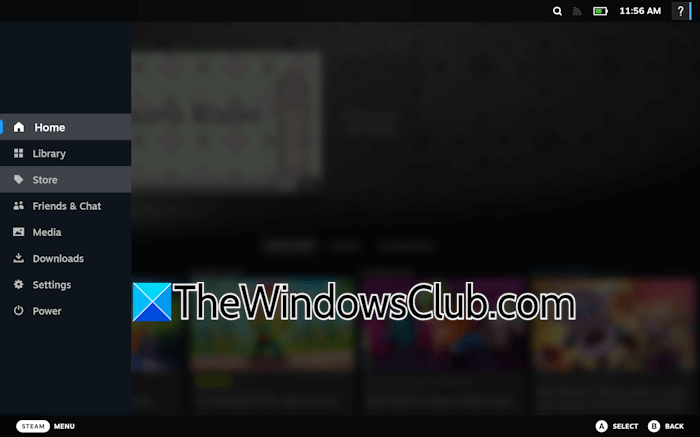
In Steam, click on the monitor icon in the top right corner to enter the Big Picture mode. Now, select MENU from the bottom left side and click Store. If Store loads in the Big Picture mode, you can download or purchase games. After completing your purchase or downloading the game, exit the Big Picture mode.
To exit the Big Picture Mode, click MENU > Power > Exit Big Picture Mode.
6] Disconnect from a VPN (if applicable)
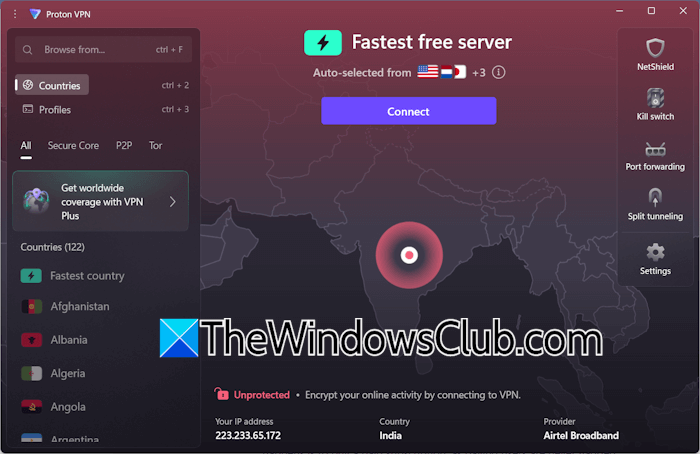
A VPN secures a network by encrypting traffic. However, it slows the network, which can cause issues with certain applications. If you are connected to a VPN, it may be causing issues with the Steam Store. To confirm this, disconnect from VPN and relaunch Steam. If this works, you can connect to the VPN again after downloading or purchasing the game.
7] Reset your network
Network issues are among the most common causes of this problem. Windows 11 has a powerful feature called Network Reset that fixes network issues in most cases. Reset your network and see if it helps.
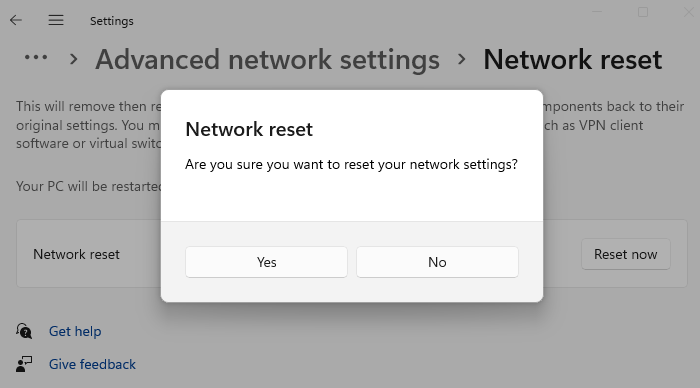
When you reset the network, Windows reinstalls the network adapters and sets all networking components to their default values. The entire process takes 5 minutes. After 5 minutes, Windows reboots automatically. Therefore, save all your pending work before proceeding.
8] Uninstall and reinstall Steam
If the issue persists, uninstall and reinstall Steam. Restart your computer after uninstalling Steam, then download its latest version from the official website and reinstall it.
That’s it. I hope this helps.
Will Steam stop supporting Windows 11?
After 1st January 2026, Steam ended support for the 32-bit version for Windows. Windows 10 is available in both 32-bit and 64-bit architectures. But Windows 11 is available only in 64-bit architecture. Since Windows 11 runs on a 64-bit architecture and Steam has discontinued the 32-bit client, the Steam Client will remain fully compatible with Windows 11.
Is Windows 11 OK for a gaming PC?
Yes, Windows 11 is good for a gaming PC. To get a smooth gaming experience, your system should have supported hardware. Hardware specifications vary by game. You can read the complete hardware specifications on the official website of the game you want to purchase or download.
Read next: There was a problem processing your request Steam error.
