
While gaming using Steam’s Big Picture Mode can be extremely helpful, as it offers a slick, console-like experience, it occasionally defaults to using your integrated GPU instead of your dedicated GPU. As a result, you encounter issues such as stuttering, lag, and poor visuals. So, in case you are dealing with a similar issue, here’s how to fix it.
Steam Big Picture Mode not using dedicated GPU
You can follow these suggestions to resolve the issue where Steam’s Big Picture Mode is not utilizing the dedicated GPU available on your Windows 11 PC or Laptop.
- Assign Steam to the dedicated GPU in Windows
- Force Steam to use the dedicated GPU in the Control Panel
- Update your GPU drivers
- Disable the integrated GPU
1] Assign Steam to the dedicated GPU in Windows
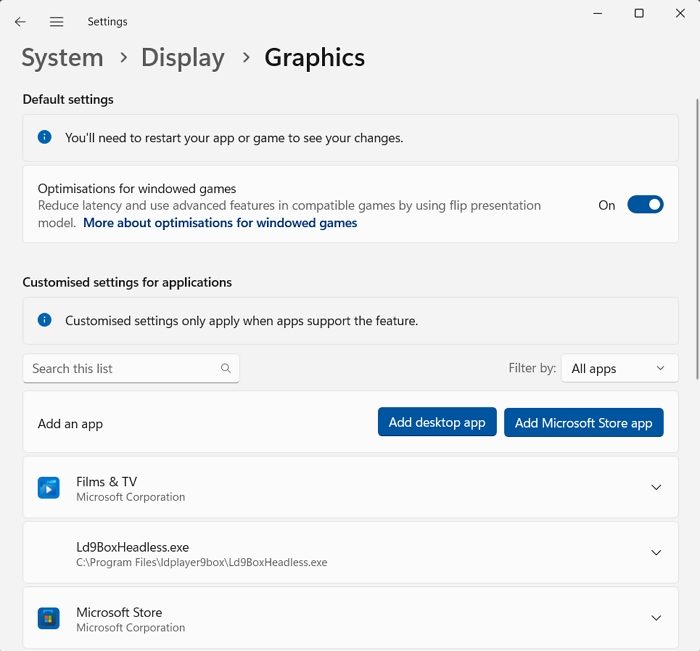
Steam’s Big Picture mode often uses the integrated GPU because Windows assumes it is just a background launcher. By assigning it a dedicated GPU, you can force Windows to treat it as a performance-intensive app.
- Press Windows Key + I to open Settings.
- Go to System > Display > Graphics.
- Click on Add desktop app and select Steam.exe or SteamWebHelper.exe.
- Next, click on Options, then choose High performance (this ensures Windows uses your dedicated GPU).
2] Force Steam to use the dedicated GPU in the Control Panel

If you are using NVIDIA or AMD graphics, you can override the setting at the driver level. Here’s how:
For NVIDIA:
- Open NVIDIA Control Panel.
- Go to Manage 3D Settings > Program Settings.
- Add Steam and set “Preferred graphics processor” to High-performance NVIDIA processor (this ensures that Steam always uses your GPU).
Read: Optimize NVIDIA Control Panel: Best settings for gaming performance
For AMD:
- Open AMD Radeon Settings.
- Go to System > Switchable Graphics.
- Locate Steam.exe and set its mode to High Performance.
- Apply changes and restart Steam.
3] Update your GPU drivers
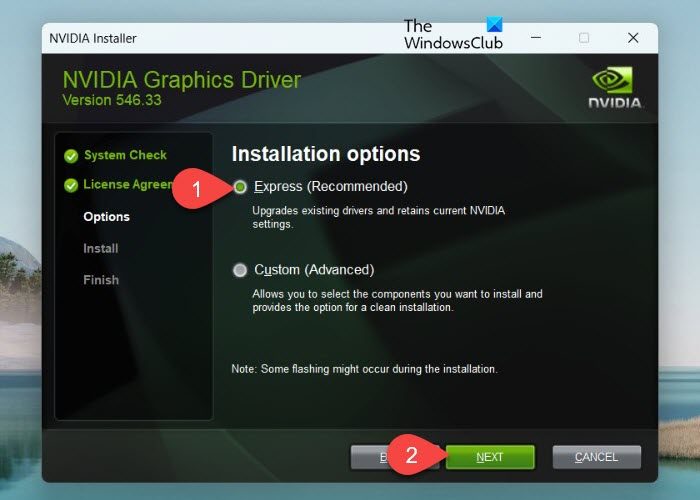
Outdated drivers can also cause Steam not to use your dedicated GPU, so make sure your GPU drivers are up to date. To check for updates, here’s what you can do:
- NVIDIA: GeForce Experience > Drivers > Check for updates
- AMD: Radeon Software > Updates > Check for updates
Alternatively, you can also download the latest driver from your GPU’s manufacturer’s website and follow the onscreen steps to install it.
Once the latest drivers are installed, reboot your system and check if your issue is resolved.
4] Disable the integrated GPU
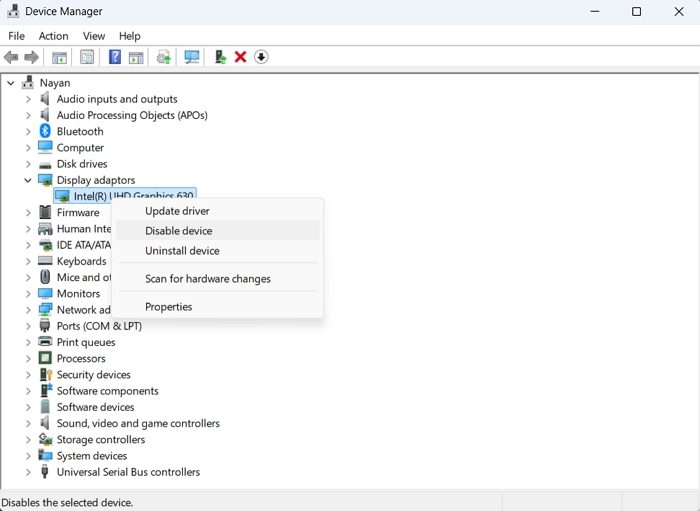
Lastly, if nothing works, you can consider disabling the integrated GPU. Here’s how:
- Press Windows Key + X to access the quick menu.
- Select Device Manager and expand Display adapters.
- Right-click your integrated GPU > Disable device.
Once done, Windows will now be forced to use the dedicated GPU only. However, you may encounter some performance issues, so if you spot something wrong, make sure to re-enable it.
Why is Steam’s Big Picture Mode using my integrated GPU instead of the dedicated GPU?
Steam’s Big Picture Mode may utilize the integrated GPU, as Windows often classifies Steam as a low-priority background launcher rather than a high-performance application. As a result, it defaults to the integrated GPU to conserve power. Incorrect GPU settings, outdated drivers, or switchable graphics features can also cause the issue.
Is it safe to disable the integrated GPU to force Steam to use the dedicated GPU?
Disabling the integrated GPU will force your system to use the dedicated GPU. However, it’s generally not recommended unless other methods fail. Disabling the integrated GPU can result in reduced battery life, increased power consumption, and unexpected display issues. If problems occur, you can easily re-enable it through Device Manager.
