
Are you among those who receive the frustrating error message “You must start Microsoft Access by double-clicking a Microsoft Access file” when trying to open the program? If yes, don’t worry, as this can be easily fixed with a few simple tweaks. In this article, we will explore why this happens and how we can fix it.
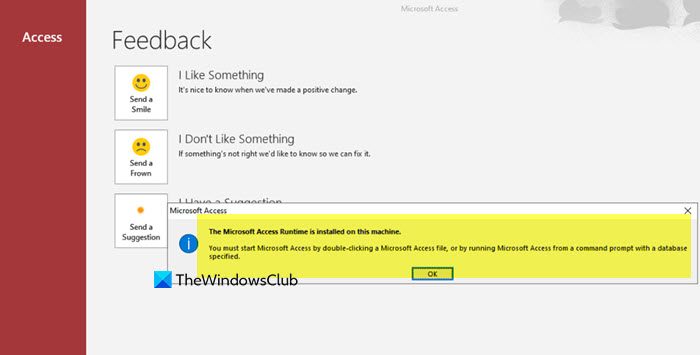
You must start Microsoft Access by double-clicking a Microsoft Access file, or by running Microsoft Access from a command prompt with a database specified.
You must start Microsoft Access by double-clicking a Microsoft Access file
If you encounter the ‘You must start Microsoft Access by double-clicking a Microsoft Access file’ error message, execute the solutions mentioned below.
- Uninstall Microsoft Access Runtime
- Repair the Microsoft 365 Installation
- Check for a conflicting standalone Access Installation
- Verify File Associations
- Launch Access with the database file
- Reset Access user settings
Let’s get started with the troubleshooting guide.
1] Uninstall Microsoft Access Runtime
Microsoft Access Runtime is intended for opening Access databases, not for creating or managing them. Windows get confused when both are installed; therefore, it is highly recommended to uninstall the Runtime to remove this conflict.
- Quit all the Office apps, open the Control Panel, and click on Programs.
- Select Programs and Features, look for Microsoft Access Runtime or Microsoft Office Access Runtime, and select it.
- Click the Uninstall button, and follow the prompts to complete the installation.
Once done, restart the computer, and check if Access can be launched from the Start Menu. If not, see the next solution.
2] Repair the Microsoft 365 installation
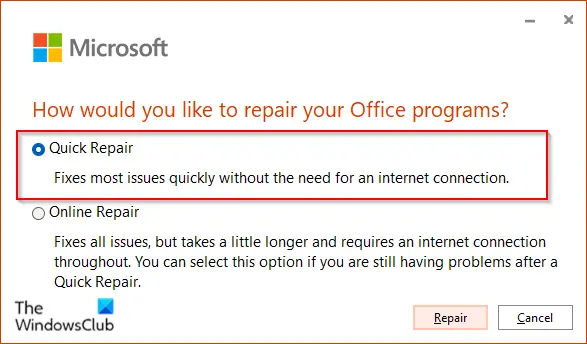
Access depends on registry entries and startup parameters. Updates or failed installs can quietly corrupt these entries. The repair tool, especially the Online Repair, replaces damaged files with fresh ones and resets the core configuration.
- Open Settings.
- Go to Apps > Installed apps.
- Find Microsoft 365, or Office installation in the list, select it, and click on the three dots > Modify button.
- In the window that appears, choose Quick Repair, and if the issue remains, hit the Online Repair button.
The process will take a few seconds, follow all the on-screen prompts, and once complete, reboot the PC. See the next solution if the issue remains.
3] Check for a conflicting standalone Access Installation
There can be a conflict between different versions if there is an old standalone version of Access is installed alongside the new Microsoft 365 subscription. To ensure that Windows launches the correct Microsoft 365 version, removing the older and extra versions is the next step.
- Go to Control Panel, click on Programs, and select Programs and Features.
- Go through the whole list, and look for an entry that is specifically Microsoft Access, or Microsoft Office Professional that is separate from Microsoft 365 Apps or Microsoft 365 subscription entry.
- If you find a standalone version, then select it and choose Uninstall.
Restart the device after the uninstallation is complete. Now, try opening Access from the Microsoft 365 installation.
4] Verify File Associations
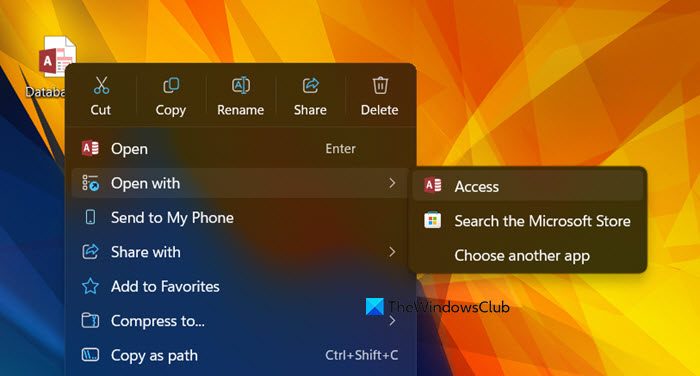
Access uses .accdb and .mdb file extensions to reinforce its launch behaviour. If
- Right-click on any file with the .accdb file extension, and hover over Open with.
- Click Microsoft Access. If it’s not there, choose Another app, select Microsoft Access, and check the Always use this app to open .accdb files box.
- Click the OK button, and repeat the process for .mdb files if you use older databases.
After setting the associations, check whether Access opens directly. Go to the next solution if the issue persists.
5] Launch Access with the database file
We are going to launch Access with the database file as a workaround that will also serve to reset the program’s state. To do the same, navigate to any Microsoft Access database file that ends with .accdb or .mdb extension, and if you don’t have one, create a blank text file and rename it to test.accdb.
Next, double-click on the database file to force Windows to launch Microsoft Access to open it. Once Access is open, close the database file and then close the Access app completely. Now, trying to open Microsoft Access again from the Start Menu or desktop shortcut.
6] Reset Access user settings
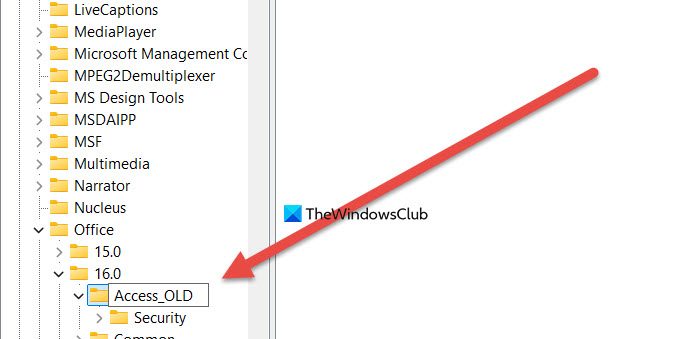
As a last resort, we are going to reset Access user settings to reset toolbars, preferences, and other customizations to their defaults. Corrupted user-specific settings and registry keys can dictate how Access starts up, and therefore, it’s necessary to do so.
- Click W+ R to open the Run dialogue box, type regedit, and press Enter to open the Registry Editor.
- Navigate to this address in the folder tree from the left panel:
HKEY_CURRENT_USER\SOFTWARE\Microsoft\Office\16.0\Access
The 16.0 corresponds to Office 365; it may be 15.0 for 2013, or 17.0 for newer versions.
- Right-click on the Access folder, select Rename, and change the name to Access_OLD.
- Press Enter, close the Registry Editor, and try to start Microsoft Access normally.
This will generate a new registry key with default settings. Hopefully, you won’t have any more issues.
Hopefully, with these solutions, your issue will be resolved.
Read: How to create a Report using Access
How do you open a Microsoft Access database?
Users can open a Microsoft Access database in two ways. They can simply double-click on the database file in the Windows Explorer to open it. Alternatively, they can launch Access, go to File, click Open, and browse to select the database file.
Read: Fix Microsoft Access Runtime Errors
How do I open access Runtime without a database file?
Users can not access Runtime without a database file. Its only purpose is to run completed Access apps that other people have built.
Also Read: Microsoft Access is not responding.
