
Several users are seeing Error Code: SSL_ERROR_HANDSHAKE_FAILURE_ALERT when trying to access some sites, usually, this is seen while accessing websites that have to verify the legitimacy. In this article, we will see what the error code is and how to fix it.
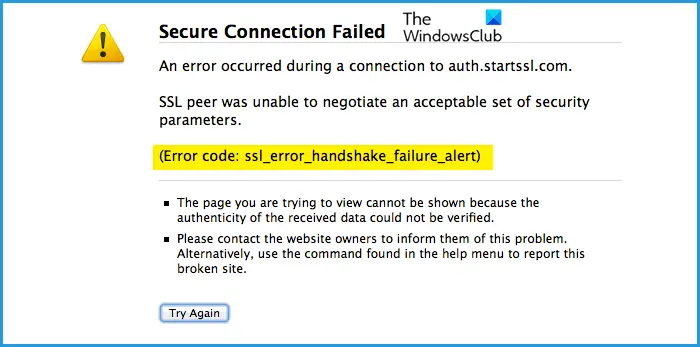
What is SSL_ERROR_HANDSHAKE_FAILURE_ALERT?
Users are seeing the error code in question in most of the browsers, however, more often than not, Firefox is one of the common browsers affected by the problem. The SSL Handshake error is caused when the server and the client fail to communicate via SSL or Secure Socket Layer Protocol.
The SSL Protocol ensures that the data transferred between the web browser and the server is protected. It basically encrypts the link, which, in turn, secures the data and makes it less vulnerable to attacks.
There are many reasons that can cause the error in question. More often than not, it’s your browser’s cache that gets corrupted and, as a result, causes issues. Also, do check the certificates and make sure they are not problematic; if they are, you will see not just SSL Handshake errors but also other error messages and codes.
We are also going to see if there is something wrong with the computer you are browsing on. So, without wasting any time, let us hop into it.
Fix Error SSL_ERROR_HANDSHAKE_FAILURE_ALERT
You can resolve Error Code: SSL_ERROR_HANDSHAKE_FAILURE_ALERT with the following solutions.
- Restart your Browser and computer
- Check your Internet
- Update your Browser
- Clear Cache and Browsing Data
- Delete the Problematic Certificate in your Browser
- Troubleshoot in Clean Boot
Fix SSL TSL Handshake Failed error
1] Restart your Browser and computer
Before troubleshooting, restart your browser and see if that resolves the issue. If it fails, then try restarting your computer. This will close all the processes that could have interfered with your computer and hopefully fix the problem.
2] Check your Internet
You should also check the Internet as a prerequisite solution. Pull out an Internet Speed tester and check your bandwidth. If your Internet is slow, check whether all the devices connected to the network are experiencing similar issues. In case all the devices have Internet issues, try restarting your router, and if that doesn’t work, call your ISP.
If yours is the only device with an Internet issue, try fixing the slow Internet.
3] Update your Browser
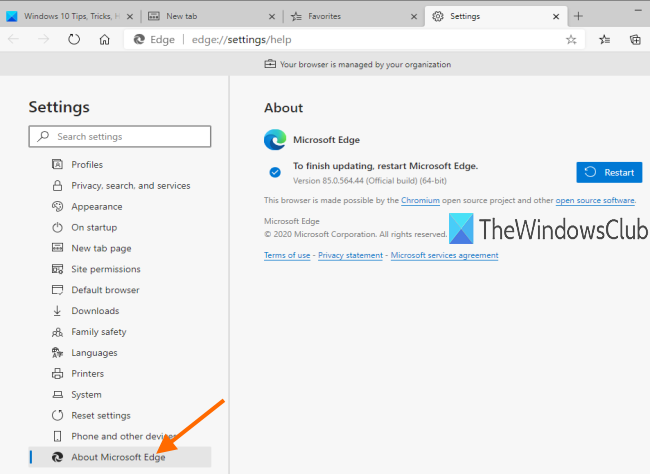
You should start the troubleshooting by updating your Browser. This may not be an obvious solution but you need to know that this can be caused by a bug. To eradicate that bug, the developer may have released a new update. When you download it, your issue will be resolved.
Every browser has a different way to update itself. Some have automatic updates, whereas some need to be updated manually. If you are on Edge or Chrome, just go to Settings and click About Microsoft Edge in the former and About Chrome in the latter. In Firefox, click on the menu button and click on Help > About Firefox.
After updating, restart your computer and check if the issue persists.
4] Clear Cache and Browsing Data
A corrupted cache and Browsing Data can cause the issue in question. So, you should clear them and resolve the issue. Clearing the data won’t affect your browser in any shape, in fact, it will resolve some other issues that could have had a negative effect on your browser. Therefore, you should clear the cache and browsing data of Chrome, Firefox, Edge, and Opera. Hopefully, that will resolve the issue for you.
5] Delete the Problematic Certificate in your Browser
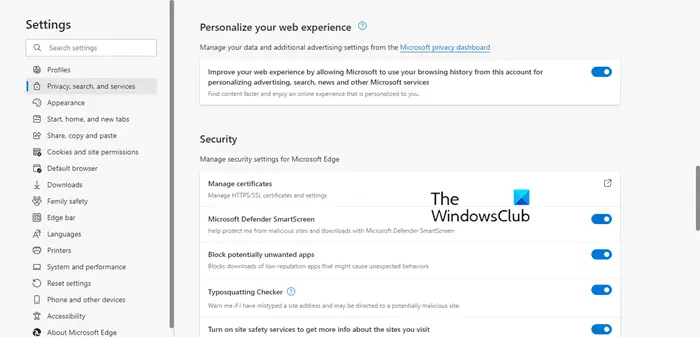
You should also check if there is a problematic certificate that you have installed. By “problematic certificate,” we mean corrupted certificates. We recommend removing certificates one by one to see if that helps. But before that, it is better to export those certificates or have a copy of them.
Microsoft Edge
- Click on the three vertical dots and click Settings.
- Go to Privacy, search and services.
- Scroll down and click Manage certificates from the Security section.
- Select your certificate and click Remove.
Firefox
- Open Firefox and open its Settings.
- Go to Privacy and Security.
- Look for the Certificates section and click View Certificates.
- Select your certificate and click Delete.
Google Chrome
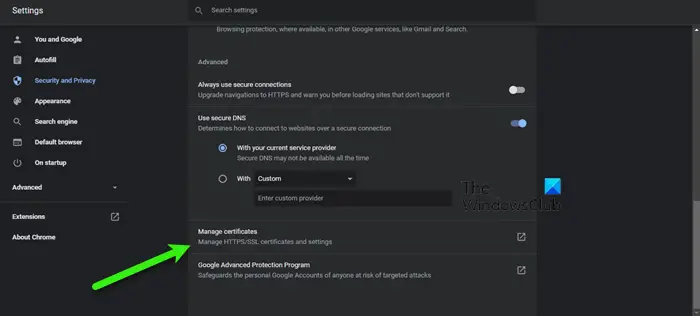
- Open Chrome Settings.
- Go to Security and Privacy > Security.
- Click on Manage certificates.
- Select the problematic certificate and click Remove.
Opera
- Open Opera and click on the Settings icon.
- Click on the drop-down menu of Advanced.
- Go to Privacy & Security > Security.
- Select Manage certificates.
- Select the problematic certificate and click Remove.
Hopefully, this will resolve the issue.
6] Troubleshoot in Clean Boot
Sometimes, another program can interfere with your browser and cause the issue. Therefore, you should troubleshoot in Clean Boot and find out what that program is.
Hopefully, you can resolve the issue with these solutions.
What does ssl_error_access_denied_alert mean?
The error message ssl_error_access_denied_alert means that access to the website you are trying to visit is denied due to the SSL error. This error can also occur even if a website’s SSL certificate is valid. Hence, it does not conclude that the SSL certificate for that website has expired or is invalid. You will usually see this error message when the authenticity of the data received from a website is not verified. To fix this error, type about:config in the address bar of Firefox and hit Enter. Now, click Accept the Risk and Continue. Search for security.tls.version.max and change its value from 4 to 3.
Also Check:
- How to create Self-signed SSL Certificates in Windows
- Fix SEC_ERROR_OCSP_INVALID_SIGNING_CERT Firefox error.
