
At the moment, Spotify is the best music streaming service on the market. If you want to enjoy your favorite tracks of all genres, and even listen to top podcasters, then Spotify is the spot for you and millions of others. But despite being a brilliant service, the app itself can run into problems from time to time. From what we are hearing, some users are experiencing an issue with Spotify while playing music, they come across an error Something went wrong when logging in. This is a nondescriptive error, which means, it doesn’t explain what the cause is, just that something went wrong and that’s it.

Fix Spotify Something went wrong error on Windows PC
So, what’s causing this error, and can it be fixed without major changes? It seems the error has much to do with server outages, or maybe the app is outdated. In other cases, it could be related to using a VPN or proxy. As you can see, nothing specific can force the “Something went wrong” error to appear. But here are some suggestions to help you:
- Restart the Spotify app
- Check if Spotify servers are down
- Disable your VPN service
- Delete Spotify cache data
- Use the private session feature
- Flush the DNS
1] Restart the Spotify app
One of the first things you should do is restart the app to see if you’re experiencing a temporary glitch.
- To restart, simply press the X button at the top-right to close.
- From there, press the Windows key to open the Start menu.
- Type Spotify, then select it from the results to have it opened.
If the error is still appearing after restarting the app, then the issue is much deeper.
2] Check if Spotify servers are down
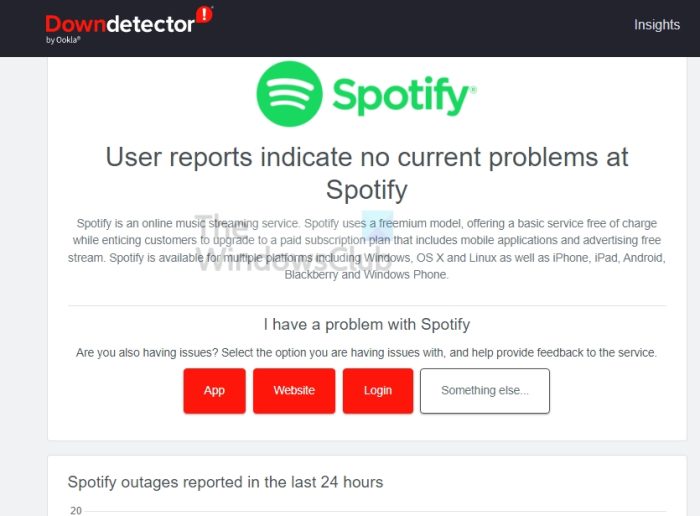
Spotify may be acting up because of server issues. This isn’t common, but it does happen.
- Visit any website down detector service.
- Search for Spotify via the search bar.
- Choose it from the results.
- On the Spotify page, check for any current problems.
If there are issues with Spotify’s servers, all you have to do is wait. Things will return to normal after a short while.
3] Disable your VPN service
Issues can arise if you are connected to a VPN server while using Spotify. You may not want to do it, but to potentially put an end to the “Something went wrong” error, then you should consider turning off your VPN service. At least, you can disable it only when Spotify is in use if you wish.
4] Delete Spotify cache data
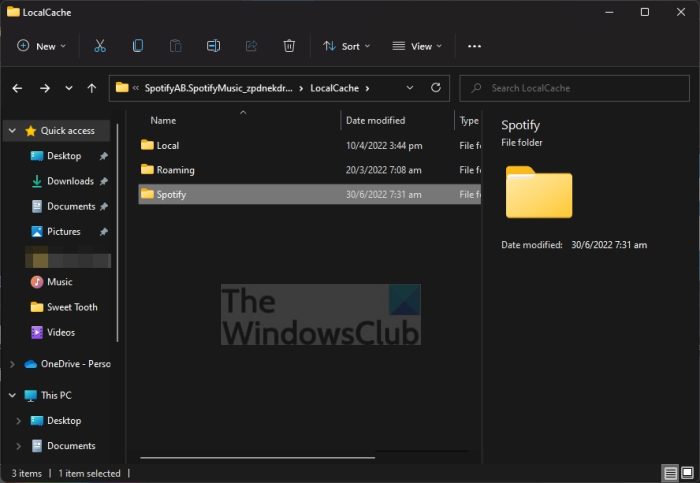
You may not know this, but Spotify stores cache data like other applications. It helps make Spotify faster, but sometimes the cache data can get corrupted, and when it does, users may see the “Something went wrong” error.
In order to set things right again, folks must clear the cache data, and we’re going to explain how to do it.
- Open the Run dialog box by pressing the Windows key + R.
- From there, type %appdata% into the box and hit Enter.
- The AppData folder should now appear.
- Open the Local folder.
- Navigate to Packages.
- From within the Packages folder, scroll down until you come across SpotifyAB.SpotifyMusic_zpdnekdrzrea0.
- Select the option that reads, LocalCache
- Open the Spotify folder and delete everything within it.
Restart Spotify and check whether the problem persists.
5] Use the private session feature

For those who weren’t aware, Spotify has a private session feature where users can listen to music anonymously. This ensures your followers cannot tell what you’re listening to. Now, we understand switching to private session, in some instances, can put an end to the error.
- Launch the Spotify app.
- Click your profile icon to reveal a dropdown menu.
- From the menu, select Private Session.
If all goes according to plan, then the issue should now be fixed once and for all.
6] Flush the DNS
The final step to take here if all else fails is to flush the DNS cache. Corrupted DNS can cause a computer to have trouble accessing servers, which could include Spotify’s servers.
Read: How to see Lyrics on Spotify while playing a Song
Why won’t Spotify log in on my computer?
Check whether you are using the correct username and password. You can also reset your credentials if you think you’ve forgotten them. Finally, reset the Spotify cache, but only do this as a last resort.
Does clearing the cache delete data from Spotify?
Not from Spotify, but it will delete any local data that the app stores on the device. This means you will have to log back in to Spotify and re-download all your personal data related to music, podcasts, or anything that syncs across devices. Clearing the cache is helpful when Spotify doesn’t work as expected.
