
With one of the world’s most popular and trusted music streaming service and millions of loyal listeners, Spotify is giving sleepless nights to its competitors like Apple Music, YouTube Music, and Tidal. It offers a wide variety of music from around the world, coupled with a very simple interface, making it a favorite of millions of users worldwide.

Spotify Tips and Tricks
You can do a lot to improve your Spotify experience. Many of the users (this includes those who are using it regularly on an everyday basis) don’t know some of the features, such as sharing your music, getting amazing sound quality and filtering, that can actually enhance the whole experience of listening to music on Spotify.
Below are some of the tips and tricks that can help you in taking your Spotify experience to the next level.
1] Build your own library

You can start by building your own library to store various playlists and your favorite tracks. You can build your library by either adding your favorite soundtracks to playlists or by saving music to your own library. By using the plus/save sign, you can keep building your library as you add more playlists, albums, artists’ soundtracks, and podcasts. All the music you have saved can then be easily accessed through the “Your Library” option.
2] Creating a new playlist
You can create your own new playlist in “Your Library*. Simply go to the playlist category and you will a music icon on the top with a plus sign or alternatively, you can click on “Edit” and then “Create” to start your new playlist.
3] Save your favorite music and listen offline whenever you want to
Save your favorite music and listen offline whenever you want. If you are a premium Spotify user, you can download the music you like and listen to it offline anytime. This means you can listen to your favorite music even when there is no internet reception. You can download any music with this simple process. Those using Spotify on the Android platform can press the three dots and select “download,” and those using Apple can select the playlist, then press “download” at the top.
Read: Stop Spotify from killing the SSD or HDD of your Windows computer.
4] Stellar Sound Quality
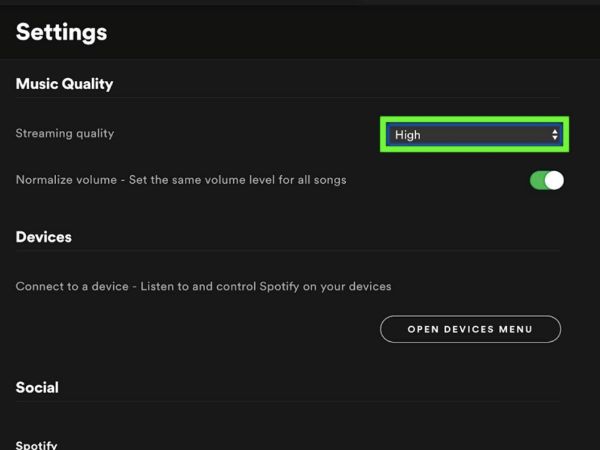
Astounding sound quality- Spotify allows its users to enjoy an astonishing sound quality by making simple changes. You just have to go to the menu and select any one of the three options: Normal (96 kbps), High (160 kbps), and Very High (320 kbps), as per your preference, and you are good to go. The only thing you need to consider when choosing the options is how much data you can spare for music quality, because the Normal (96 kbps) option uses less data, and the very high option uses a lot of your data to stream the sound.
5] Search your own saved tracks
If you have a lot of soundtracks saved in your library and want to search for a specific album or playlist by artists from your saved tracks, you can do so on Spotify. Go to the subcategories in “Your Library” on your mobile, then pull the screen down. This will show the search bar at the top of your mobile screen, with an option to filter your search.
6] Control Spotify through keyboard shortcuts
Spotify allows its users to operate it using their keyboard. To start with, you can create a new playlist by pressing Control-N, you can play or pause the music using the space bar of your keyboard and you can increase or decrease the volume using Control+Up or Control+Down. If you want to go to the next track, you can do so by pressing Control+Right, and if you want to go to the previous track, you can do so by pressing Control+Left.
Read: Spotify Local Files not showing
7] Add Artists and Music that are missing on Spotify
Another amazing feature at Spotify is the ability to add artists and albums to your playlist and library that aren’t available on Spotify. For that, go to “Preferences” in your computer’s desktop app, click “Add a Source,” and select a folder that contains your music files. You can now access these in your Spotify library “Local Files”.
Follow your friends-Share your music and keep a track of what your friends are listening to with this amazing feature in Spotify, where you can follow your friends who you think have excellent taste in music. All you have to do is to locate your friends with the option “Find Friends” and their playlist will be yours as well.
8] Follow your friends
Share your music and keep a track of what your friends are listening to with this amazing feature in Spotify where you can follow your friends who you think have an excellent taste in music. All you have to do is locate your friends with the option “Find Friends,” and their playlist will be yours as well.
9] Collaborate with your friends to create a playlist
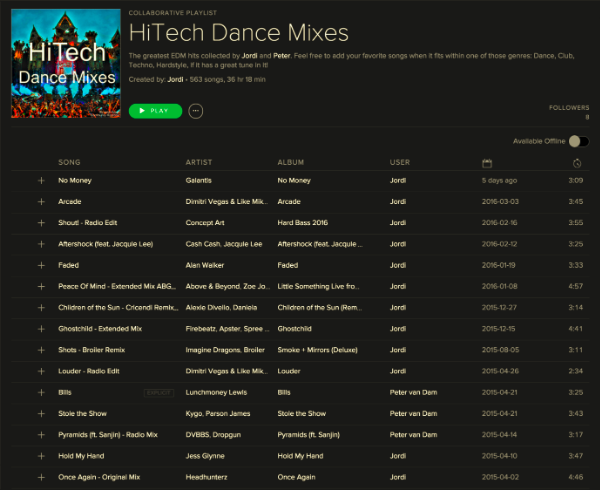
Collaborate with your friends to create a playlist- Organising a party and want a playlist that includes songs that are loved by all your friends? Spotify allows you to do so. Just right-click on the playlist name, and you will find the option to collaborate with your friends, grant access to your friends and enjoy.
10] Recover your deleted songs albums and playlists
Deleted your playlist by mistake? You don’t have to worry at all as Spotify will assist you in recovering it. Just go to “Account Settings” and “Recover Playlists” it’s as simple as this.
Above are some options and features you can use to enjoy your favorite music on Spotify, share your taste with your friends, and discover what they have to offer.
How do I get infinite loop on Spotify?
Enabling an infinite loop on Spotify repeats the selected song. If you set a playlist to loop indefinitely, all the songs in the playlist will repeat until you stop it. To enable an infinite loop for a particular song, click on the loop icon until you see 1 on the icon. A dot on the loop icon repeats the entire playlist. The infinite loop option is also available in the free version of Spotify. I tried it in the free version.
Now read: 10 YouTube Tips and Tricks that will enhance your YouTube experience.
