
In this post, we will show you how to skip the consent prompt for RDP connections in Windows Server. Microsoft has released a security update for the Remote Desktop Connection that will show a new security warning each time you open a Remote Desktop (RDP) file.
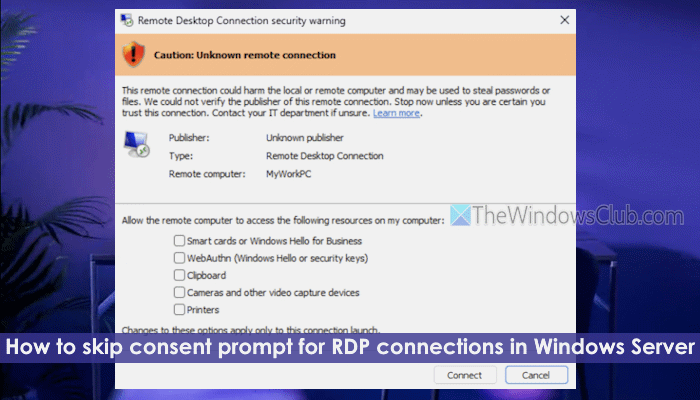
Whether an RDP file (.rdp) is digitally signed by the publisher or not, the Remote Desktop Connection security dialog will appear. It shows the remote computer’s address and a checkbox for each local resource the RDP file wants to access. You have to explicitly select resources to provide your consent before any connection is made. While the update is good for security reasons, some users find it annoying.
This security update doesn’t affect connections that you start manually. That means if you type a computer name directly into the RDP connection, your experience will remain the same. Only connections started by opening RDP files are affected.
Windows to display security warnings when opening Remote Desktop (RDP) files
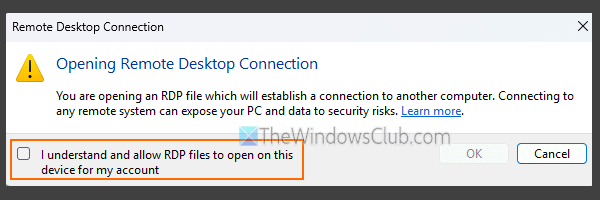
Starting with the April 2026 security update, Windows displays a security warning or dialog when opening Remote Desktop (RDP) files on your device. After you’ve installed the update, an educational dialog will appear the very first time you open an RDP file. The dialog box gives a brief warning about phishing or security risks. You can provide your consent by selecting I understand and allow RDP files to open on this device for my account.
Press OK, and this educational dialog won’t appear again for your account.
The warnings are a deliberate security feature meant to block phishing attacks and malicious redirections. Microsoft does not recommend disabling the display of this consent prompt.
When you open an RDP file on your device, the Remote Desktop Connection security dialog will pop up every time. You will see two versions of the security dialog for RDP files:
- Security dialog for RDP files with no verified publisher, and
- Security dialog for RDP files with verified publisher.
1] Security dialog for RDP files with no verified publisher
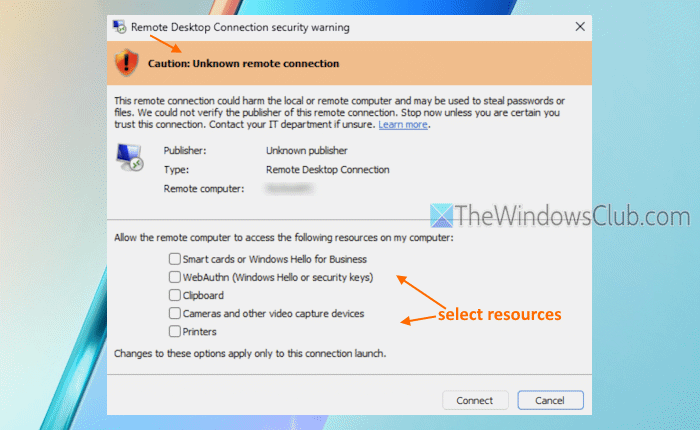
If an RDP file is not digitally signed, it can’t be verified whether it was tampered with or by whom it was created. For such RDP files, the security dialog sets the Publisher field to Unknown publisher, and a banner titled Caution: Unknown remote connection is displayed. This gives you a hint whether to open the file or not.
RDP files can be abused (as has happened before) to give attackers access to your local resources (including your local files, credentials, etc.) by connecting the device to the attacker’s server. Therefore, the security dialog comes in handy.
2] Security dialog for RDP files with verified publisher
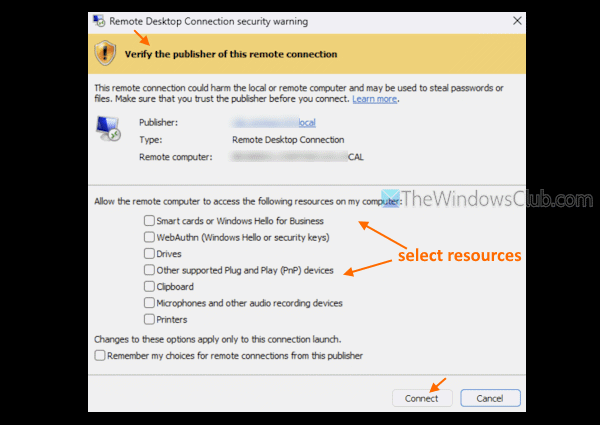
If an RDP file is digitally signed by a publisher, you will see the publisher’s name, and a Verify the publisher of this remote connection banner. However, this doesn’t guarantee safety. Therefore, you should always read the name of the publisher and verify it.
In both versions of the security dialog, requests (called redirections) for access to local resources are turned off by default. You have to select resources (Drivers, Clipboard, Smart cards or Windows Hello for Business, Printers, other supported Plug and Play (PnP) devices, WebAuthn (Windows Hello or security keys), Microphone and other audio recording devices, Location, etc., depending on the file settings) for that RDP file.
Once done, press the Connect button to establish the connection. All changes made to resources or options apply only to that particular connection launch.
Related: Remote desktop can’t connect to the remote computer in Windows PC
How to skip consent prompt for RDP connections in Windows Server
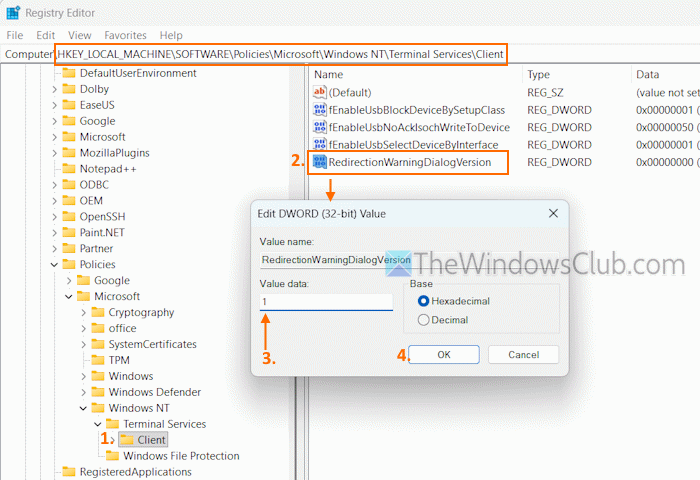
Microsoft has provided a temporary support to revert to the previous dialog behavior and disable the new version of the security dialog. A future update might remove this support as well (including older versions of Windows). If the new security update is causing disruptions in your Remote Desktop environment, you need to set a Registry value to skip the consent prompt for RDP connections in Windows Server. Here are the steps:
- Open the Registry Editor window
- Access the Client Registry key in the HKEY_LOCAL_MACHINE root key. Here is the path:
HKEY_LOCAL_MACHINE\SOFTWARE\Policies\Microsoft\Windows NT\Terminal Services\Client
- Create a new DWORD (32-bit) Value. Right-click on an empty area > New > DWORD (32-bit) Value
- Rename the value to RedirectionWarningDialogVersion
- Double-click on RedirectionWarningDialogVersion value
- In the Edit Value box, add 1 in the Value data field
- Press OK.
You can also create a .reg file by pasting the following in Notepad and saving it as a .reg file:
Windows Registry Editor Version 5.00

[HKEY_LOCAL_MACHINE\Software\Policies\Microsoft\Windows NT\Terminal Services\Client]
"RedirectionWarningDialogVersion"=dword:00000001
Double-click on this.reg file, to add its contents to the Registry.
The same can be done by executing the following command in an elevated CMD:
reg add "HKLM\Software\Policies\Microsoft\Windows NT\Terminal Services\Client" /v RedirectionWarningDialogVersion /t REG_DWORD /d 1 /f
TIP: If you are an app developer and your app relies on mstscax.dll (Remote Desktop ActiveX Control), use the IMsRdpExtendedSettings Property for controlling dialog behavior.
In case you want to suppress or prevent the first security warning (or educational dialog) as well, access the Terminal Server Client Registry key. Here is the path:
HKEY_CURRENT_USER\Software\Microsoft\Terminal Server Client
Create an RdpLaunchConsentAccepted DWORD (32-bit) Value and set its Value data to 1.
Alternatively, you can execute the following command in CMD (admin) to set this Registry setting automatically:
$RegPath = "HKCU:\Software\Microsoft\Terminal Server Client"; Remove-ItemProperty -Path $RegPath -Name "RdpLaunchConsentAccepted" -ErrorAction SilentlyContinue
Bonus Tip: Microsoft RDP Extensions (MsRdpEx) is an open-source remote desktop client that supports extended logging and processes additional RDP file options not supported by mstsc.exe. Some of the RDP settings include KDCProxyURL:s:value, Enable RDP mouse jiggler (EnableMouseJiggler:i:value), Enable Restricted Admin mode (RestrictedLogon:i:value), etc. You can grab its MSI installer from github.com and install it. The installer automatically associates RDP files with it to get started right away.
That’s all.
How to Remote Desktop without permission?
An administrator can interact with a user’s Remote Desktop Services session without the user’s permission if a Group Policy setting is configured. To configure it, open the Local Group Policy Editor window. Navigate to the Connections folder using this path:
Computer Configuration > Administrative Templates > Windows Components > Remote Desktop Services > Remote Desktop Session Host > Connections
Open the Set rules for remote control of Remote Desktop Services user sessions setting. Select Enabled and choose Full Control without user’s permission option using the drop-down menu. Press OK.
How to fix RDP saying access denied?
To fix the Access is denied and User is not authorized error while connecting to a remote desktop, the user must have the necessary permissions to access the remote server. For this, open the Local Security Policy window. Navigate to Security Settings > Local Policies > User Rights Assignment. Double-click on the Allow log on through Remote Desktop Services setting and check if the user belongs to the added groups that have rights. If not, add the user to one of the groups (already configured) or add a group to the policy.
Read next: Fix Remote Desktop connection issues & errors on Windows PC.
