
Do you know the exact spot with the maximum Wi-Fi signal strength in your house? Well, you can probably tell that by the number of solid bars in the Wi-Fi icon in the taskbar. But that might not be the best way for you. The solid bars give you an abstract idea of the signal strength, but will not give you an exact number or value. The exact value can help your analysis and provide results you can use to improve Wi-Fi signal strength at home or in the office.
Many a time, even with excellent internet speed, consumers complain of speed issues. While they can connect, they don’t get the rate they should based on the internet speed their ISP offers. The problem may be due to thick walls, low signal, or other factors. In this post, we will share applications that can help you measure Wi-Fi signal strength.
The right way to check Wi-Fi Signal Strength
While it is easy to look at the number of bars on the Wi-Fi icon to gauge signal strength, that is not an accurate measure; it is only an approximation. Some advanced applications measure Wi-Fi strength in dBm or milliwatts.
It is a negative measurement ranging from -30 to -90 and indicates a loss of signal strength. So if you get a signal strength of -30, it is the best you can get, while -90 is terrible. That said, if you are wondering what would be the ideal strength for streaming or anything heavy on bandwidth, then it’s around -65 dBm.
How to measure Wi-Fi signal strength
You can use any of these free tools to measure Wi-Fi signal strength, but make sure to first go through all the features, limitations, and ease of use.
- Fing
- Wi-Fi Analyzer
- NirSoft’s WifiInfoView
- NetSh Command
- Vistumbler
- WirelessConnectionInfo.
Apart from dBm, RSSI is another unit for measuring strength, but it’s not a standard way to do it. We have given the conversion formula if any of the software offers RSSI values.
1] Fing
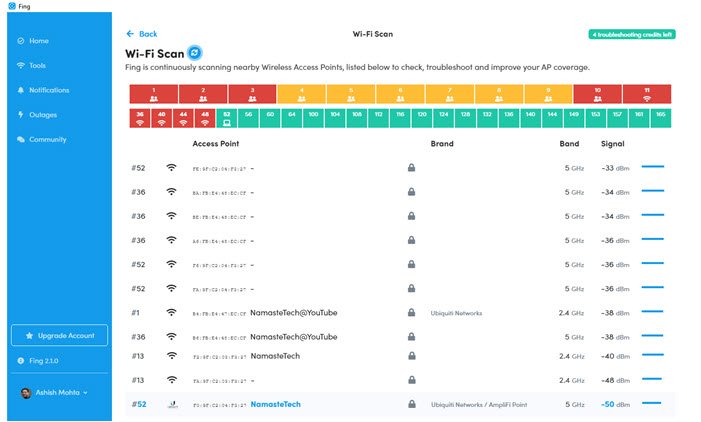
It is the best tool you can find right now to measure Signal strength and generate a full report if you have a Wi-Fi issue. Once you install the tool, switch to the tools section, and then start the Wi-Fi scan to troubleshoot and find the strength of every Wi-Fi device around you!
The only limitation of using this tool is that you can try it five times a day, but since it keeps scanning the signal strength live, it is more than enough. Also, the application is free to use on smartphones, and if you are trying to find out the signal strength at a particular place. Download Fing.
2] Wi-Fi Analyzer
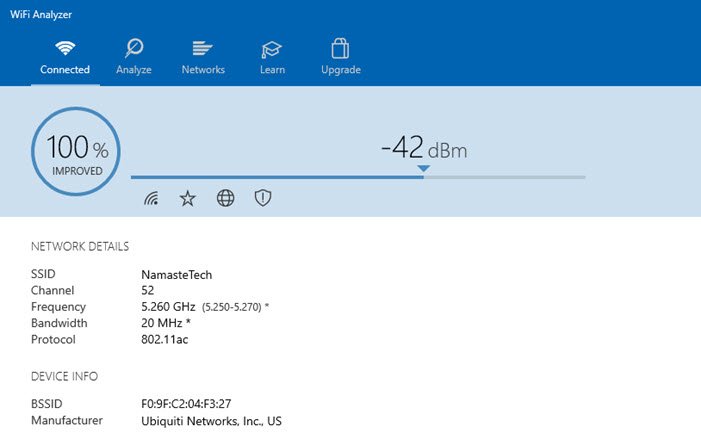
It’s a free tool that you can download from Microsoft Store. It can help you identify Wi-Fi problems, find the best channel, or the best place for your router/access-point by turning your PC/laptop, tablet, or mobile device into an analyzer for your wireless network. The best part of using this tool is that it serves the purpose without clicking anything else. Launch the tool; it will ask for permission and then show you the result.
It can also analyze your network and help you identify issues, but that’s in their premium segment. Since all we need is signal strength and there’s no limit on how many times you can check, this works well. You can download from Microsoft Store
3] NirSoft’s WifiInfoView
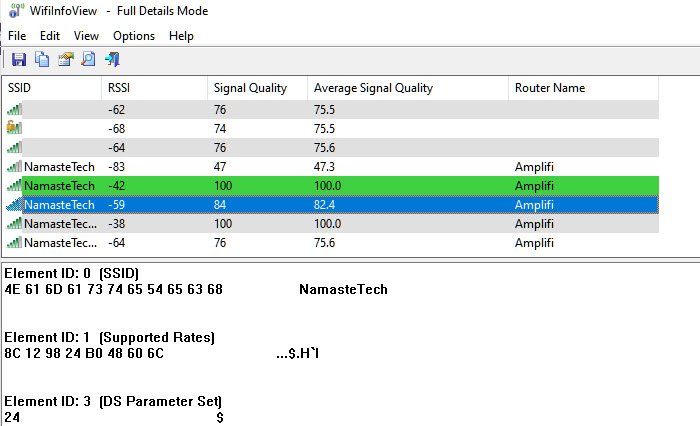
WifiInfoView uses the NetSh command in the background and then converts it into data that anybody can understand. Apart from that, it can also scan for other routers in the neighborhood and help you figure out whether your router, being closest to you, is providing adequate signal strength. Instead of using dBm, it uses RSSI to measure signal strength. RSSI stands for r Received Signal Strength Indicator. The formula to convert RSSI into DBM is as follows
RSSI - 95 = signal strength in dBm
So in my scenario, RSSI, according to this tool, is -42, which equals -53dBm, which is close enough.
4] NetSh Command
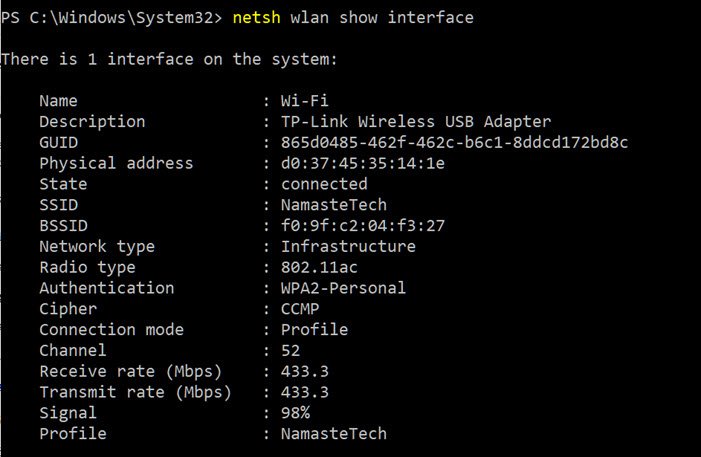
The simplest way to do so is to type commands in a CMD window. This method does not require any software installation; it is simple and quick. Make sure you are connected to the Wi-Fi you want to run a signal test on.
Windows offers a built-in command to show signal strength. When you run the NETSH command, it displays the signal strength as a percentage. Here is what the command looks like.
netsh wlan show interface
This will give you detailed information about the wireless network. This type of information is not available in the network and sharing center or even the settings app. You can view the GUID, Physical Address, State, SSID, BSSID, Network Type, Radio Type, Authentication, Cipher, Channel, Receive/Transmit rate, and, most importantly, the signal. The signal is represented as a percentage value and is the most accurate measure of strength. You can run this command as many times as you like, and you will notice changes in the signal values each time you move your device slightly.
As you can see in the image that 98% looks promising, but if you convert it into dBm, it will tell a different story. Here is the formula for converting a signal percentage into dBm.
dBm = (quality / 2) – 100
So the 98% signal strength (quality) will convert into 98/2-100 = -51. This matches the Fling tool report, which evaluated -50dBm.
5] Vistumbler
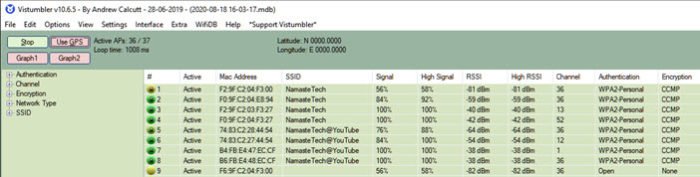
It’s free software that can scan for all APs around you and display their signal strength, channel, MAC addresses, and other details. It is similar to Nirsoft’s software, but it comes with a twist. You can also use GPS as one of the factors that help you generate a map. However, using it for anything other than what’s on the list will require a bit of effort. So unless you are into technical stuff, skip it or use it for only what you need.
Download from Vistumbler and let us know what you think of it.
6] WirelessConnectionInfo
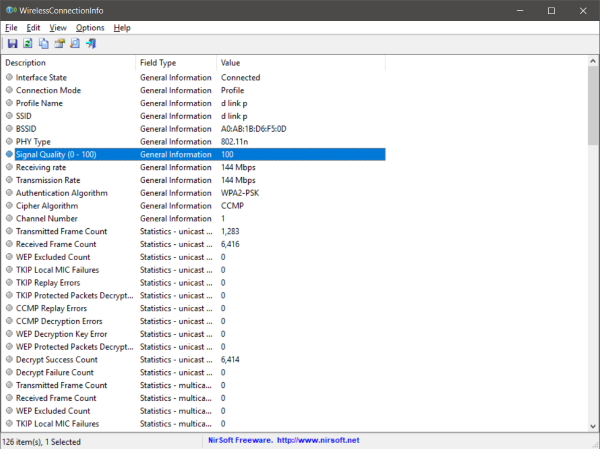
If you are not fond of these black box terminal windows, then there is a GUI based solution for you. WirelessConnectionInfo is a freeware application that lets you view all the details about the wireless network you are connected to. Well, it gives you a lot more details that the command line method gave you and one of them is the signal strength. You can also export the data as an HTML report and use it later for sharing.
WirelessConnectionInfo, like any other Nirsoft tool, offers a variety of visual customizations. It supports most of the common keyboard shortcuts and you can easily refresh the stats and signal strength by pressing F5 on your keyboard.
Click here to download WirelessConnectionInfo.
How to improve Wi-Fi Signal Strength
That covered, if you are wondering how you can improve the strength, then it’s a vast topic, but here are some basic rules to follow.
- Connect to a 5 GHz access point, as it offers the strongest signal.
- If your router doesn’t support 5 GHz mode, it is best to get a new one. Most of the modern routers support it.
- If you cannot get close to your primary router and have too many blind spots, you may want to upgrade to a mesh router, such as AmpliFi Mesh routers.
There is no silver bullet for achieving peak strength, but these should help. Ethernet always aims to deliver the best speed, but it may not be available all the time. I hope the software in the post helped you determine the Wi-Fi signal strength.
So this was how you can view the exact signal strength of a Wi-Fi connection. You can use the above methods to find the best spot in your home or office. Or these methods can be used to find out the best place to install a new Wi-Fi router. You can keep your computer static and move the router around and see how the signal changes. There are endless possibilities for how you can use these methods in your rescue.
What is the Amplifi Instant Router?
The AmpliFi Instant Router is a compact mesh Wi-Fi system designed for easy setup, reliable coverage, and stylish design, making it ideal for homes or small offices that want to eliminate dead zones without complex installation. It provides strong, consistent coverage across multiple rooms using mesh technology, ensuring seamless roaming between nodes. The hardware is minimalist and attractive, with a small footprint and LED indicators for real-time network stats. It supports features such as a guest network and app-based management, though it lacks advanced web-based controls and offers limited wired connectivity.
TIP: Homedale for Windows lets you manage your WiFi strength.
