
SharePoint refusing to save your edits can quickly derail an otherwise productive session. You make your changes, click Save, and either nothing happens, or the file quietly reverts to its previous state. In this post, we are going to see what you can do if SharePoint is not saving changes or edits.
When SharePoint doesn’t save your changes, it’s usually not just a connectivity issue. More often than not, your browser may have old session data. This can include cached permission information that doesn’t match your actual access level. As a result, SharePoint might see your session as read-only, even if you have full editing rights, and it may not save your changes. Additionally, files can get stuck in a checked-out state due to broken sessions or background processes. Sometimes, authentication tokens expire during your session, causing a mismatch between your login and SharePoint’s expectations.
Fix SharePoint not saving changes or edits
If you’ve already tried refreshing the page or restarting your browser, you’ve likely noticed those steps don’t address the real issue. Let us follow the steps mentioned below if SharePoint is not saving changes or edits.
- Clear site data to reset cached permissions
- Force a check-in from the document library
- Re-upload the file to rebuild metadata
- Clear pending uploads from OneDrive
Let us look at these solutions in detail.
1] Clear site data to reset cached permissions
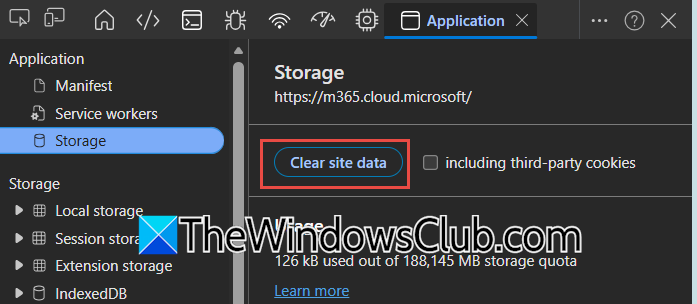
A standard browser cache clear often leaves behind the real offender: the service worker and local storage that hold an incorrect copy of your permissions. By specifically clearing the site data for your SharePoint domain, you delete the damaged PermMask and force a clean, accurate permission check on the next page load.
Follow the steps mentioned below to do the same.
- While on the SharePoint page where saving fails, press F12 to open Developer Tools.
- Go to the Application tab.
- In the left sidebar, select Storage, then click Clear site data (the button with a circle-slash icon).
- Close Developer Tools, refresh the page fully, and attempt your edit again.
Finally, check if your issue is resolved.
2] Force a check-in from the document library
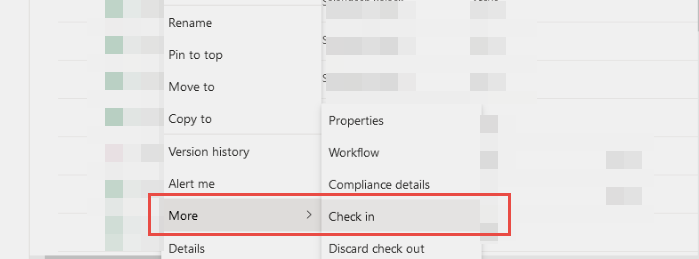
If a file is stuck in a checked-out state, even if the checkout was initiated by a stale browser session or an automated process, SharePoint will refuse to apply any changes. The in-editor Check In button can be unresponsive when the lock is corrupted, so you bypass it by using the document library’s direct file management, which forcibly clears the lock. You need to follow the steps mentioned below to do the same.
- Navigate to the document library (not the editing screen).
- Click the radio button next to the problematic file to select it, then click the three dots (…) and choose More > Check In.
- In the dialog box, type a brief comment and click Check In.
Reopen the file in the browser editor and save; most probably, the lock is gone.
3] Re-upload the file to rebuild metadata
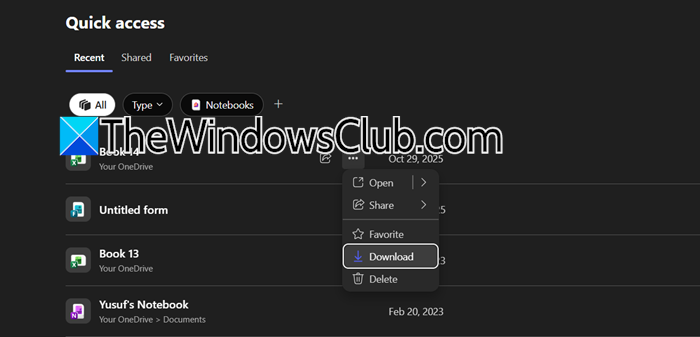
Occasionally, a file’s metadata becomes silently corrupted, causing an internal save error with no outward warning. By downloading the file, making a trivial change locally, and re-uploading it to overwrite the original, you force SharePoint to rebuild that metadata from scratch, eliminating the hidden error.
- In the document library, right-click the file and choose Download.
- Open the downloaded file in its desktop app (Word, Excel, etc.), make a tiny edit (add and delete a space), then save the local copy.
- Back in the library, click Upload > Files, select your modified file, and pick Replace when prompted.
Now open the replaced file in the browser and verify that saving works.
4] Clear pending uploads from OneDrive
If your SharePoint library is synced locally through OneDrive, a queued upload that got stuck during a network hiccup or sign-out can block all subsequent save attempts. The Office Upload Center holds these stalled files silently, and you have to manually clear the queue before new saves can go through. You need to follow the steps mentioned below.
- In the system tray (bottom-right of the screen), right-click the OneDrive cloud icon and select View upload center (or “View sync problems”).
- Look for any file with a Pending Upload or Suspended status.
- Select those items and click Delete these files. This removes them from the upload queue only, not from your computer.
Close the Upload Center and try saving your file in SharePoint again.
That’s it!
Read: Turn On/Off sync for SharePoint Document Library
Why won’t SharePoint let me edit?
SharePoint often prevents you from editing because your browser may have a corrupted permission cache that shows you only have read-only rights, even if you’re an owner. Another common issue is an invisible file lock. If a document is checked out by an old session, it won’t allow any changes until you manually check it in. Other factors, like expired authentication tokens, sync conflicts, or a file marked as final, can also make the editor unavailable. Clearing the site data and releasing the lock usually restores full editing access quickly.
Does SharePoint automatically save changes?
Yes, when you edit a document directly in SharePoint Online’s browser editor using Word, Excel, or PowerPoint for the web, AutoSave is on by default and silently pushes every change to the cloud within seconds. You won’t see a traditional Save button because it isn’t necessary. However, if you open the file in the desktop app, or work in classic mode or Quick Edit grid view, saving becomes strictly manual. Always glance at the title bar for a Saved label to confirm your work is secure.
Also Read: Power Query new files and folders not showing in SharePoint.
