
In the latest work environment, where everything is stored online on the cloud, data security is of utmost importance. Businesses rely on Microsoft 365 for cloud storage, professional emails, and, of course, Microsoft 365 apps. Storing data on the cloud makes it easy to access and provides a lot of convenience. The convenience can at times become a threat to data security. People can log in from anywhere using personal devices, and make it vulnerable. Fortunately, administrators can prevent this and manage data security with a few controls. The administrators can block access from unmanaged devices on SharePoint and take back control over data outside the organization. Follow this guide to know how to do it.
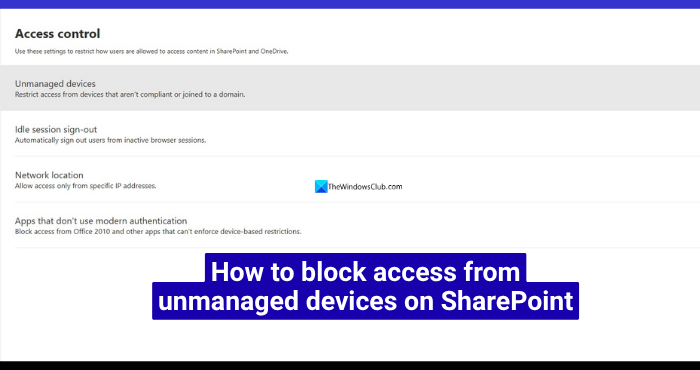
How to block access from unmanaged devices on SharePoint
You must be an administrator with global access on the Microsoft 365 Business account to manage or block access. Then, follow the steps below to block access from unmanaged devices on SharePoint.
- Access SharePoint from your admin center
- Expand Policies and go to Access control
- Select Unmanaged devices
- Tweak settings to block access from unmanaged devices
Let’s get into the full details of the process and implement it in SharePoint.
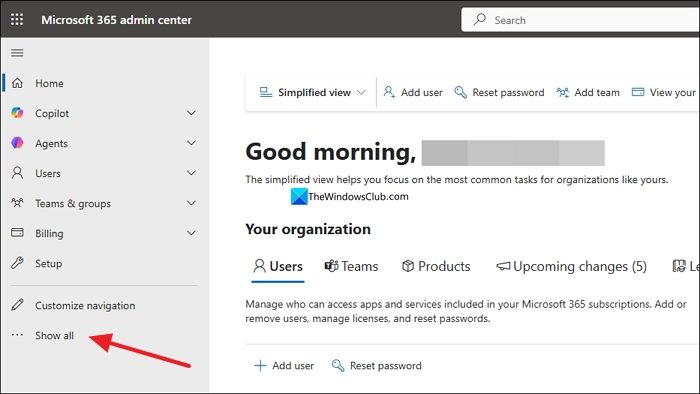
Open a web browser on your computer, and access the Microsoft 365 admin center. Log in with your administrator credentials. Then, click Show all on the side menu in the admin center homepage.
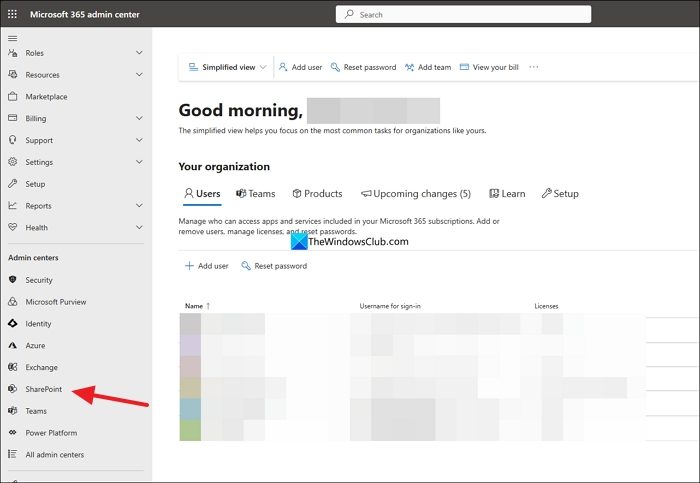
It shows different admin centers available for your organization. Click SharePoint to open the SharePoint admin center.
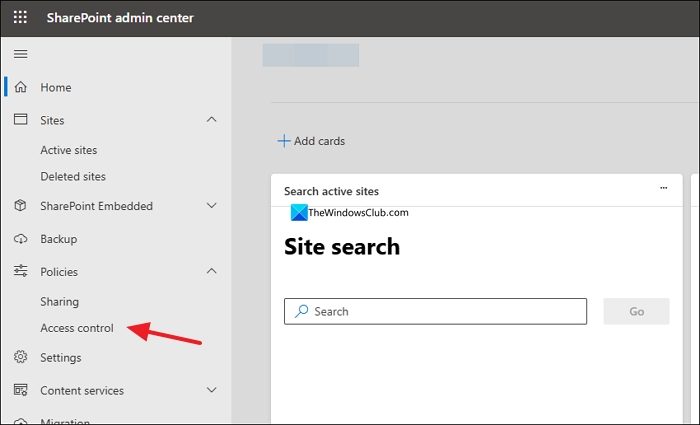
On the SharePoint admin center page, expand Policies on the left side menu, and select Access control.
Click the Unmanaged devices tab on the Access control page.
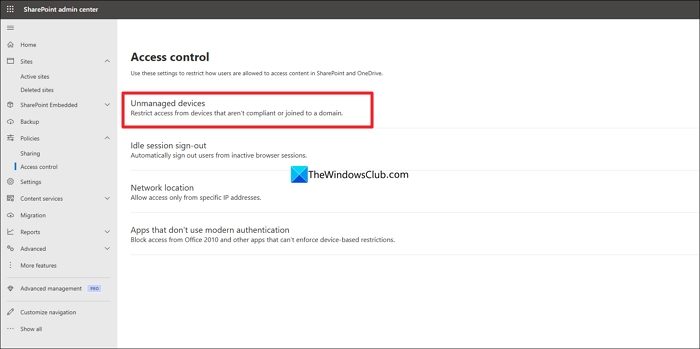
To use the unmanaged devices access control settings, you must have a subscription to Enterprise Mobility + Security on your Microsoft 365 Business account. If not, you cannot fully use or enforce the access control policies. If you have the required subscription, proceed to click the button beside Block access to apply the access controls to all users in your organization. Then, click Save.
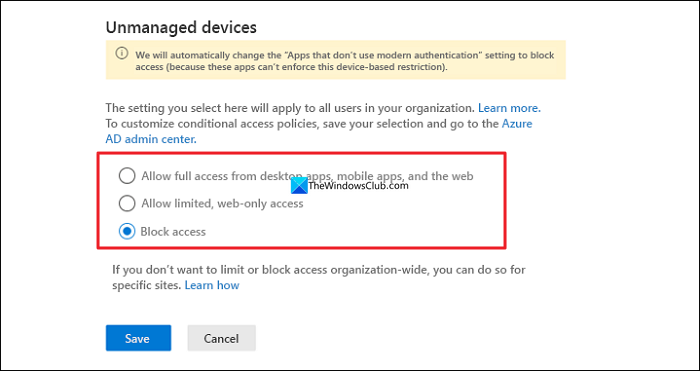
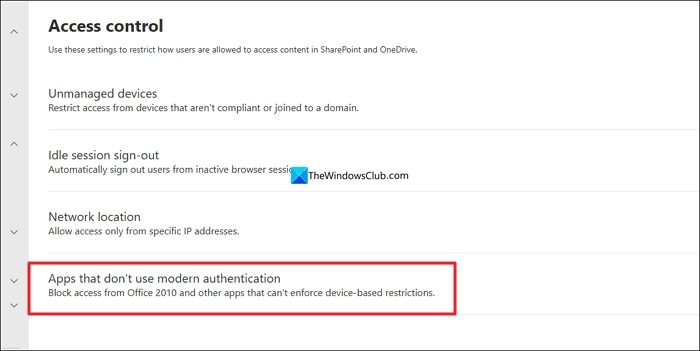
Go back to the Access control page, and click Apps that don’t use modern authentication.
Click Block access.
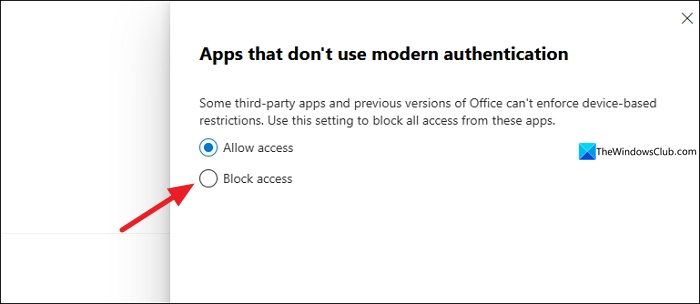
This makes it easy to restrict access from unmanaged devices, and even the workaround of using older versions of Microsoft Office and other apps. Your data is completely protected this way.
Read: SharePoint cannot open Office documents in SharePoint Libraries
How do I restrict access to certain users in SharePoint?
To restrict access for certain users, you can do so in the Microsoft 365 admin center by revoking their licenses, changing their passwords and restricting sign-ins. It is not possible to explicitly apply user access to SharePoint. As an administrator, you can use SharePoint’s access control features to block users from accessing it from unmanaged devices. You can also choose to give access from a certain IP address to improve security.
What is the difference between managed and unmanaged devices on SharePoint?
Managed devices on SharePoint are devices controlled by the administrator using a global account. It restricts users from making any changes to the device, installing new programs or connecting external devices. Only the users with administrative controls in the organization can make changes. Unmanaged devices on SharePoint are not under the organization’s administrative control, such as personal laptops and PCs.
Related read: SharePoint not saving changes or edits.
