
Keeping a constant eye on your Windows Server is crucial, but manually checking service status is impractical. While you can set up alerts for specific Event IDs, this becomes noisy when a common event, such as Service Control Manager’s Event ID 7036, logs every service start and stop. In this post, we are going to see how you can set up email alerts to monitor service status in Windows Server.
Set up Email Alerts to monitor Services status in Windows Server
This guide will walk you through a precise method to configure email alerts that trigger only when a specific Windows Service changes state. By combining the filtering capabilities of Windows Event Viewer with a PowerShell script and Task Scheduler, you can create a robust monitoring solution for critical services such as SQL Server, IIS, or other applications in your environment.
If you want to set up email alerts to monitor service status in Windows Server, follow the steps below.
- Meet the prerequisites
- Create the PowerShell Email Script
- Configure the Scheduled Task Trigger
Let us talk about them in detail.
1] Meet the prerequisites
First and foremost, we need to ensure our environment meets certain requirements needed for this tutorial. The following are the requirements for setting up alerts.
- A Windows Server (2012 R2, 2016, 2019, or newer).
- An SMTP server credentials (e.g., Gmail, an internal SMTP relay).
- Permissions to create scheduled tasks and run PowerShell scripts.
If your system meets the requirements, go ahead and start configuring.
2] Create the PowerShell Email Script
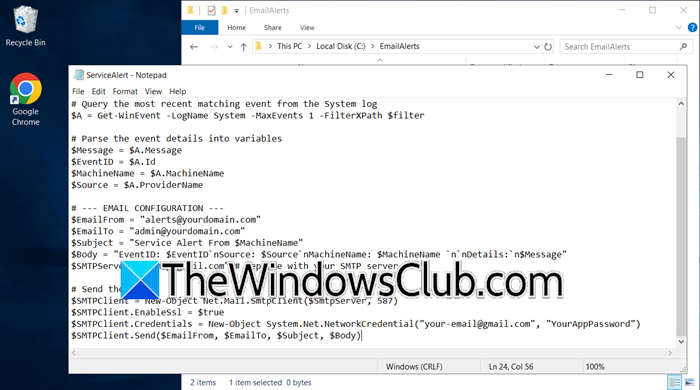
Let us go ahead and create a PowerShell script that parses the event log and sends an email when triggered.
You need to create a folder on your server, for example, C:\EmailAlerts\. Using a text editor like Notepad or PowerShell ISE, create a new file named ServiceAlert.ps1 in that folder. Copy and paste the following script, then customize the variables (especially the email credentials and the service name in the $filter variable).
# Define the event filter. Change 'Your Service Name' to the target service.
$filter = "*[System[EventID=7036] and EventData[Data='Your Service Name']]"

# Query the most recent matching event from the System log
$A = Get-WinEvent -LogName System -MaxEvents 1 -FilterXPath $filter

# Parse the event details into variables
$Message = $A.Message
$EventID = $A.Id
$MachineName = $A.MachineName
$Source = $A.ProviderName

# --- EMAIL CONFIGURATION ---
$EmailFrom = "[email protected]"
$EmailTo = "[email protected]"
$Subject = "Service Alert From $MachineName"
$Body = "EventID: $EventID`nSource: $Source`nMachineName: $MachineName `n`nDetails:`n$Message"
$SMTPServer = "smtp.gmail.com" # Replace with your SMTP server

# Send the email
$SMTPClient = New-Object Net.Mail.SmtpClient($SmtpServer, 587)
$SMTPClient.EnableSsl = $true
$SMTPClient.Credentials = New-Object System.Net.NetworkCredential("[email protected]", "YourAppPassword")
$SMTPClient.Send($EmailFrom, $EmailTo, $Subject, $Body)
When updating the $filter variable, make sure to replace ‘Your Service Name’ with the exact name of the service you wish to monitor, as it appears in services.msc. If you are using Gmail, remember to use an App Password instead of your regular one, as passwords should be in plain text. For production environments, it is advisable to use encrypted credentials for security.
3] Configure the Scheduled Task Trigger
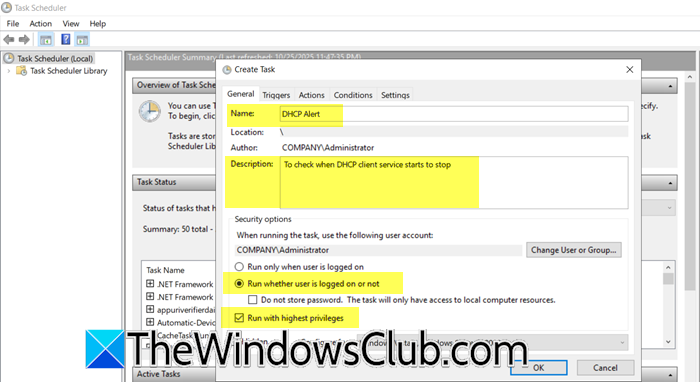
We will use Task Scheduler to execute the script whenever the specific service event occurs. For that, follow the steps below.
- Open Task Scheduler.
- Go to Action > Create Task.
- Now, go to the General tab.
- Name: Give the task a descriptive name (e.g., “DHCP Alert”).
- Description: Add an optional description.
- Select Run whether user is logged on or not. This ensures the task runs in the background.
- Check Run with highest privileges.
- Now, go to the Trigger tab.
- Click on New, set Begin the task to On an event, select Custom, and click on Edit Event Filter…
- Go to the XML tab, and check Edit query manually.
- Paste the following XML query, replacing ‘Your Service Name’ with the same service name used in your PowerShell script.
<QueryList>
<Query Id="0" Path="System">
<Select Path="System">
*[System[(EventID=7036)]] and *[EventData[Data[1]='Your Service Name']]
</Select>
</Query>
</QueryList>
- Go to the Actions tab now.
- Click New.
- Set Action to Start a program.
- Set Program/script to powershell.
- In the Add arguments, it has to be the PowerShell script along with its location, so, if you set the name to the one we mentioned, enter -File “C:\EmailAlerts\ServiceAlert.ps1”.
- You can leave the Conditions tab at its default settings.
- Now, in the Settings tab, check the Run task as soon as possible after a scheduled start is missed, and If the task fails, restart every: (e.g., 1 minute) options. Ensure that If the task is already running: is set to Queue a new instance“.
- Click OK and enter the password for the user account the task will run under.
You can find the exact service name by looking at the event details. In Event Viewer, when you see Event ID 7036, go to the Details tab and select XML View. Look for the <Data> tag inside <EventData>; this contains the service name.
To deploy this alert on multiple servers efficiently, export the task and import it using PowerShell.
You can import the task directly by first exporting it. Open Task Scheduler, right-click the configured task, and choose Export. Save the task as an XML file (e.g., ServiceAlert.xml). This file can then be imported into another system or reused later.
Additionally, you can use the following PowerShell command on the target servers, modifying the user and password as needed.
Register-ScheduledTask -Xml (Get-Content '\\NetworkShare\Path\ServiceAlert.xml' | Out-String) -TaskName "Your Service Alert" -User "DOMAIN\User" -Password "UserPassword" -Force
This allows you to standardize and scale your service monitoring across your entire server estate quickly.
Read: Enable, disable, set up, use Remote Assistance in Windows Server
How to setup email notification when Windows service goes down?
To set up email notifications when a Windows service goes down, create a PowerShell script that sends SMTP alerts, and configure a scheduled task that triggers on the specific Service Control Manager event (Event ID 7036). Use custom XML filtering in the task’s event trigger to monitor only your target service by name, then set the action to run your PowerShell script, which will automatically send an email with service status details whenever it starts or stops.
Read: How to install and configure File Server on Windows Server
How do I announce system downtime?
To announce system downtime, send a clear, concise notification to all affected users specifying the date, time, duration, and reason for the outage. Use multiple channels, such as email and instant messaging, and emphasize the benefits they will receive afterward —such as improved performance or new features —to frame the inconvenience in a positive light.
Also Read: Install and configure Windows Server Essentials Experience.
