
Not being able to turn off Send optional diagnostic data settings undermines our privacy and control and can be really frustrating. This issue often occurs when system policies, background services, or post-update resets persistently override the user’s choice, causing the setting to revert automatically after it has been turned off. In this post, we will explore why this issue is occurring and how to resolve it in Windows 11/10.
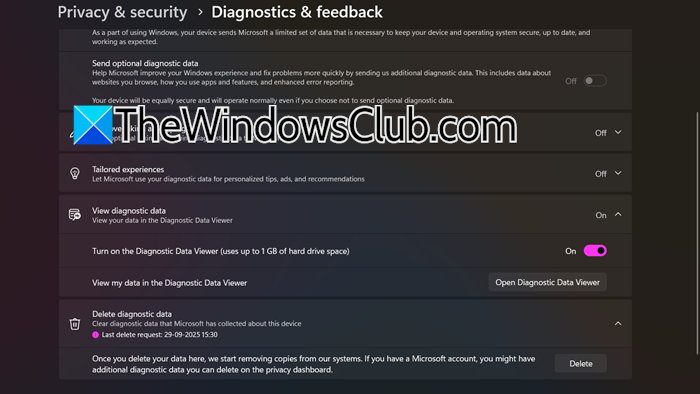
Send optional diagnostic data not turning off in Windows 11
This issue usually occurs because a higher-level system policy or a background service is forcing data collection and overriding your local settings. Some common causes include a Group Policy set by your organisation, a problem in the Windows Registry, or the Connected User Experiences and Telemetry service running all the time. A scheduled task like the Microsoft Compatibility Appraiser may also turn the feature back on. Additionally, major Windows updates can reset privacy settings to their default values, which might re-enable options you previously turned off.
If “Send optional diagnostic data” is not turning off, you can follow the solutions below.
- Use the Group Policy Editor (Windows Pro/Enterprise Only)
- Modify Registry Editor
- Disable the Telemetry Service
- Disable the Compatibility Appraiser Task
- Delete Data and Re-Toggle the Setting
- Verify Settings after a major update
Let us talk about them in detail.
1] Use the Group Policy Editor (Windows Pro/Enterprise Only)
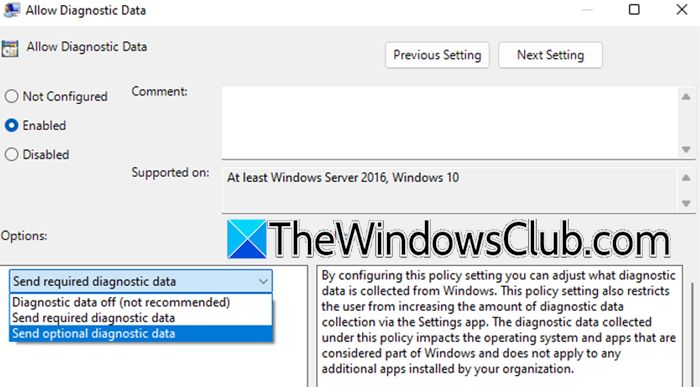
Group Policy setting acts as a system-level mandate that overrides any user-facing toggle. By enforcing the Send required diagnostic data option, you are setting a hard limit that the operating system cannot exceed, effectively preventing the collection of any optional data.
You can follow the steps mentioned below to use the Group Policy Editor to do the same.
- Open the Group Policy Editor by searching for it in the Start Menu.
- Now, navigate to Computer Configuration > Administrative Templates > Windows Components > Data Collection and Preview Builds.
- Double-click Allow Diagnostic Data, set it to Enabled, and then select the option Send required diagnostic data. Click OK.
This policy setting explicitly blocks the sending of optional data. Hopefully, your issue will be resolved.
2] Modify Registry Editor
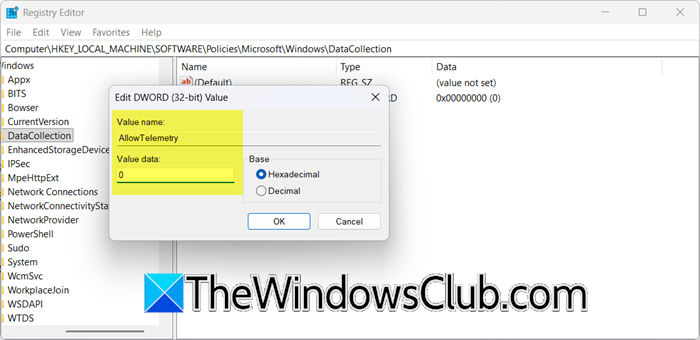
Group Policy Editor is essentially a user-friendly interface that modifies the Windows Registry behind the scenes. Gpedit is only available on Windows Pro and Enterprise editions; therefore, users of other editions must utilise the Registry Editor. By creating the AllowTelemetry value directly in the registry, we can manually set the same hard-coded policy rule, which the Windows telemetry services are obligated to obey, overriding the user toggle in Settings. Before making any changes, we need to create a backup of the registry.
Once done, open Registry Editor, and go to the following location.
HKEY_LOCAL_MACHINE\SOFTWARE\Policies\Microsoft\Windows\DataCollection
If the DataCollection folder does not exist, you will need to create it. Right-click on the Windows folder, select New > Key, and name it DataCollection.
With the DataCollection key selected, right-click in the right-hand pane and select New > DWORD (32-bit) Value. Name it AllowTelemetry. Double-click the newly created AllowTelemetry value and set its data to 0 (for Security/Enterprise) or 1 (for Basic telemetry only).
Click Ok and then restart your computer.
3] Disable the Telemetry Service
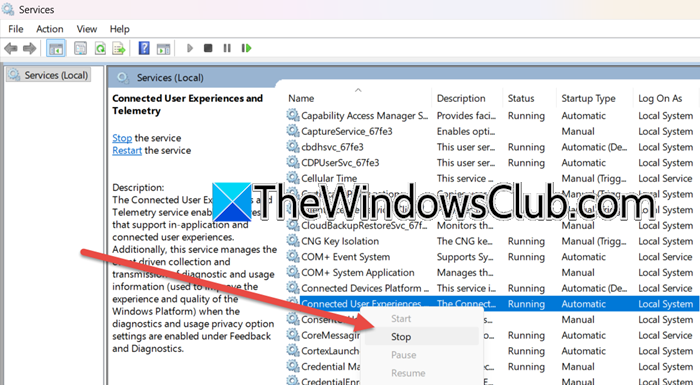
The Telemetry Service is a core Windows service responsible for collecting and transmitting diagnostic data. Without this service running, the system has no mechanism to gather or send the information, resulting in the same effect as disabling “Send optional diagnostic data”. Follow the steps mentioned below to disable the Telemetry Service.
- Open Services on your computer.
- Look for Connected User Experiences and Telemetry.
- Right-click on the service and select Stop.
Finally, check if the issue is resolved.
Read: How to disable Telemetry in Windows 11
4] Disable the Compatibility Appraiser Task
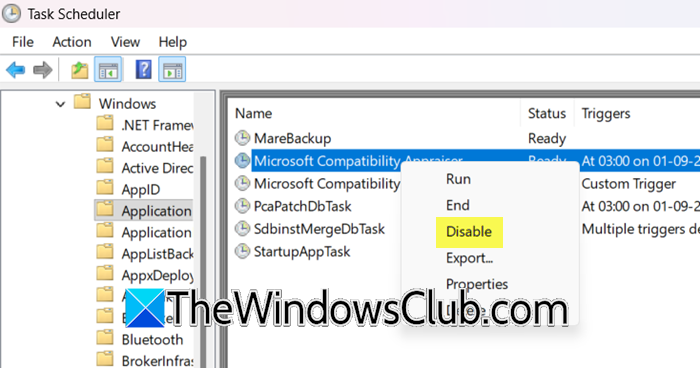
The Microsoft Compatibility Appraiser task is a scheduled process that actively collects system data for diagnostic purposes. Disabling it prevents Windows from periodically executing this specific data-gathering function. This directly removes one of the key mechanisms for collecting and processing optional diagnostic information. You can follow the steps mentioned below to do the same.
- Hit Win + R, type “taskschd.msc”, and hit Enter.
- Go to Task Scheduler Library > Microsoft > Windows > Application Experience.
- Find the task named Microsoft Compatibility Appraiser, right-click it and select Disable.
Reboot your computer and try disabling “Send optional diagnostic data”.
5] Delete Data and Re-Toggle the Setting
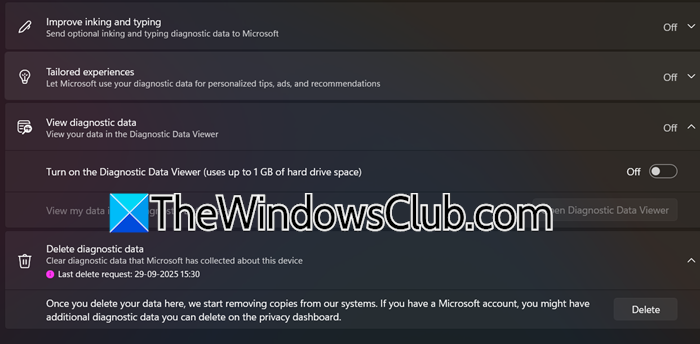
- Open Settings.
- Go to Privacy & security > Diagnostics & feedback.
- Click on Delete diagnostic data and then on Delete.
- Finally, reboot your computer and try turning off
Now, you can try turning off Delete optional diagnostic data.
6] Verify Settings after a major update
Major Windows Feature Updates effectively reinstall the operating system, often resetting customised preferences to Microsoft’s default configurations. By manually reapplying your preference after an update, you ensure that the new system build is explicitly configured to respect your privacy choice, overriding the default setting.
After your PC installs a major Windows Feature Update, manually return to Settings > Privacy & security > Diagnostics & feedback and reapply your preference, as updates are a known trigger for resetting this setting.
Hopefully, with these solutions, your issue will be resolved.
Read: Privacy Settings in Windows 11 you should change
How do I turn off optional diagnostic data?
You can turn off optional diagnostic data by navigating to Settings > Privacy & security > Diagnostics & feedback and toggling the Send optional diagnostic data option to the off position. For a more permanent solution, you may need to disable the Connected User Experiences and Telemetry service or modify Group Policy settings, as the basic toggle can sometimes reset after system updates.
Read: How to enable and use Diagnostic Data Viewer in Windows
What happens if I turn off send diagnostic data?
When you turn off optional diagnostic data, Windows stops collecting detailed usage information about your apps and browsing activity, as well as enhanced error reports. This enhances your privacy but may reduce the effectiveness of features like tailored troubleshooting tips. Your PC will still send a minimal amount of required diagnostic data, and security updates will continue to function normally.
Also Read: Your organization prevents sending optional diagnostic data to Microsoft.
