
If you are facing problems with Windows Security and seeing a message that says Windows Security Service or SecurityHealthService.exe started and then stopped working, then this post is sure to help you.
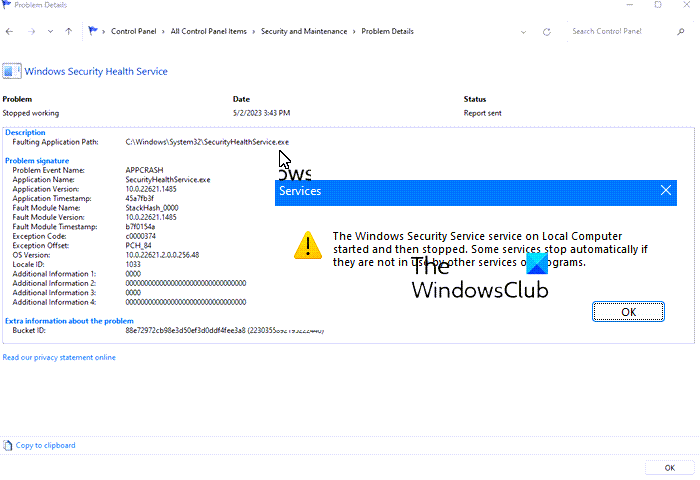
Why does securityhealthservice.exe crash in Windows 11?
The reason why securityhealthservice.exe is crashing quite often probably has a lot to do with corruption or missing system files. Sometimes, your Windows 11 computer may require an update to get things back on track.
Fix SecurityHealthService.exe crashing or stopped working
If you’ve had issues with SecurityHealthService.exe crashing, these suggestions should help.
- Restart Windows Security Service via Services Manager
- Reset the Security Health Service
- Reinstall Windows Security using the Powershell command
- Run SFC and DISM
1] Restart Windows Security Service via Services Manager
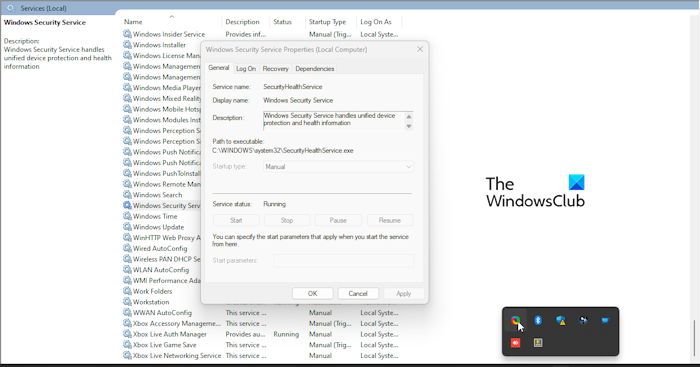
Restarting the Windows Security Service is the first step, and it must be done via Services Manager. With that in mind, here’s what you need to do.
- To begin, right-click the Windows key, then select Run from the context menu.
- After that, type services.msc, then hit the Enter key.
- Doing the above should open the Services Manager window.
- Go ahead and scroll down to the bottom until you come across Windows Security Service.
- Double-click on it to open the Properties window.
- From this window, please click on the Stop button, then select Apply > OK.
Restart your computer and Windows Security Service should automatically restart. If that doesn’t happen, then follow the steps above and return to the Properties window where you can simply click on the Start button.
READ: Security Intelligence Update not installing automatically
2] Reset the Security Health Service
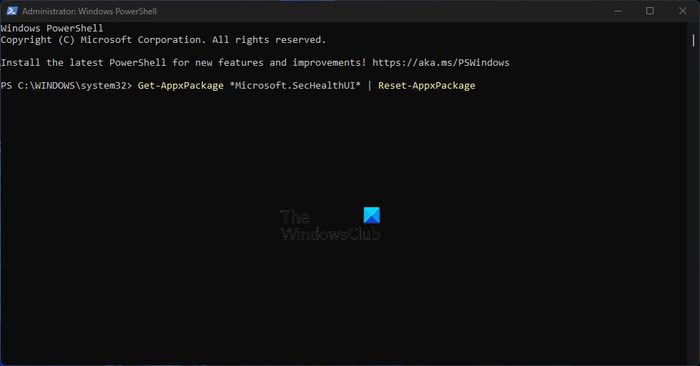
We must now move to reset the Security Health Service in hopes things will return to normal.
To do this, you must open PowerShell.
Please run it as an administrator.
From there, please copy and paste the following command directly into PowerShell:
Get-AppxPackage *Microsoft.SecHealthUI* | Reset-AppxPackage
After that, hit the Enter key on your keyboard.
When the process has run its course, go ahead, and restart the computer.
See this post for additional ways to reset the Windows Security app. Resetting Windows Security will also reset this Service and all other related components.
Similar: Reset Windows Security Settings to default values
3] Reinstall Windows Security using the Powershell command
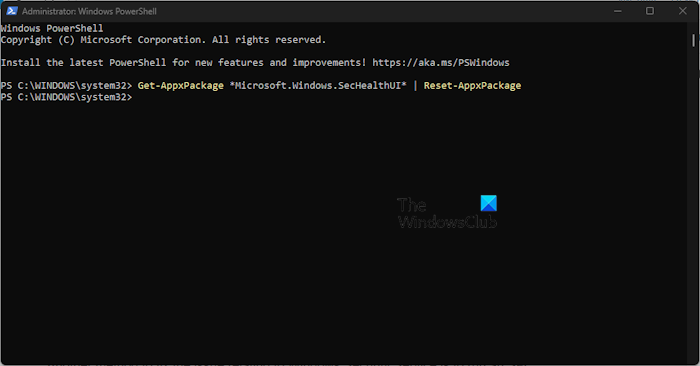
Another way to fix Windows Security is to reinstall it via PowerShell. How do we get this done? Well, let us explain.
First, open PowerShell by clicking the Windows key, then search for PowerShell.
Once done, please open the tool as an Admin.
Next, you must type the following command:
Get-AppxPackage *Microsoft.Windows.SecHealthUI* | Reset-AppxPackage
Hit the Enter key on your keyboard to execute the command. Now, wait a few seconds, then close PowerShell to complete the process.
4] Run SFC and DISM
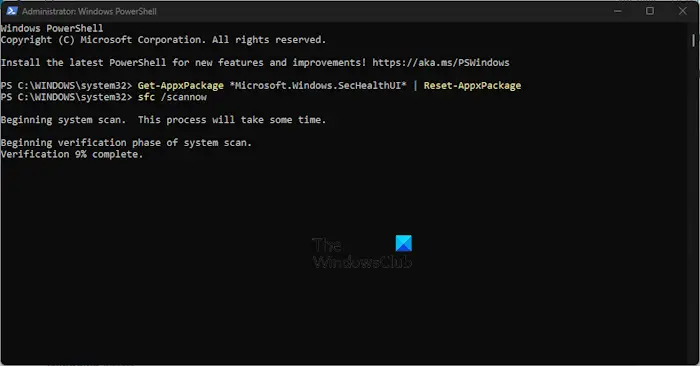
Another way to fix issues related to the Windows Security Service is to run an SFC scan. We also suggest running a DISM scan, so let us explain how to do these tasks.
To run an SFC scan, you must open the PowerShell application.
From there, type the following command:
sfc /scannow
Hit the Enter key on your keyboard, then wait.
In terms of running DISM in a bid to fix the Windows 11/10 system image, we suggest running DISM to repair Windows System Image along with Windows Component Store.
READ: Windows Security Service missing after malware attack
How do I fix Windows Security?
The best way to fix Windows Security issues is to repair and reset the service. To repair it, press the Windows key + I to open Settings. From there, select App, then go to Installed Apps.
- Press the Windows key +I to open the Settings app.
- From the left side, click on App Settings.
- Search for Windows Security under Installed Apps.
- Select Advanced Options after clicking the three-dotted button.
- On the next page, click on the Repair button in Settings. Next, click on the Repair button, then select Repair again to confirm your choice.
If that doesn’t work, reset Windows Security, and that should complete the job.
