
Samsung Browser, which has been available on Android for over a decade, has recently debuted on Windows. This new addition aims to bring Samsung’s familiar browsing experience beyond mobile devices and create a seamless ecosystem between smartphones and PCs.
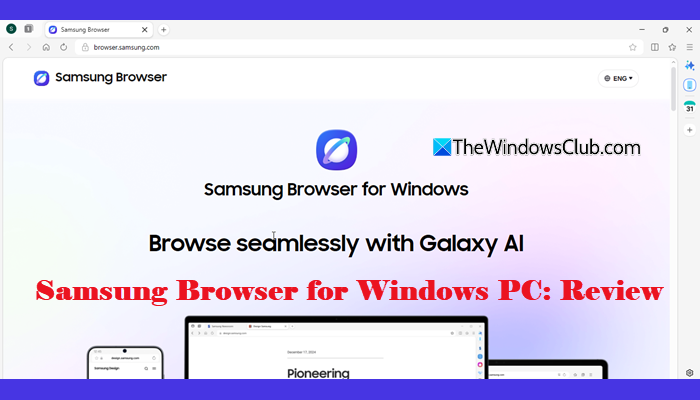
Samsung Browser for Windows PC Review
Samsung Browser is available in a polished form, bringing enhanced features, AI capabilities, and a tighter integration with the Galaxy ecosystem. Here’s what you need to know about the browser.
Download and Install Samsung Browser on Windows
Installing Samsung Browser on a Windows PC is simple and takes just a few steps. It is compatible with Windows 11 and Windows 10.
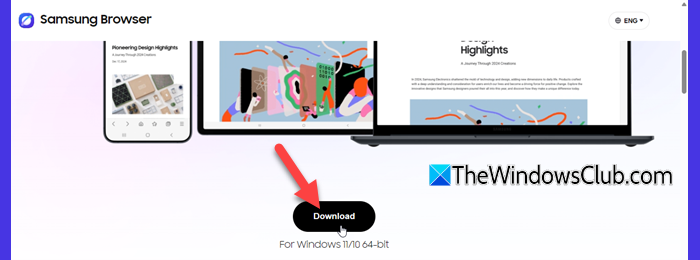
- Visit the official Samsung Browser website via this link and download the installation file.
- Double-click the downloaded file to launch the installer.
- Click Install and follow the prompts to complete the installation process.
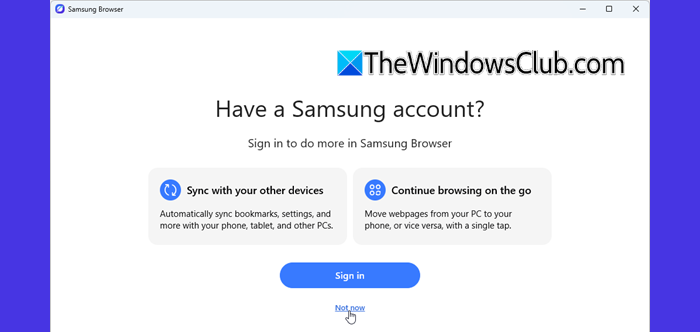
You’ll be prompted to sign in with your Samsung account. Signing in allows you to sync bookmarks, settings, and browsing data across your Galaxy devices. You can also choose Not now to skip this step.
Next, you’ll be prompted to import bookmarks and other data from an existing browser like Chrome. You can skip this step if you prefer.
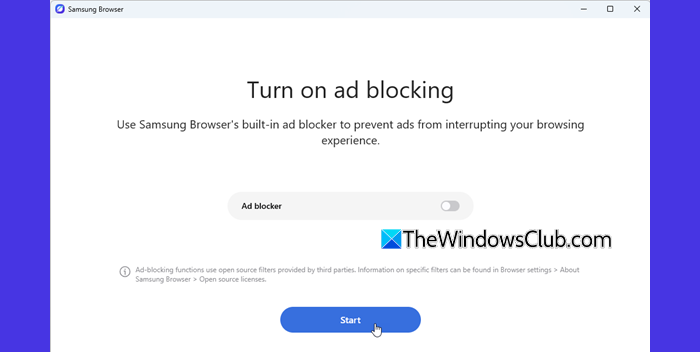
The browser offers a built-in ad blocker option. You can enable or disable it based on your preference before clicking Start to begin browsing.
User Interface and Design
Samsung Browser for Windows follows a familiar Chromium-based layout, so if you’ve used browsers like Chrome or Edge, you’ll feel right at home. Most of the core interface elements are standard and easy to navigate. The layout is almost identical to Chrome or Edge, keeping navigation simple—a clean homepage with a prominent search field for quick access. Frequently used sites appear below the search bar, just like in other browsers.
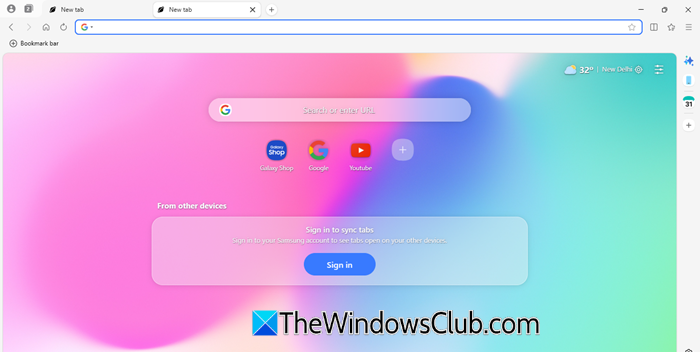
At the same time, Samsung adds a few unique touches that set it apart:
Unlike the plain backgrounds in most browsers, Samsung uses a vibrant, soft gradient, giving the interface a more modern and slightly mobile-inspired feel.
A less common addition in desktop browsers, the sidebar on the right provides quick access to tools and features, adding a bit of convenience.
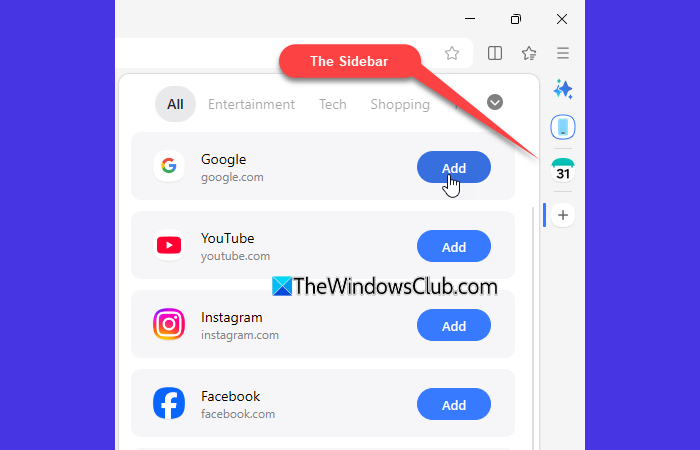
Instead of hiding syncing in settings, Samsung highlights it directly on the homepage, encouraging users to connect their Galaxy devices.
The built-in widgets feature allows users to view useful information, such as weather updates, directly on the homepage.
Key Features
Here are the key capabilities you can expect from Samsung Browser for Windows.
Built-in Privacy Controls: Samsung Browser supports content blockers, allowing you to reduce ads and trackers with minimal setup. It sits somewhere in between, offering a more integrated experience than most Chromium browsers, though not as deeply built-in as Brave.
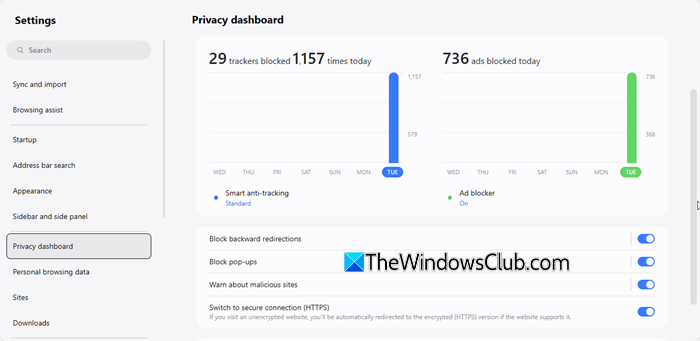
In addition, the browser includes a Privacy Dashboard that gives a clear overview of trackers blocked and your overall protection level. It lets you adjust tracking prevention, block pop-ups, and prevent unwanted redirects.
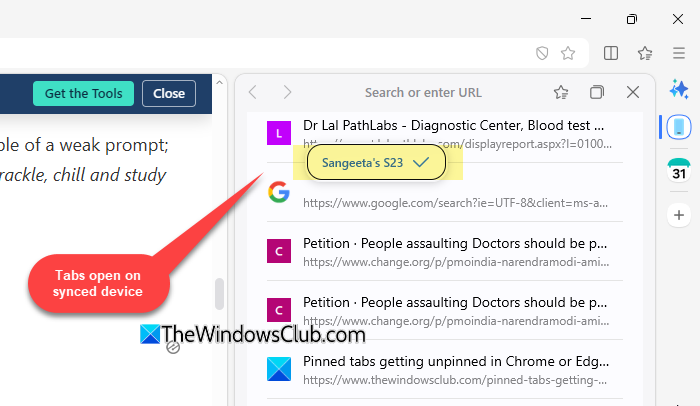
Seamless Sync Across Devices: Most browsers offer syncing, but Samsung Browser places a stronger emphasis on the Galaxy ecosystem, making it more seamless for Samsung device users. You can securely sync your bookmarks, browsing history, and other data across your devices. Open tabs and webpages can be accessed across your phone, tablet, and PC.
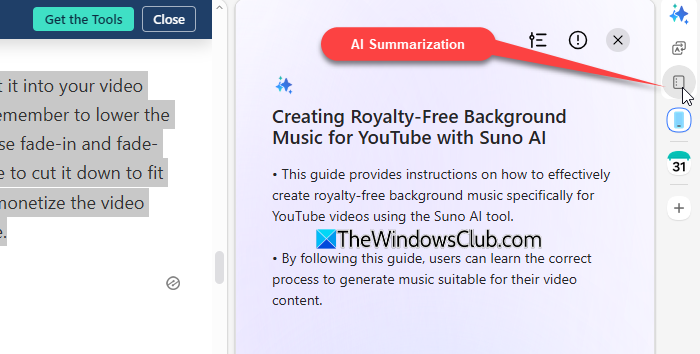
Galaxy AI Features: The browser brings AI-powered tools to enhance your browsing experience. You can get quick answers, summaries, or insights while browsing, or translate web pages locally without sending data to external servers. These features require a one-time installation of Galaxy AI within the browser. Browsers like Edge and Chrome also offer AI features, but Samsung focuses more on privacy-first, on-device processing.
Samsung Pass Integration: If you already use Samsung Pass on your Galaxy device, you’ll find this feature especially useful on Windows. It lets you store and autofill your passwords securely, so you don’t have to remember or manually enter them every time you sign in. Once you log in with your Samsung account, your saved credentials can sync across your devices, making the experience more seamless.
However, if you’re not a Samsung user, this feature may feel limited, as it does not integrate with other password managers like Google Password Manager.
Useful Built-in Tools: Samsung Browser includes useful tools like a Side Panel for quick access, a Tab Manager for organizing open tabs, and Secret Mode for private browsing. While these features are common across browsers, Samsung presents them in a more accessible and slightly refined way.
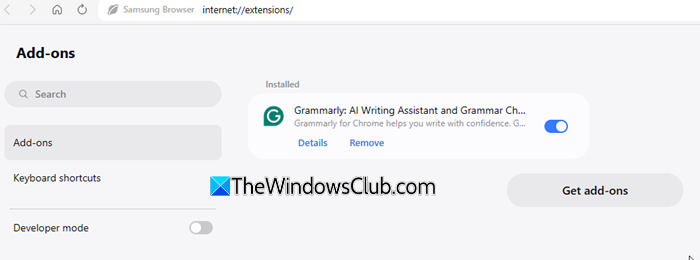
Extensions Support & Dark Mode: The browser supports extensions, allowing you to enhance your browsing experience with additional tools and features, similar to Chrome and Edge. It also includes a built-in dark mode, which makes browsing more comfortable in low-light conditions and gives the interface a more modern look.
Performance and Speed
The browser delivers decent performance for everyday browsing, including opening multiple tabs, streaming content, and general web navigation. Since it is built on Chromium, page loading speeds and compatibility with modern websites are largely on par with browsers like Chrome and Edge.
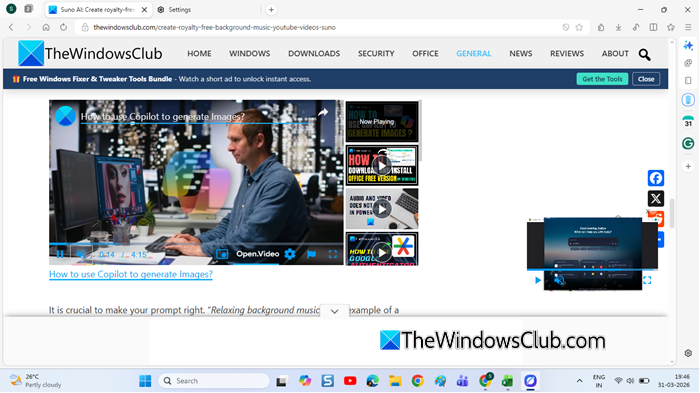
Overall, if you use a Samsung Galaxy device, Samsung Browser for Windows is definitely worth trying for its seamless cross-device experience. Otherwise, it remains a solid but not essential alternative in a crowded browser market.
Is there a Samsung browser for Windows?
Yes, Samsung Internet Browser is now available for Windows 11/10 PCs. It offers a clean interface, cross-device syncing, and a few unique features such as built-in ad blocking support and AI tools. It is especially useful for users who want to sync their browsing data across Samsung Galaxy devices.
How to connect Samsung Internet to PC?
You can connect Samsung Internet to your PC by installing the new Samsung Browser on your Windows computer and signing in with your Samsung account. Once logged in, enable syncing to share your bookmarks, history, and open tabs across devices. This allows you to continue browsing seamlessly between your phone and PC.
Read Next: Fix Samsung Flow Connection issues.
