
We all know that for the ease of access to the various sections related to file and folders in Explorer, we’ve had the Quick Access Toolbar there. Actually, a smart Windows user always refers and became used to Quick Access Toolbar as it helps you to manage things quickly.
Recently, I encountered a peculiar issue related to this toolbar. Whenever I tried to click the Properties option, it would crash Explorer and show me the file information. It appears that there was an issue with the Quick Access Toolbar entries on the system.
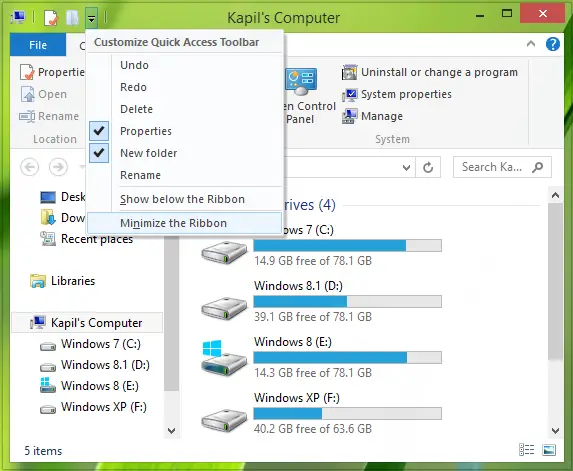
Then I concluded that if I could somehow reset the Quick Access Toolbar, the issue could be bypassed. But there was no straightforward option in Windows to reset this toolbar. Therefore, we have to tweak the registry configuration for resetting this toolbar, steps for which are mentioned below:
Reset Explorer Quick Access Toolbar using Registry
Before you begin, create a system restore point first.
1. Press Windows Key + R combination, type put Regedt32.exe in Run dialog box and hit Enter to open the Registry Editor.
2. Navigate to the following location:
HKEY_CURRENT_USER\Software\Microsoft\Windows\CurrentVersion\Explorer\Ribbon
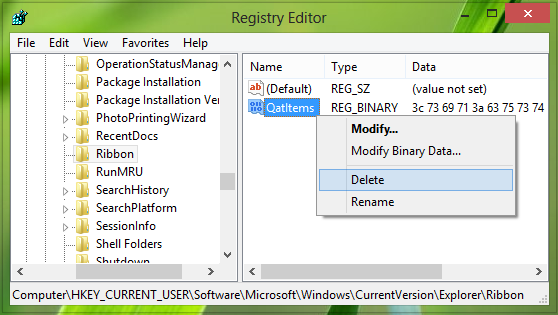
3. In the right pane of this location, look for the QatItems named binary DWORD (REG_BINARY).
The Value data inside this DWORD helps Windows remember what preferences you’ve selected for Quick Access Toolbar. You can then right-click on this DWORD and select Delete.
Don’t worry, once you delete the DWORD and upon restarting the machine, Windows will regenerate the DWORD automatically, consequently resetting Quick Access Toolbar.
After deleting the DWORD, restart the machine to reset your Quick Access Toolbar.
This works on Windows 11 and Windows 10 too.
Hope you find the trick useful!
TIP: This post will show you how to reset Windows Quick Access using Registry if the Quick Access is not working, slow to open, or not showing Recent files in Windows 11.
