
While there are several freeware Windows tweaking utilities, such as our freeware portable Ultimate Windows Tweaker, available, some enthusiasts prefer to tinker with the Windows Registry. This article is for those such. Most of these tweaks are applicable to Windows 11/10.

Do remember that it is risky touching the registry and as such do back up the registry and create a system restore point first.
Start Menu and TaskBar Registry Tweaks for Windows
To begin, type regedit in the Windows Start search box and hit Enter to open the Registry Editor.
Navigate to the following key:
HKEY_CURRENT_USER\Software\Microsoft\Windows\CurrentVersion\Policies\Explorer
Here you will see a lot of DWORD value names.
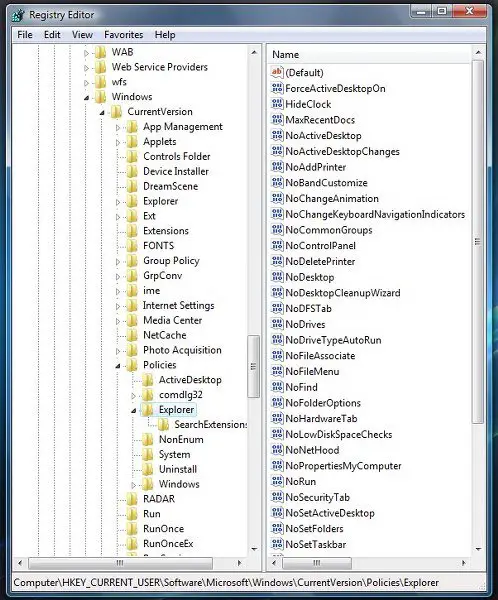
To customize your start menu options, you have to modify the DWORD value data and set it to either 0 or 1.
To modify the value data, you right-click on the name and select modify. Then in the value data box, you set its numeric value.
- Setting the value of the respective DWORD to 1, means that it will have the effect as described in the Value Name.
- Setting the value of the respective DWORD to 0, means that it will have the OPPOSITE effect as described in the Value Name.
If the DWORD ValueNames do not exist, you will have to create them. To create them, right-click in any blank space in the right pane > New > DWORD value.
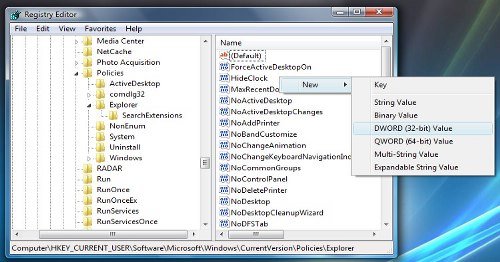
The following are some of the recognized DWORD ValueNames.

- NoTrayItemsDisplay : Hides the Task Bar notification area
- NoToolbarsOnTaskbar : Do not display any custom toolbars in the taskbar
- QuickLaunchEnabled : Enable QuickLaunch bar display in the TaskBar
- NoSimpleStartMenu : Disabling it will force the Classic Start Menu
- NoStartMenuPinnedList : Remove Pinned Programs list from the Start Menu
- NoStartMenuMorePrograms : Remove “All Programs” list from the Start menu
- NoStartMenuMyGanes : Remove Games from Start Menu
- NoStartMenuMyMusic : Remove Music from Start Menu
- NoStartMenuNetworkPlaces : Remove Network from Start Menu
- NoTaskGrouping : Prevent grouping of Task Bar items
- HideClock : Hides from the Task Bar notification area
- NoSMBalloonTip : Remove Balloon Tips on Start Menu items
- NoAutoTrayNotify : Turn off Task Bar area cleanup notification
- LockTaskbar : Lock the Taskbar and prevents the User from moving or resizing it
- NoSearchCommInStartMenu : If enabled Start Menu search will not search for Communications.
- NoSearchProgramsInStartMenu : If enabled Start Menu search will not search for Programs.
- NoSearchInternetInStartMenu : If enabled Start Menu search will not search for Internet History
- NoSearchFilesInStartMenu : If enabled Start Menu search will not search for Files.
This list is not exhaustive. You can simply study the registry key’s DWORD’s, illustrated above and see that there would be many more such tweaks or hacks available. The ValueNames are roughly indicative of what they would do.
Take the example of NoRun. Its value is set at 0. If you open Taskbar & Start Menu Properties > Start Menu Tab > Start Menu > Customize. You will see a checkbox to Add Run command to the Start Menu. However, if you now return to Regedit and change the DWORD value of NoRun to 1, and then go back to the Start Menu properties box, you will see that the item to Add ‘Run’ itself will be missing. Enabling or disabling these options through the Windows Registry will allow or prohibit users from executing such actions through the Properties box.
Incidentally, if your version of Windows includes the Group Policy Editor, you can navigate to User Configuration > Administrative Templates > Start Menu and Task Bar, where you will find a lot of such settings for the Start Menu and Taskbar.
