
An extensive list of bandwidth monitoring tools reveals that, although YouTube satisfies your viewing pleasure, its share of data consumption is quite high. So, if you are interested in minimizing YouTube data usage without compromising your entertainment needs, follow our tips!
The video quality is the main factor why YouTube is using so much data on your device. The higher the video quality more will be the data consumption. And, this is not the case with YouTube only. Other video streaming platforms (like Vimeo, Dailymotion, etc.) also consume more data if you watch or download content in high quality.
Reduce YouTube data usage on a PC
You can reduce YouTube data usage by following these tips:
- Lowering the video quality
- Disabling Autoplay
- Use Bandwidth Saver for YouTube extension
- Downloading Your Videos Preemptively
Findings reveal even if a user watches three minutes of a five-minute video in 144p, YouTube buffers almost the entire video.
1] Lowering the video quality
Streaming video in HD consumes around 3GB of data per hour. YouTube offers a wide range of video streaming quality (up to 1080p). As such, the higher the streaming quality, the more data YouTube is likely to consume. The most important tip is to avoid watching videos in HD when using data. Here’s how!
Open YouTube in your browser and play a video.

Please scroll down to locate the Gear-shaped icon, and when you find it, click it. As you can see in the image above, the video is playing in HD quality, which results in a high data consumption rate.
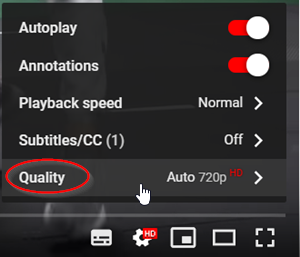
To change this, select ‘Quality’ option.
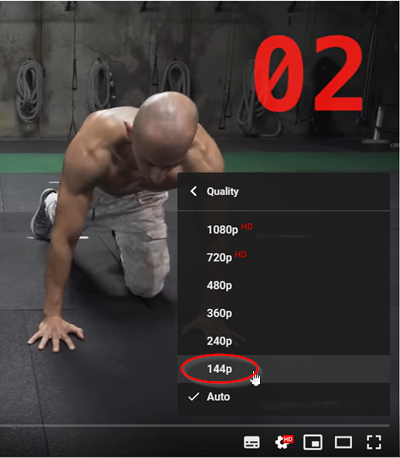
Then, from the list of options displayed, choose to play the video in lower quality (360 Pixels preferably to avoid bad video quality)
2] Disable Autoplay
It can be difficult to control data usage with video ads and videos playing, automatically. So, disabling Autoplay feature turns out to be the most viable option.
Tap the gear icon located at the bottom-right corner of the YouTube video player to display the options.

Ensure that the ‘Autoplay’ option under the list is unchecked. If it isn’t, simply move the slider to disable the function.

Alternatively, you can disable the function via ‘Up Next’ section of the YouTube video page, simply un-check the option to disable it.
3] Bandwidth Saver for YouTube extension
Use Bandwidth Saver for YouTube browser extension for Google Chrome. It is a simple extension that automatically sets YouTube video quality to the lowest available for each video, saving bandwidth on slow connections and for users with small data caps.
4] Download Your Videos Preemptively
Most video streaming apps don’t let you download videos, but certain apps can be used as a workaround. Use apps that allow you to download videos. This method also offers a great option for laptop users to take advantage of the WiFi at their work, school, or at public ‘hotspots’ to save videos for later viewing.
If you know more of such tips, share them with us.
How do I stop Windows 11 from consuming so much data?
If you are on a limited internet connection on your Wi-Fi, then you can set a data limit on your Windows 11 computer to stop consuming excessive data. In the Settings app, access Network & internet category, and click on the Data usage option in the top-right corner. Press the Enter limit button to set the data limit. Or else, you can set your connection as a metered connection that will help you reduce the amount of internet data you use.
Read: Best YouTube apps for Windows PC.
