
There are various tools available to keep tabs on what’s going on with your Windows PC. A lot of them are heavy programs that monitor each and every activity happening on your computer, consuming a considerable amount of power in itself. RAMExpert is a simple RAM information application. Unlike other power-hogging trackers, it launches fairly quickly and leaves a little footprint on your device’s performance. But unlike those heavy-duty activity trackers, RAMExpert offers detailed information about your PC’s RAM.
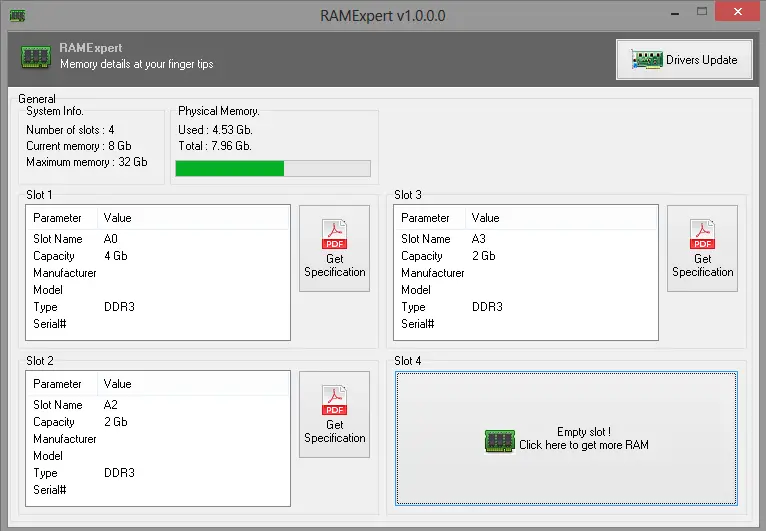
RAMExpert for Windows PC
Once you have downloaded RAMExpert, the installation process is fairly simple. Just accept the Terms & Conditions, hit next a couple of times and you’ve got RAMExpert up and running on your system.
While there are other ways to get information about your RAM, RAMExpert is a really lightweight, easy-to-use freeware app. The interface is simple, every option available is presented on just one screen.
The main area is divided into two parts. From the General area, you can see how many RAM slots your machine has, how much RAM you currently have, and the maximum amount of RAM (Random Access Memory) your machine supports. There is also an always-updated RAM counter for your machine. It will show you the used and total RAM you have in real-time.
The second half is divided into four segments that provide a detailed view of the RAM installed in each slot. From here, you can view the slot’s name, current capacity, and type.
If RAMExpert has details of your RAM on file, you will also see information about the manufacturer, model, and serial number (which was not the case for me).
If you have an empty RAM slot on your machine, RAMExpert will prompt you to buy more RAM. When you click on the option, it simply searches Amazon.com for some. A bit more of a custom approach, with regard to your machine and configuration, would have been more helpful.
Verdict
RAMExpert is a small, simple and fast RAM information tool and just that. Its a great way to get more details of your RAM and its consumption, but you should not expect anything more.
You can download RAMExpert from here. Make sure you download the Lite version from its download page, as it does not include any 3rd-party offers. Visit the website’s general download page and scroll down to RAMExpert. Here you will see different options. Clicking the big “Download” button will download the installer which contains Sponsors. The good thing is that you can also download a Zip file or a ‘Lite’ installer that contains no sponsors whatsoever.
You may also want to check out these system utilities like OCCT or the built-in System Information tool in Windows or dxdiag & CPU-Z.
What is RAMExpert?
RAMExpert is a freeware that allows users to get all the details about the RAM installed on their computer. Whether you have one or more RAM modules installed on your computer, you can obtain all the information using this tool. It displays details such as slot count, capacity, manufacturer, and type. Afterward, you can export the information to a PDF.
How do I know what type of RAM I have?
There are multiple ways to know what type of RAM you have on your computer. For example, you can use the Task Manager to get that job done. First, open Task Manager and switch to the Performance tab. Then, go to the Memory tab to find the information. Secondly, you can use third-party programs such as RAMExpert and CPU-Z.
