
When your home printer fails to work properly, it can be frustrating, especially if you have no idea how to fix it. One of the most annoying issues many have faced over the years is their printer’s inability to stop printing blank pages.
Why does my printer just keep printing blank pages?
Your printer may keep printing blank pages if the print head is clogged and the cartridge is not installed properly. It can also happen if printer settings are not correct or there is a low ink. A defective cartridge can also be the reason that your printer is printing blank pages.
Printer printing blank pages but has ink
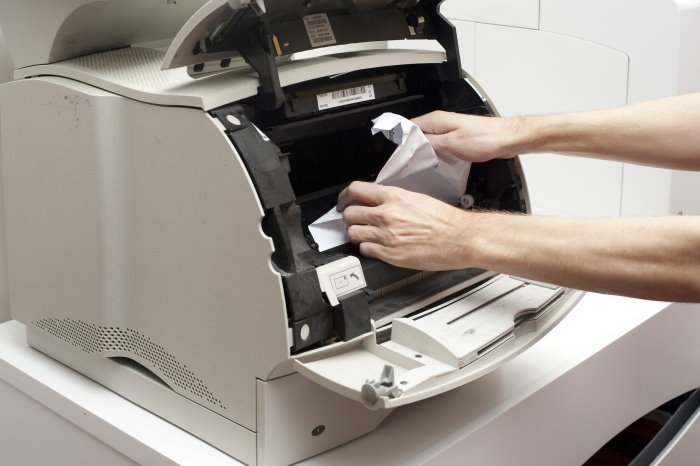
For those who are unaware of what that means, well, it is when the printer performs an action, but when the page comes out, it is empty, or better yet, blank.
Now, we know that a printer printing blank pages is a common problem affecting thousands of Windows 11/10 users. Still, it is not always easy to pinpoint the exact cause. With this in mind, we are going to explain how to set things right again, with multiple fixes as mentioned below:
- Restart the printer
- Check if your ink level is low
- Clean clogged print head
- Check Printing Preferences
- Run Printer Troubleshooter
- Align the print cartridge
Let us discuss this in more detail.
1] Restart the printer
In most cases, the user only needs to turn their printer off and back on to resolve the problem. Do this by tapping the device’s power button to turn it off. Once that is done, remove the power supply cable and wait for around 10 seconds.
Finally, reattach the power cable and then turn on the printer. Go ahead and attempt to print a document to see if it now works.
2] Check if your ink level is low
Your printer may be shooting blanks because your ink levels are low. We suggest reading your printer manual to find out how to check the amount of ink sitting around in the cartridge. If it does not have a sufficient amount, then the chances are that is the reason for blank pages. So check your Ink or Toner cartridges.
The best option would be to purchase new cartridges or refill the ones you already have. The latter is cheaper but not always better.
Read: How to Cancel a jammed or stuck Print Job queue.
3] Clean clogged print head
In a situation where you haven’t used the printer for an extended period of time, the print head could become clogged. The best option is to do so from the printer menu.
Read your manual to learn how to clean the print head of any problems in order to solve the blank page print issue.
Read: Printer keeps printing documents in inverted colors.
4] Check Printing Preferences
Windows users may open their Printer and Scanner settings and check if all their Printing Preferences are in order.
Read: Printer not printing in color on Windows.
5] Run Printer troubleshooter
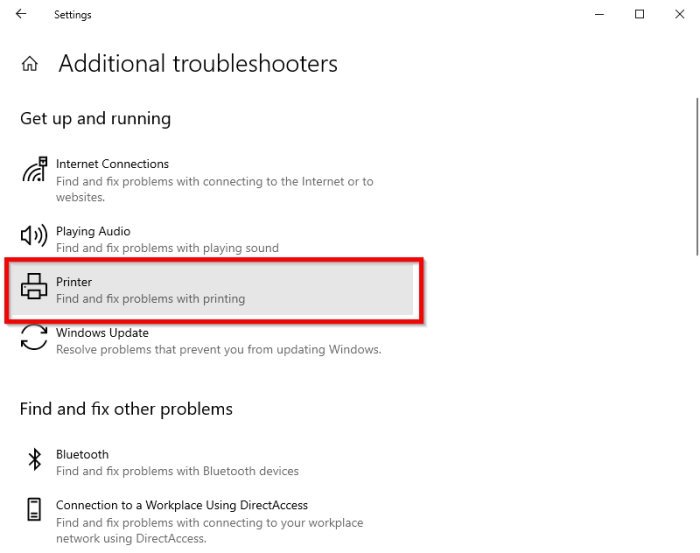
The next best option if the above options fail is to run the Printer Troubleshooter in hopes it will solve the problem once and for all.
We can do this by firing up the Settings menu by clicking on the Windows key + I, then select Update & Security.
From there, be sure to click on the Troubleshoot tab. From there, choose Additional Troubleshooters, and from there, click on Printer and follow the instructions.
6] Align the print cartridge
Whenever you replace your print cartridges, it is very important to align and calibrate them with the printer. Since this is done via the software and most printers do things differently, we urge you to read your manual.
However, for those using the HP Inkjet series, open the HP Solution Center application and navigate to Settings > Print Settings. From there, be sure to select Printer Toolbox, then go to Align the Print Cartridges, and finally, hit Align to complete the job.
Let us know if anything here helped you.
Why is my printer printing black and white in Windows 11?
If the printer is not printing in color and only printing in black and white on your Windows 11 computer, then you must verify if the Print in grayscale option is set. If yes, change it to the Print in color option from the Printer Preferences. You might also need to reset printer settings to factory defaults. Other solutions, like reinstalling the printer driver, running the Printer Troubleshooter, and performing a fresh install of the printer software, can also come in handy.
