
In this post, we’ll look at different workarounds you can try in case downloads keep stopping on Origin. Developed by Electronic Arts, Origin is a digital distribution platform from where you can purchase video games and play them on your PC. The platform has a dedicated software client for PC from which you can download your favorite games. But many users have reported that the game downloads automatically stop on Origin. So, if you are also having trouble downloading your favorite video game, follow this troubleshooting guide to fix the problem.

Origin download keeps stopping and getting stuck
If Downloads keep stopping or pausing, and won’t finish on Origin on Windows 11/10 PC, then you can try the following suggestions:
- Try Downloading the Game Again
- Provide Administrative Privileges to Origin
- Check Origin Server Status
- Change Origin Compatibility Mode
- Allow the Origin Client through Windows Firewall
- Uninstall the 3rd Party Antivirus Program
- Clear the Temp Folder
- Turn Off Origin Client Service
- Perform SFC Scan
Now, let’s check out all these solutions in detail.
1] Try Downloading the Game Again
Before getting into technical workarounds, the very first thing you should do is try redownloading the game. It can be a temporary error that continuously stops the download. So, stop the ongoing download, then redownload the game. If this solves the problem, you are good to go. But if the problem persists, check out the technical solutions below.
2] Provide Administrative Privileges to Origin
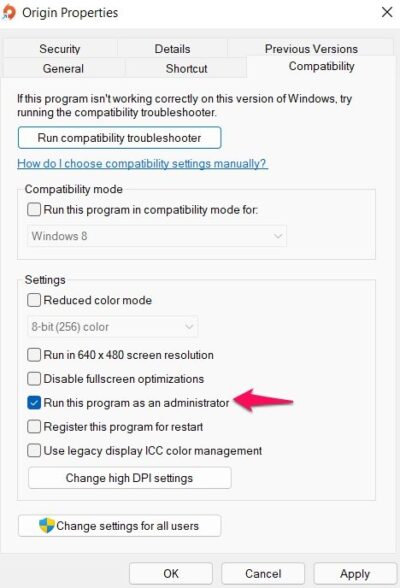
Origin is one such application that requires administrative privileges to run without any issue. Although it will run even without administrative rights, but you will always be prone to different issues. Therefore, make sure you have granted all the administrative rights to Origin. To do so, follow the steps below.
- Right-click on the Origin shortcut icon and choose the Properties option.
- Click on the Compatibility tab.
- In the following window, check the Run this program as an administrator option.
- Click on Apply > OK.
Launch the Origin client, and try to download any game. Check whether the problem is fixed.
3] Check Origin Server Status
Like any other application, Origin servers can go down at any time due to technical difficulties. If that’s the case, it’s no surprise you are having a hard time downloading games on Origin. The only good thing is that you are not the only one facing the problem. You can check the Origin server status on any server status-checking website. Additionally, you can visit Origin social sites like Twitter and check if there’s an ongoing issue with the platform.
Unfortunately, if the servers are down, you can’t do anything other than wait until the developers resolve the issue.
4] Change Origin Compatibility Mode
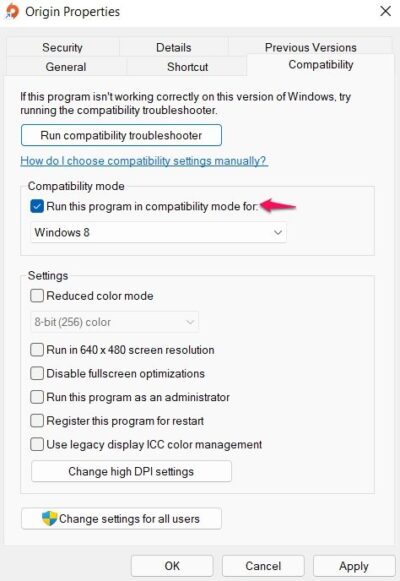
The next thing you can try to fix the Origin download issue is to run the client in compatibility mode. However, this process is only effective if you are encountering a problem with Windows 11. Here are the steps you need to follow.
- To begin with, close the Origin window, and make sure it’s not even running in the background.
- Now, right-click on the Origin shortcut and choose the Properties option.
- Click on the Compatibility tab.
- Checkmark the Run this program in compatibility mode for option.
- Click on the dropdown icon and choose Windows 10 or Windows 8.
- Tap on Apply > OK.
Check whether the download issue is fixed.
5] Allow the Origin Client through Windows Firewall
Windows Firewall is one of the most important features of Windows OS that helps the system stay protected from malicious files and activities. But at the same time, if any application is restricted under Firewall settings, it will provide different errors. So, here’s how you can allow the Origin Client through Windows Firewall settings.
- Click ‘Start’ and type ‘Firewall’ in the search field and then click “Allow an app or feature through Windows Firewall’ from the search results.
- On the next screen, click Change Settings
- On the list of programs that appears, tick/check both ‘Private’ and ‘Public’ options for the Origin Client.
Now, restart the Origin client and check if the problem is fixed or not.
6] Uninstall the 3rd Party Antivirus Program
Many third-party antivirus programs can block the smooth functioning of different application including Origin. Although it’s not necessary to have a dedicated antivirus program on Windows 11, if you have one, it can be the main reason youare experiencing problems with the original downloads. So, disable the antivirus while downloading games from Origin and check if the problem is fixed. If not, try the next solution.
7] Clear the Temp Folder
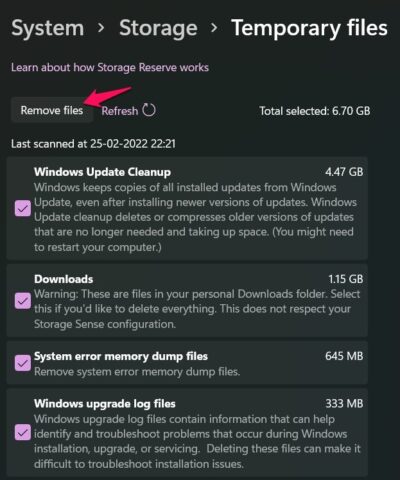
Temporary files are created by both operating systems and different applications including Origin. You can delete such files to free up a large amount of space and resolve various issues related to your system. So, here are the steps you need to follow.
- Press the Windows + I shortcut key to open the Settings menu.
- Navigate to System > Storage.
- Click on Temporary files.
- Checkmark all the boxes, and tap the Remove files option.
Now launch Origin and check whether the problem is fixed.
8] Turn Off Origin Client Service
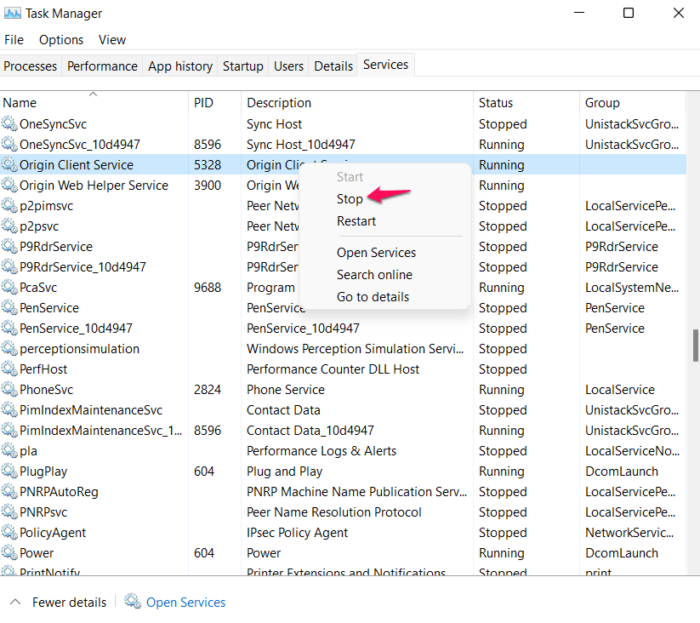
The next solution you can try is to disable the Origin client via the service screen. To do so, follow the below steps.
- Press the Ctrl+ Shift + Esc shortcut key to open the Task Manager.
- Click on the Services tab.
- Locate Origin Client Service.
- Right-click on the option and choose Stop from the context menu.
That’s it. Launch the Origin client and check if the problem persists.
9] Perform SFC Scan
Corrupted system files can also be the reason causing the mentioned issue. And the best way to get rid of such files is to perform an SFC scan. You can do so by following the below steps.
Open Command Prompt in administrator mode.
Type the below-mentioned command and press the Enter key.
sfc /scannow
The SFC utility will run for a while, and if any corruption is found, it will replace it on reboot.
Why do downloads keep stopping on Origin?
The main reason Origin keeps pausing downloads is that you haven’t granted administrator rights. Along with this, corrupted Windows files, a large amount of temp data, Windows Firewall, and third-party antivirus programs can all trigger the issue. It’s very easy to troubleshoot these problems.
How do I fix download speed on Origin?
There are multiple ways to fix slow download speed on Origin. You can perform a power cycle on your router, run Origin as an administrator, restart Origin in R & D mode, delete the Origin cache file, and troubleshoot the system in clean boot to fix the problem. If none of these steps work, you can reinstall Origin to fix the downloading speed issue.
Read Next: Fix Origin Error while playing games on Windows PC.
