
Opera is a well-known browser with an active userbase. It is a reliable Chromium-based browser with steady popularity. But some users have reported that when they go to install this browser the Opera Installer is stuck on Downloading. If you are also facing this problem on your PC, then you should know that there are many ways to fix it, and this article will guide you on how to do it.
Opera Installer stuck on Downloading on Windows 11
There are various methods that can be used to fix the No Network Connection error in Opera Installer problem. These are:
- Download the Opera software from the original source
- Try to use a different network
- Use Opera offline installer
- Download it from Opera’s FTP server
- Temporarily disable the firewall on your computer
Let’s look at these methods one by one.
No Network Connection error in Opera Installer
1] Download the Opera software from the original source
Many users use third-party sources to download Opera software due to which they have to face this problem. To avoid this problem, I recommend downloading the latest version from the official Opera website.
Click on the download link to download Opera from its official website and save it in another location – maybe your desktop- and then run it from there.
2] Try to use a different network
If you are using your home network to download Opera and it still gets stuck downloading, try a different network, as that can help.
When you switch to a different network, it will download without any errors or issues. Remember, if you are using an Ethernet connection, switch to a WiFi network (or vice versa) and see if that helps.
3] Use Opera offline installer
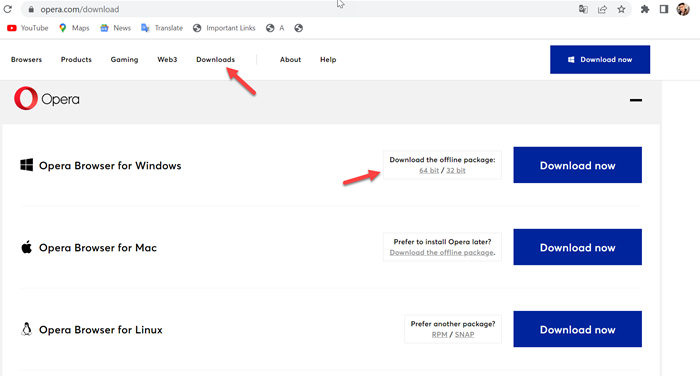
The offline installer doesn’t use the internet connection to download files. So, you can install the browser without any issues. Follow the below steps to use an offline installer.
- First, open the browser you are just using
- Go to the search bar, type Opera, and press Enter
- Now, open the official website of Opera
- On the Opera’s official page click on the Download
- Scroll down the page and select the Download the offline package for your specific OS
- Now, double-clicking on it
- Wait for the download to finish and Run the setup file
The offline installer has already all the necessary files for the installation. So, it doesn’t need to download anything.
4] Download it from Opera’s FTP server
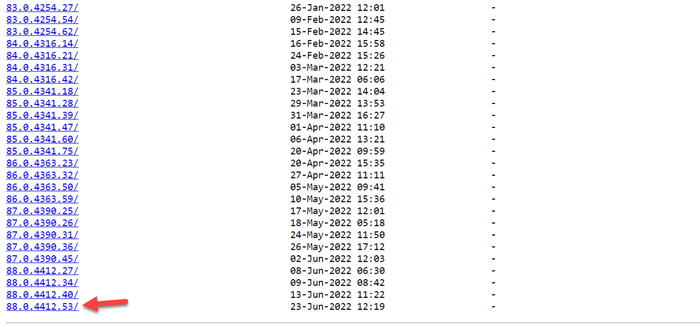
For downloading it just click on Opera’s FTP server or you can even follow the below steps to download it from Opera’s FTP server.
- Open the browser you are using
- In the search box, type Opera FTP server, and press Enter
- Click on the first link
- Scroll down and select the latest version of it
- After you click on it, select Win
- Now, click on the Setup x64.exe or Setup.exe file in order to start the downloading process.
- Double-click on the downloaded setup file to install Opera
I hope, the above steps will resolve your problem.
5] Temporarily disable the firewall on your computer
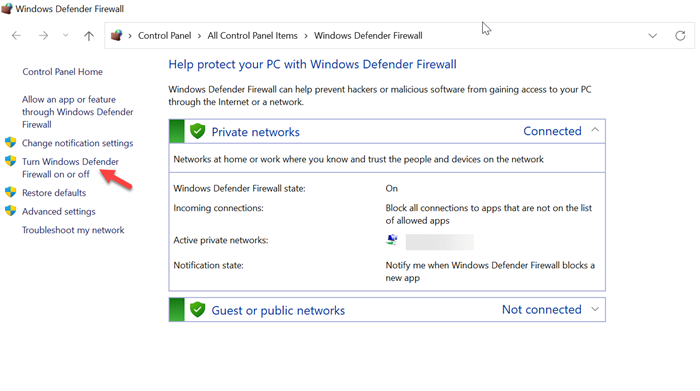
Sometimes your antivirus and firewall settings can prevent you from downloading opera. So, follow the below steps to disable the firewall on your computer.
- Firstly press the Window key + S and type firewall
- Now, click on the Windows Defender Firewall
- Select Turn Windows Firewall on or off on the left pane
- Now, check the option Turn off Windows Defender Firewall for both Private and Public network settings.
- Click on OK and try to install Opera again
Note: Turning off the firewall isn’t recommended, so be sure to turn it back on after using this method.
Related: An error occurred while attempting to install Opera
Why is Opera not downloading files?
This problem may occur when the ad-blocker is enabled because it prevents some files from downloading. So, disabling the ad-blocker may solve the issue. Also, a built-in VPN can also prevent downloading files, so try downloading files after disabling these features.
Read: Opera Fatal error upon loading installer executable
How do I install Opera on Windows 11?
If you want to install Opera on Windows 11/10, just follow the easy steps below.
- Open your browser and in the search bar type Opera, and press Enter
- Open the official website of Opera
- Now, on the Opera download page click on the Download now in the center of the page
- Once the download has been completed, open it
- Now, click on Accept and install
- Opera browser will be installed on Windows 11/10
Read: Opera GX installer not working on Windows PC
Why is Opera GX stuck on downloading?
There are many reasons Opera GX may be stuck downloading. These are:
- By using an unstable internet connection
- The firewall prevents files from downloading
- The ad-blocker causes the interface
- The files are downloaded from a third-party source.
This issue isn’t specific to Opera, as many users have also reported that Opera GX won’t open on Windows 11/10. If you have this problem too, follow the article below.
