
If the Opera browser is failing to install, and you see An error occurred while attempting to install Opera message, then this post will help you. The Opera web browser is one of the most popular in the business, and it has been for many years. Now, as good as it is, this web browser isn’t without its faults. One of the most common issues users face is being unable to install it on their computers. Some users experience an installer that lags for 20 minutes or more. Other times, the installer might pop up for a few seconds and then close automatically.
An error occurred while attempting to install Opera
This problem affects both Opera GX and the regular version of Opera, but solutions may differ in some cases. Before moving forward, make sure you didn’t download the browser installer from a third-party source other than the official Opera website.
- Use the Opera offline installer
- Choose a different directory for installation
- Switch to a different network
Opera browser failed to install
1] Use the Opera offline installer
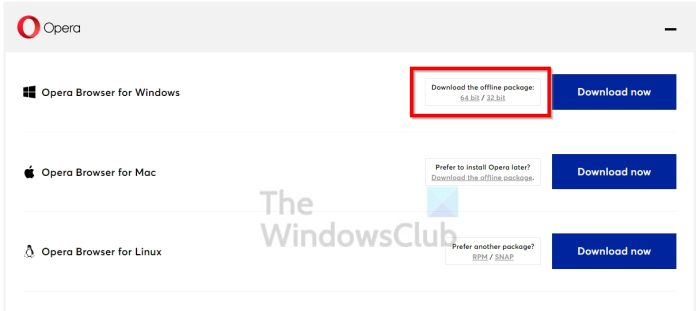
Here’s the thing, when you download the regular Opera installer, an internet connection will then be required to complete the installation. If the Opera servers are down then you won’t be able to get the job done. Therefore, the best option here is to use the offline installer instead.
From what we have seen, many users who cannot install the web browser have solved the problem with this solution, so we expect it to work to some degree.
- Download the Opera installer from the official opera.com webpage.
- Choose where you want to download the file, then click Save or press Enter.
- Next, run the installer.
- Click the Install button once it appears.
- Sit back and wait for the installation to complete.
- Things should now be running normally and you can go ahead and use Opera on a daily basis.
2] Choose a different directory for installation
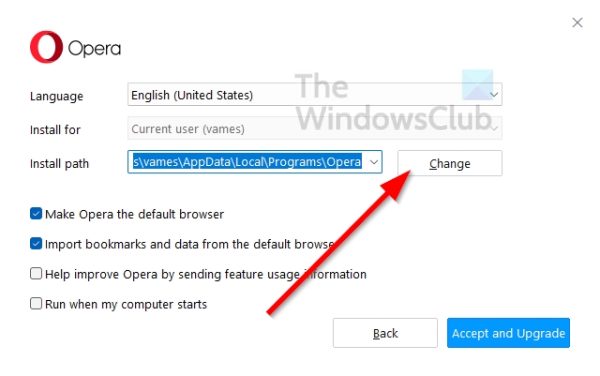
- When you run the Opera installer, you can install it to a different directory than the default.
- To do this, select Options after running the installer for both.
- Click on Change via Install Path to manually add a folder for installation.
- Hit the install button.
You should now be able to install Opera GX and Opera without issues. Well, we hope at least.
Read: Opera GX not opening on Windows 11
4] Switch to a different network
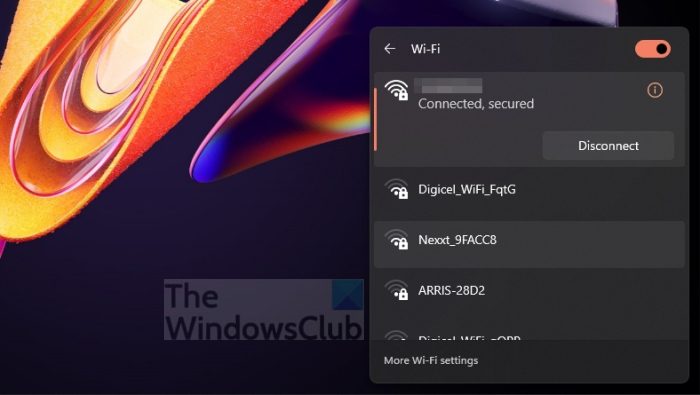
If the steps above don’t solve this issue, you may be facing network problems and need to switch to a different network, if possible.
- To switch, click the Wi-Fi icon.
- You should now see a list of available networks.
- Choose the one you believe is working.
Once done, try installing the browser again to see if it works as intended this time.
Related: Opera GX installer not working on Windows PC
Why is Opera not installing as it should?
Some users sometimes have issues with the Opera installer being stuck while loading. A faulty installer usually causes this. Therefore, you may need to use an offline installer or check whether server issues are affecting Opera. Also, allow the installer to prompt UAC, as it installs files in a location where regular users are restricted.
Why did Opera stop working?
If the Opera or Opera GX web browser isn’t working correctly, consider reinstalling it to get things under control. Creating a new user profile can help, or you can use a different web browser for now until Opera works again.
