
If your OneDrive files are opening with the label “Saved to This PC,” it means that your files aren’t syncing to the cloud properly. Your PC is opening the files as a local copy, even if they’re stored in the cloud. As a result, any changes made to the files may not get updated to OneDrive in real time and may lead to version issues. However, fixing the issue is pretty straightforward, and here are some methods that you can try out.
OneDrive files open as ‘Saved to This PC’
Try the following methods to make sure the File is saved to OneDrive instead of This PC.
- Verify OneDrive sync status
- Open files from OneDrive
- Adjust the Office application save settings
- Reset OneDrive
1] Verify OneDrive sync status
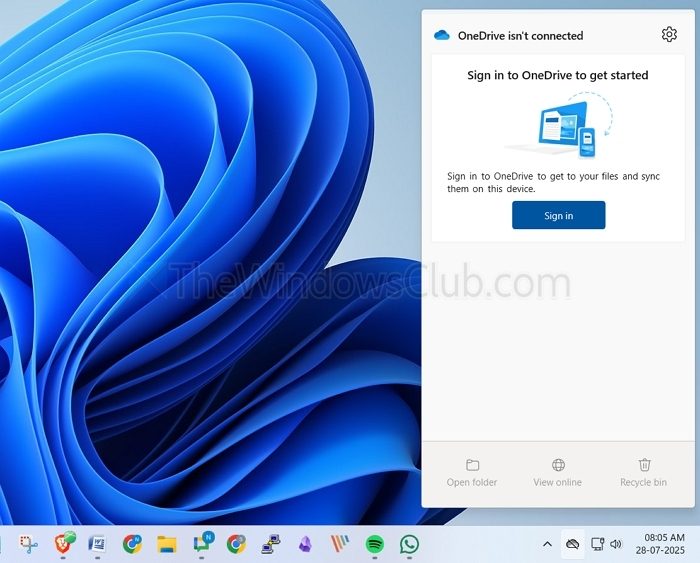
Start by verifying your OneDrive sync status. If syncing isn’t enabled, you won’t be able to interact with the cloud.
- First, click on the OneDrive icon in your system tray.
- Make sure you are signed into your account (if not, sign in).
- Also, look for any other sync errors or warnings.
- Next, go to Settings > Account > Choose folders and ensure the folders containing your files are checked for syncing.
- You can also try right-clicking the OneDrive icon and selecting “Sync now” to force a manual sync.
2] Open files from OneDrive
If the syncing issue isn’t fixed, you can open files directly by going to OneDrive.com. You can view or edit your files on the cloud or download, edit, and re-upload. However, this could be a lengthy process and is only recommended if you are looking for a quick solution.
Read: OneDrive very slow to open Files in Explorer
3] Adjust the Office application save settings
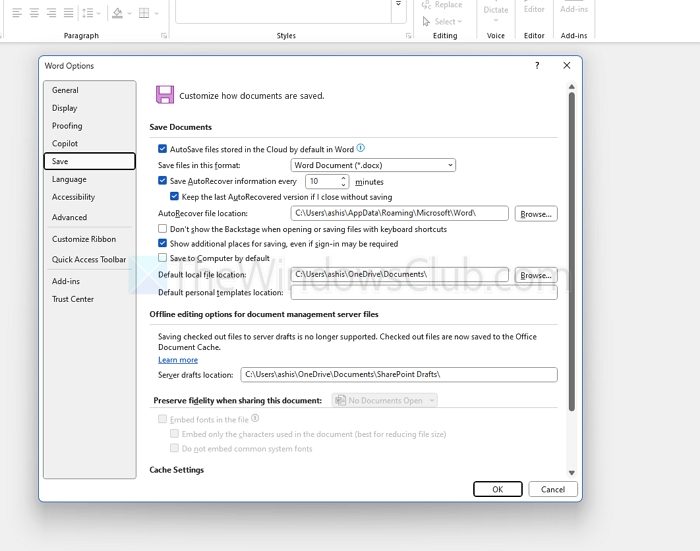
- Open any of the Office applications, like Word or Excel.
- Next, go to File > Options > Save.
- Over here, ensure that AutoSave OneDrive and SharePoint Online files by default is enabled.
- Also, uncheck the Save to computer by default option.
- So, the next time you save your files, they will directly get saved to the cloud.
4] Reset OneDrive
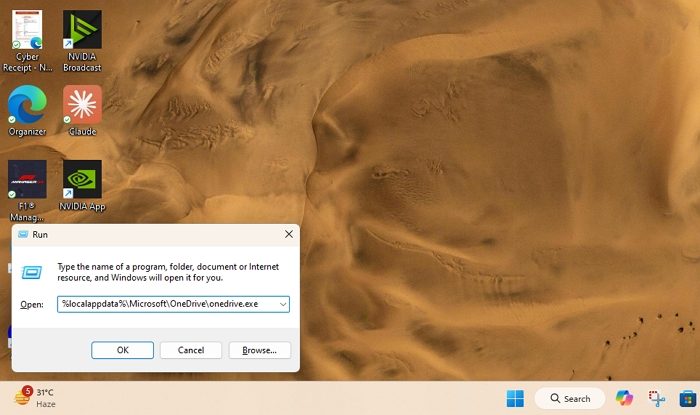
You can lastly consider resetting OneDrive. This will not delete any of your files but will force OneDrive to sync your files from scratch. And here’s how to do it:
- Press Windows + R to open RUN.
- Copy and paste the following path and press Enter:
C:\Program Files\Microsoft OneDrive\onedrive.exe /reset - After running the command, the OneDrive icon should disappear from your system tray for a moment.
- Next, open OneDrive from the search bar and sign in with your account to start syncing your files.
So, those were a few ways to get rid of any OneDrive syncing glitches like the “Saved to This PC” issue. The problem mostly occurs due to improper configurations, and the above steps should help resolve the issue.
Read: Make sure OneDrive is running on your PC, then try again
What if OneDrive keeps showing “Saved to This PC” even though syncing appears to be working?
This can happen if your Office apps are not saving to OneDrive as the default location. Even if syncing is enabled, if Word, Excel, or other Office programs are configured to save locally by default, files will still show “Saved to This PC.” Double-check Office settings under File > Options > Save and make sure “Save to Computer by default” is unchecked, and AutoSave is enabled.
Can third-party antivirus or firewall software interfere with OneDrive syncing?
Yes. Some antivirus or firewall programs can block OneDrive’s ability to connect to Microsoft servers, preventing files from syncing correctly. If you suspect this, try temporarily disabling the antivirus/firewall and observe if syncing resumes. If it does, you may need to whitelist OneDrive in your security software’s settings.
