
Network Protocols are a set of rules or standards used by Windows to communicate over the internet. They make sure the data is sent correctly across between computers, but if any of the Network Protocol is missing in Windows 11/10, things go south. You might not be able to browse the internet, share files. If the word protocol is still not clear, some examples are TCP, LLDP, etc.
One or more Network Protocols are missing on this computer
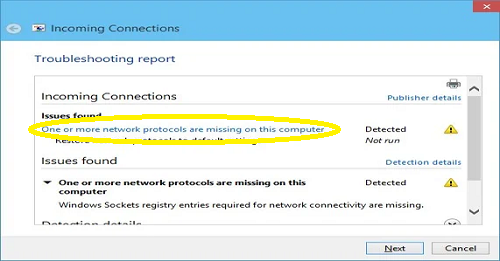
If after you run the Incoming Connections Troubleshooter, you receive any error which has a “Network Protocol is missing” message, below is a list of troubleshooting tips to use. You will need admin privileges to execute the commands.
Use the following fixes to resolve the issue:
- Run appropriate troubleshooter(s)
- Reinstall Network Adapter & Reset networking component
- Diagnose Network Adapter
- Reset Winsock & TCP/IP
- Disable and re-enable your network adapter
- Import Winsock settings from another computer
Let’s see all these fixes in detail.
1] Run Network troubleshooters
Windows 11/10 has multiple troubleshooters. You can run appropriate network troubleshooters which solve most of the problems related to the network. See if running these troubleshooters helps you fix the issue.
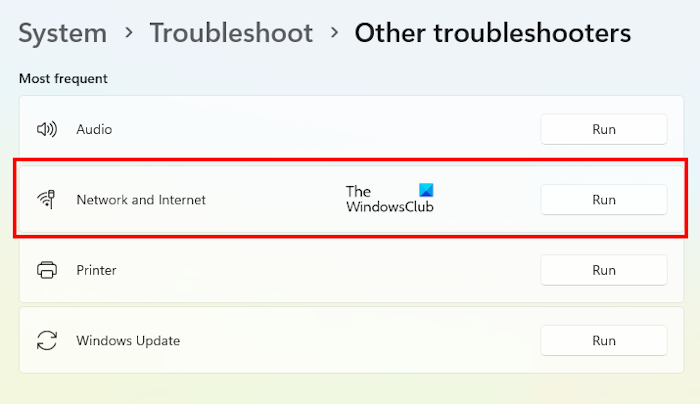
Do note that Microsoft has deprecated MSDT-based troubleshooters in Windows 11 version 22H2 and later. Hence, if you use Windows 11 version 22H2, you can run the Network and Internet Troubleshooter. The devices with Windows 10/8/7 and Windows 11 versions earlier than 22H2 are not affected by this update.
2] Reinstall Network Adapter & Reset networking component
Sometimes corrupted drivers cause issues, and the best way to go ahead is to reinstall the network adapter. Open Device Manager, find your adapter and then follow the instructions to reinstall and reset network adapters.
3] Diagnose Network Adapter
Go to Control Panel > All Control Panel Items > Network Connections and find the network adapter which might be causing the problem. If you are using WiFi, then it’s your WiFi adapter, else it’s your Ethernet adapter. Right-click and select Diagnose to troubleshoot.
4] Reset Winsock & TCP/IP
Windows Sockets (Winsock) is a socket API that was initially designed to add IPv4 support to Windows. Later, this evolved to support more protocols. It is possible to Reset Winsock with the following command “netsh winsock reset.” Open the Command Prompt with admin privileges, and then execute the command.
You may want to also Reset TCP/IP.
5] Disable and re-enable your network adapter
If the problem persists, disable and then re-enable your network adapter in Device Manager. First, disable IPv6, then disable your network adapter. To disable IPv6, open your network properties. Wait a few minutes, then enable the Network adapter again. After that, perform a Winsock reset. When the process is completed, shut down your computer properly and wait for a few minutes. Now, turn on your PC. This should fix the issue.
6] Import Winsock settings from another computer
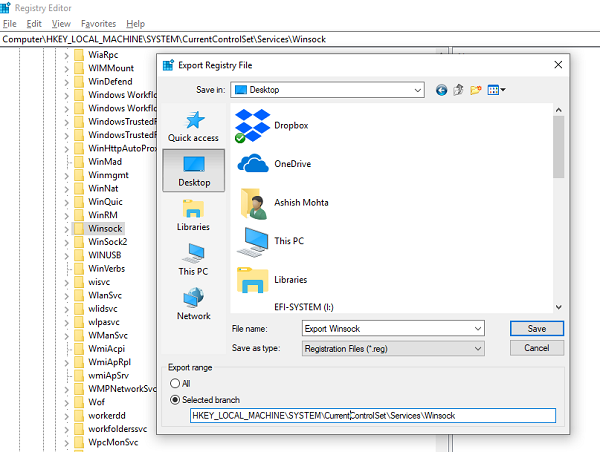
If the Winsock reset attempt doesn’t work, you can import settings from a computer without a network protocol error. To get this done, you will have to access the registry, and then export and import a few settings. So make sure you know how to handle registry.
Type regedit in the Command Prompt and hit Enter.
In the registry hive, navigate to HKEY_LOCAL_MACHINE\SYSTEM\CurrentControlSet\Services
Find two keys (they look like folders) with name Winsock and Winsock2. Right-click on each of them, and select Export.
Copy the registry keys to a USB drive. Next, copy the keys on the PC where the network protocol issue exists.
Now double-click each of them to install the WINSOCK keys.
We also recommend that you check out our detailed guide on Network troubleshooting in Windows. It lists all possible commands you can use to fix networking issues in Windows.
What does One or more network protocols are missing from this computer?
The meaning of the error message “One or more network protocols are missing from this computer” is self-explanatory. This error means that one or more network protocols required to connect your computer to the network are missing. This can happen due to a variety of reasons, such as a misconfigured network configuration or a corrupted network driver.
How to fix Network problem with CMD?
To fix network issues with CMD, you can run various commands. You can flush the DNS cache by using the Command Prompt. Flushing the DNS cache helps resolve network issues. In addition, you can perform a Winsock reset in the Command Prompt to fix network issues.
