
Installing the Microsoft Office client on the desktop is a streamlined process. We need to run the setup, and it installs on its own without any interference from our end. But at times, it gives Office couldn’t install errors. A few of these errors are the ones with the following codes:
- 0-1011
- 30088-1015
- 30183-1011
- 0-1005
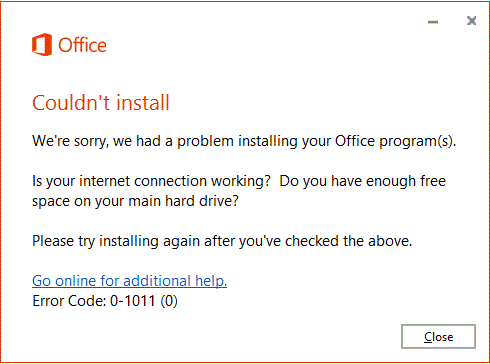
Office couldn’t install Error Code 0-1011, 30088-1015, 30183-1011 or 0-1005
Other than Office installation, we could also encounter these errors when installing Office byproducts or upgrading Office. For example, I encountered this error while trying to install the language pack on my system. While Office was installed and working fine, this error was with the additional application.
If you get this error while installing Microsoft Office, here are a few things you could try:
1] Free space on your hard disk
Check the size of the Microsoft Office version you plan to install and compare it with the available space on the system. If you are short of space on your hard disk, you might consider freeing space on your hard disk.
2] Turn off the anti-virus & firewall software temporarily
Anti-virus software products are known to interfere with Office installation. They could be temporarily disabled to install Office, then enabled once it is done. Just like the anti-virus software, the Firewall can also interfere with Office installation. Thus, you might consider disabling the Firewall temporarily while you install Microsoft Office on your system. It could be reinstalled later. You could check this guide on disabling the Firewall in Windows.
3] Change the mode of internet connectivity
At times, the issue might be because of the internet connection. You could try connecting the system directly to the internet or switching to a different router, network or WiFi.
4] Change proxy settings of the browser
To isolate the issue with the proxy setting in the browser, you could consider disabling the proxy setting temporarily.
5] Uninstall and re-install Office
Sometimes, while uninstalling a version of Office, some components of the previous version remain on the system. It would be better to use the Troubleshooter/Uninstall tool from Microsoft to uninstall all existing components of the Microsoft Office package installed earlier, and re-install the newer version after that.
Office components will not install
Another situation is when you get this error while installing components associated with Office. Eg. The language pack. In such a case, try the following solutions one by one:
1] Check the version and type
Check that the component version matches the version of Office installed on your system. Eg. If the version of Office is 2024/64 bits, the version of the language pack should be exactly the same.
2] Check if the component is already installed
Let us suppose you had the English language as part of the Office package when it was installed. If you try to install the English language pack again, it will interfere.
When the issue occurs during installation of an Office component, the error code is probably 30183-1011. We could use it to verify the cause.
I hope something helps.
Why is Office taking forever to install?
If you are downloading the Office setup online, i.e., Microsoft Office 365 downloads everything from the internet, the installation time may take longer than usual. It usually happens because of slow internet speed. So the best way out is to get a better internet speed.
How do I install Microsoft Office offline?
While Microsoft offers the installer for offline use, you will still need to connect to the internet to download the files. Unlike Office 2019 and earlier versions, there is no single massive setup for Microsoft Office that you can download and install.
