
If the NVIDIA Instant Replay has stopped working or fails to record your gameplay in Windows 11, here is how you can fix the problem. If your graphics card is functioning properly, but the feature has stopped working recently, you can try these solutions to troubleshoot the issue.
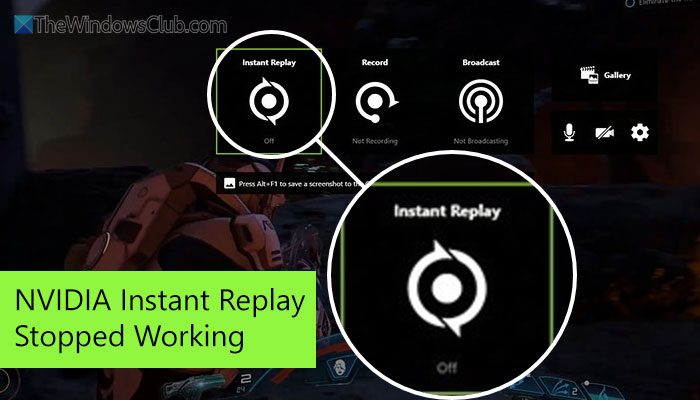
NVIDIA Instant Replay stopped working in Windows 11
Follow these instructions if NVIDIA Instant Replay has stopped working in Windows 11/10:
- Ensure you have turned on Instant Replay
- Verify Desktop Capture settings
- Restart all NVIDIA services using Task Manager
- Ensure enough free storage
- Disable Controlled folder access
- Reinstall the graphics driver
To learn more about these solutions, continue reading.
1] Ensure you have turned on Instant Replay
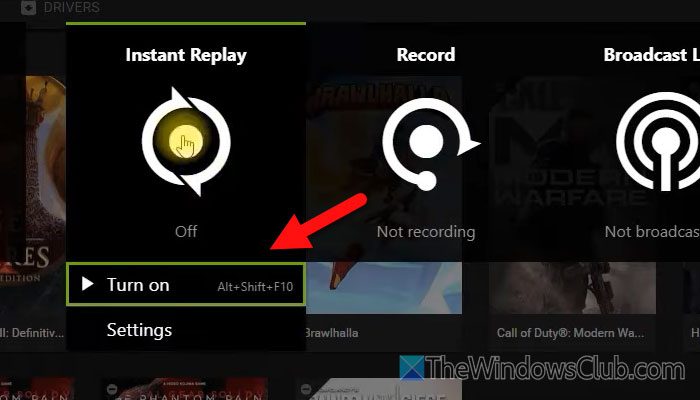
This is the first thing you need to check, as this feature is not enabled by default. As it requires some privacy access, you must ensure that you have turned on the Instant Replay feature in the GeForce Experience settings.
To verify that, go through these steps:
First, press Alt+Z to open the GeForce Experience Share window and click on the Settings gear icon. Scroll down to the bottom and click on the Privacy control settings.
Click the Yes button. Following that, go back to the main window and click on the Instant Replay option. Then, choose the Turn on option.
However, there are a few more settings that need to be checked. For example, you need to check the Replay length, quality, resolution, frame rate, etc. settings.
Read: How to disable GeForce Experience in-game overlay
2] Verify Desktop Capture settings
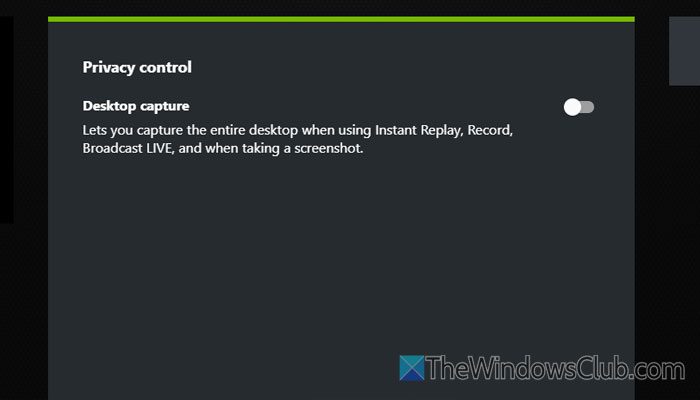
Desktop Capture settings allow you to grant access to the NVIDIA GeForce Experience for recording your screen. It helps when you are trying to record games in full-screen mode. However, if the Desktop Capture is not enabled, you cannot use Instant Replay.
To check the Desktop Capture settings, follow the instructions:
First, open the GeForce Experience and go to Settings. Then, click on the In-Game Overlay option and click on the Settings option. Next, click on the Privacy Control settings and find the Desktop capture option.
Toggle the Turn ON option.
Read: NVIDIA GeForce Experience overlay not working
3] Restart all NVIDIA services using Task Manager
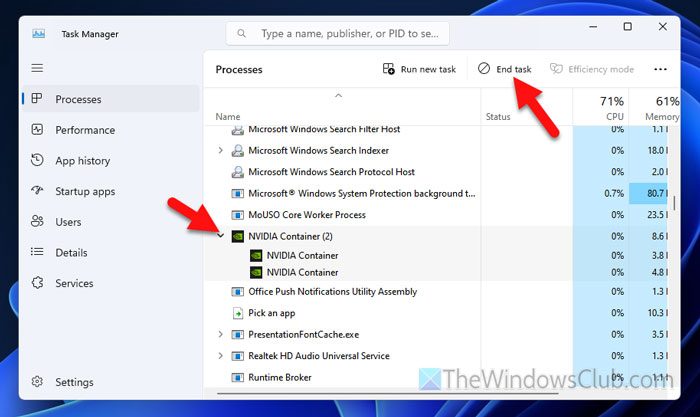
At times, this problem may arise due to a glitch or so. In that case, you can try restarting the NVIDIA services or processes using Task Manager. For that, do the following:
Right-click on the Taskbar and select Task Manager to open the Task Manager. Then, find the NVIDIA services one after one and click the End task button.
4] Ensure enough free storage
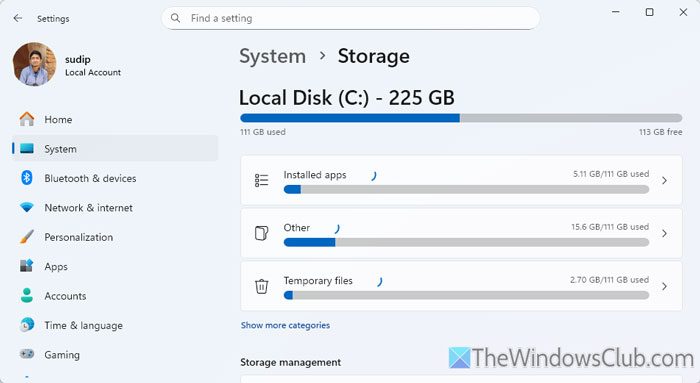
In order to record gameplay, you must have free disk space on your hard drive. In case you do not have adequate space, you can go through this guide to free up disk space on a Windows computer.
5] Disable Controlled folder access
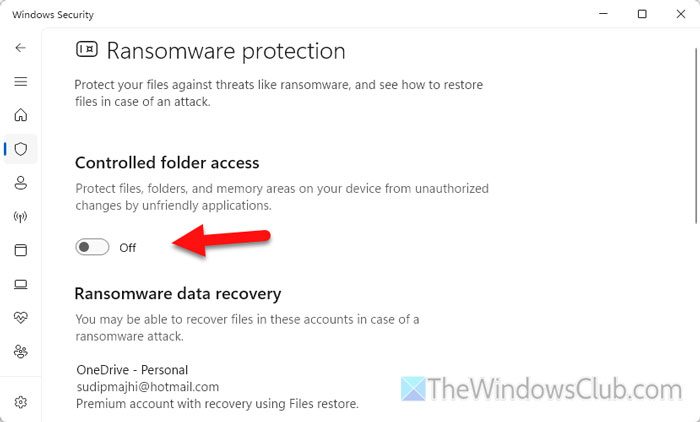
Controlled folder access feature helps you protect your computer’s data from ransomware. However, the same can cause the error above as well. To ensure, you can disable the Controlled Folder Access feature and check if it resolves the issue.
For that, open Windows Security on your computer and go to Virus & threat protection > Manage ransomware protection.
Toggle the Controlled folder access button to turn it off.
However, if you need more options, you can opt for the Group Policy method. In that case, you need to open the Local Group Policy Editor on your computer and navigate to the following path:
Computer Configuration > Administrative Templates > Windows Components > Microsoft Defender Antivirus > Microsoft Defender Exploit Guard > Controlled Folder Access
Double-click on the Configure Controlled folder access setting and choose the Not Configured option.
Click the OK button. Next, double-click on the Configure protected folders setting and choose the Not Configured option.
Once done, restart your computer and check if the problem is resolved.
Read: Configure Controlled Folder Access using Group Policy & PowerShell
6] Reinstall the graphics driver
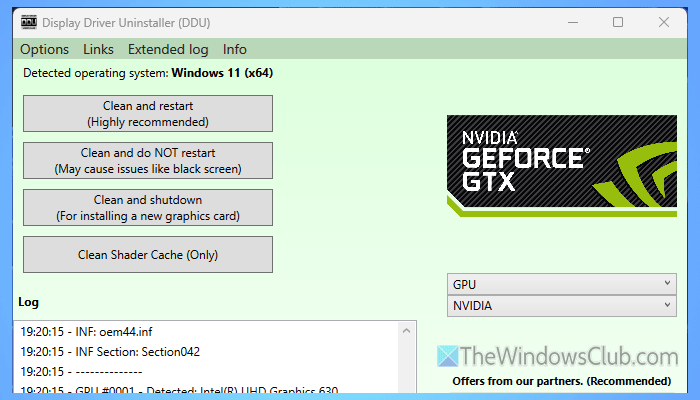
At times, a faulty graphics driver could be the reason for this problem. In that case, you can uninstall the driver and reinstall it. For uninstallation, we recommend using Display Driver Uninstaller, a free software that helps you completely uninstall the driver.
Following that, you can download the driver from the official website.
Read: Can’t Record Right Now or There’s nothing to record Game Bar errors
Why did my NVIDIA clips stop working?
If NVIDIA is not saving clips, there is a high chance that you do not have enough free disk space. Other than that, this problem may arise due to outdated drivers, a lack of privacy access, etc.
Why does NVIDIA ShadowPlay randomly stop working?
The main reasons why NVIDIA ShadowPlay has stopped working are:
- NVIDIA Streamer service is not running.
- There are some issues with the NVIDIA graphics driver.
- Desktop capture setting is not turned ON.
- Windows Audio Service is not running.
